Getting started with the GPD WIN MAX 3
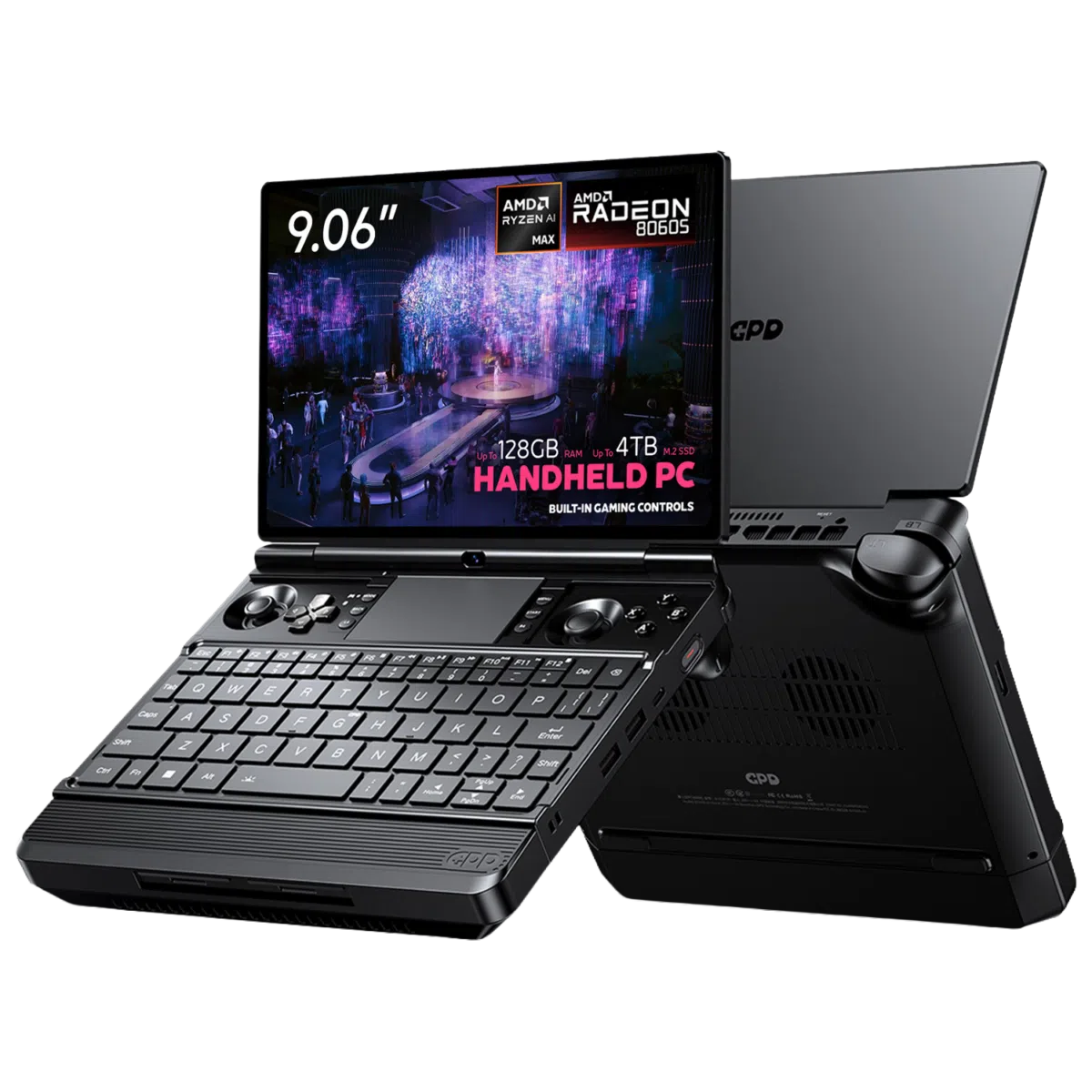
The GPD WIN MAX 3 is a Windows 11 Home handheld gaming laptop built around AMD Ryzen AI Max+ processors and integrated Radeon 8060S graphics. It combines a 9.06-inch AMOLED touchscreen with a full-size keyboard, built-in game controls and a touchpad.
The WIN MAX 3 has a modular power system. You can use the removable 97Wh battery for portable sessions, add the optional fan module for sustained high-power use, or run the system from the supplied 180W DC adapter at your desk.
This guide explains what to do after receiving your GPD WIN MAX 3. It covers the initial hardware checks, Windows setup, updates, controller testing, storage expansion, performance settings and common troubleshooting steps.
The GPD WIN MAX 3 is offered with AMD Ryzen AI Max+ 388 or Ryzen AI Max+ 395 processors, up to 128GB of LPDDR5X memory and up to 4TB of PCIe 4.0 NVMe storage. Features and power limits can vary by configuration and may change with later firmware or retail revisions.
Inspecting the GPD WIN MAX 3
Before powering on the device, compare the contents of the package with the packing list and look over the hardware for any damage from shipping.
The usual GPD WIN MAX 3 package contains:
- GPD WIN MAX 3
- External 97Wh battery module
- DC power adapter
- DC power cable
- Module port cover
- User manual
Inspect the chassis
Check the case, lid, hinge and underside for cracks, dents or heavy marks. The device should sit flat and the lid should open and close smoothly without unusual resistance.
Look closely at:
- The corners and outer edges
- The AMOLED panel and screen glass
- The hinge and camera area
- The front module connector
- The USB and HDMI ports
- The DC input and USB4 connector
- The battery contacts and magnetic mounting points
If the casing, battery or charging connection looks damaged, do not continue using the device. Take photographs and contact GPD Store support for advice.
Check the AMOLED screen
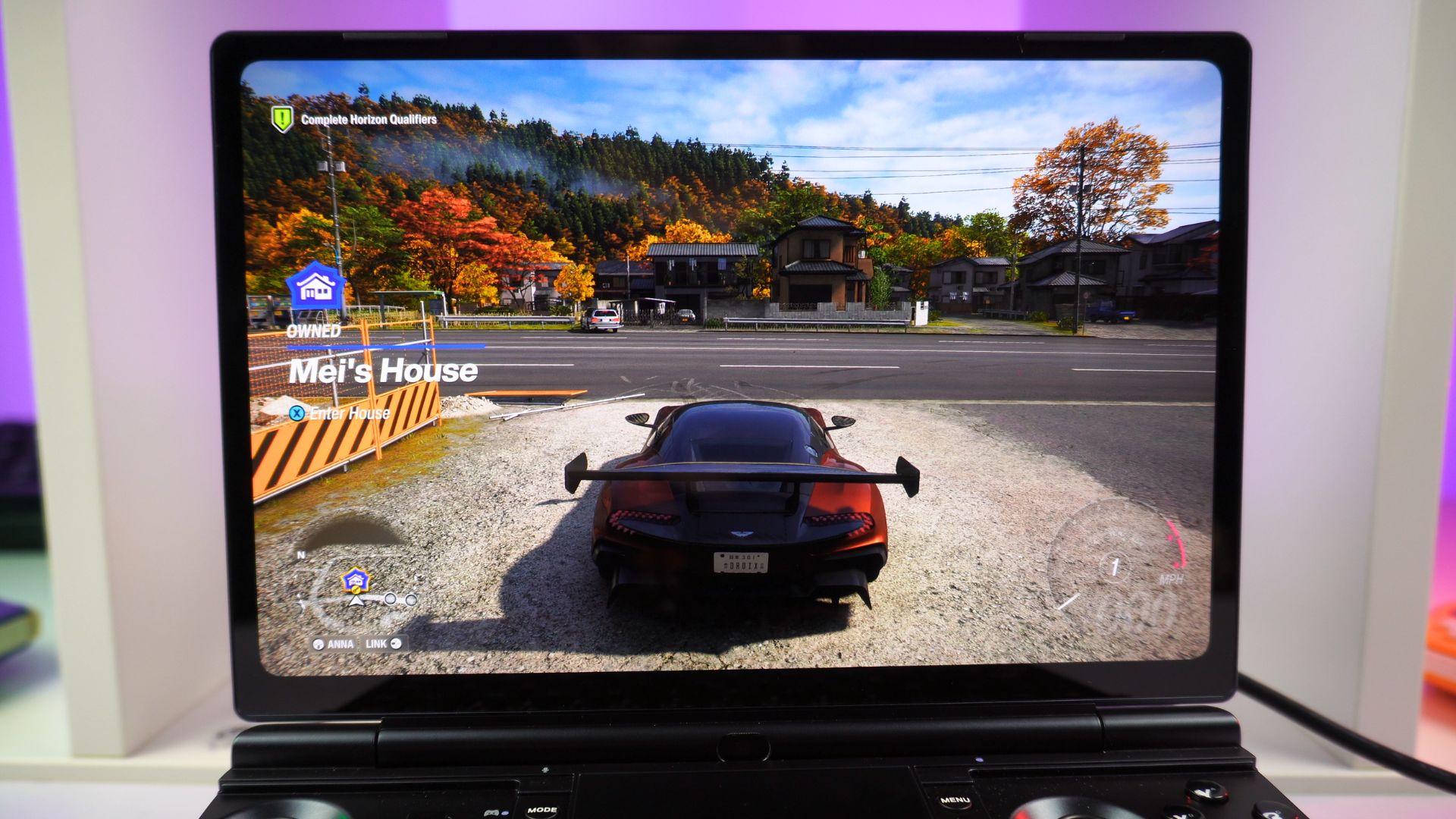
Open the lid carefully and inspect the 9.06-inch AMOLED touchscreen. Check for cracks, marks beneath the glass or areas that appear unusually bright or dark.
After Windows loads, confirm that:
- The screen illuminates across its full area
- Touch works in different parts of the panel
- There are no obvious lines or large dead areas
- Brightness controls work as expected
- The available refresh rates are shown in Windows
The screen has a native resolution of 2400 × 1504 and supports 60Hz, 120Hz, 144Hz and 165Hz modes.
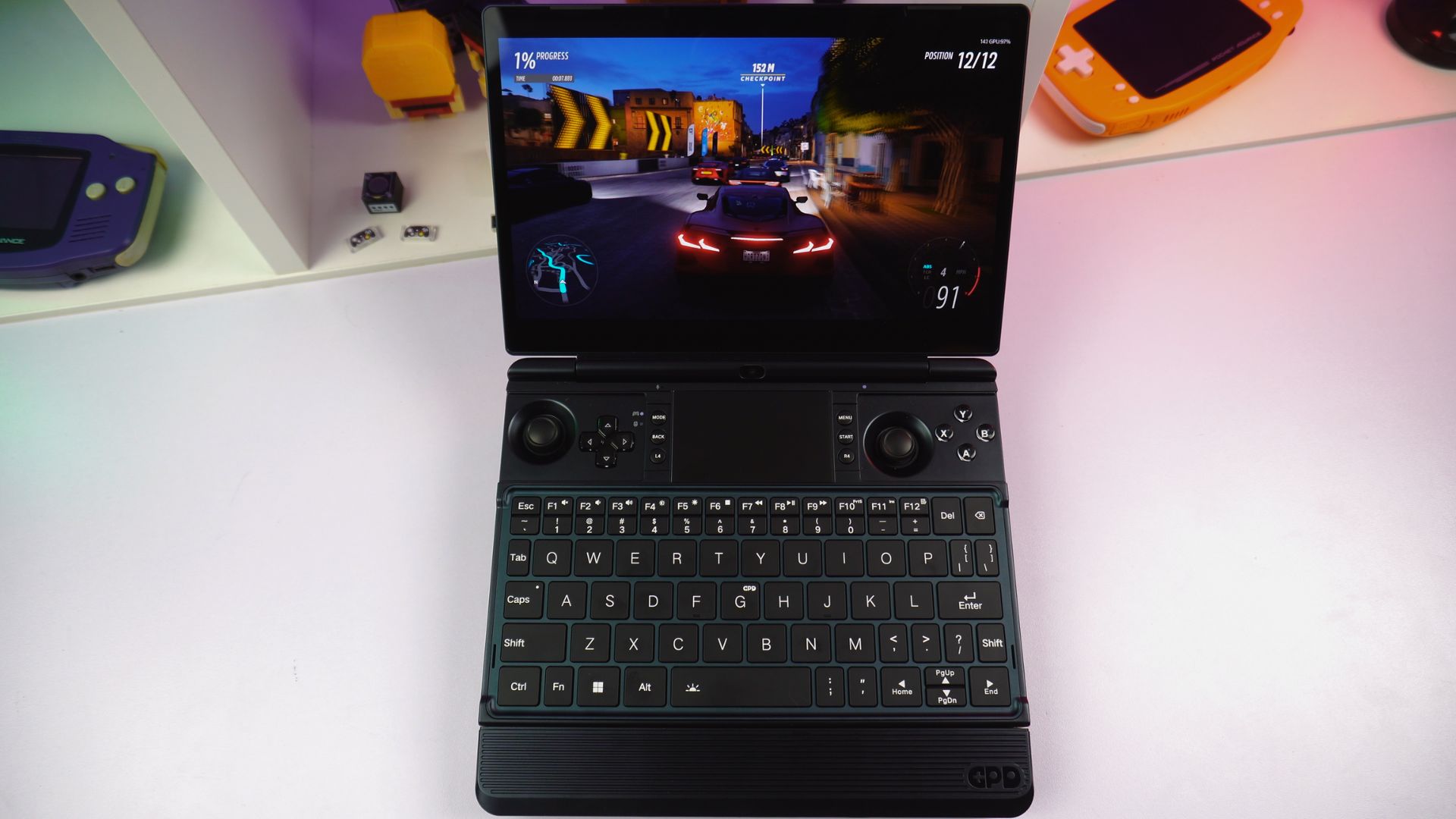
Test the built-in gamepad
The integrated controls can be checked with the browser-based tester at: https://hardwaretester.com/gamepad
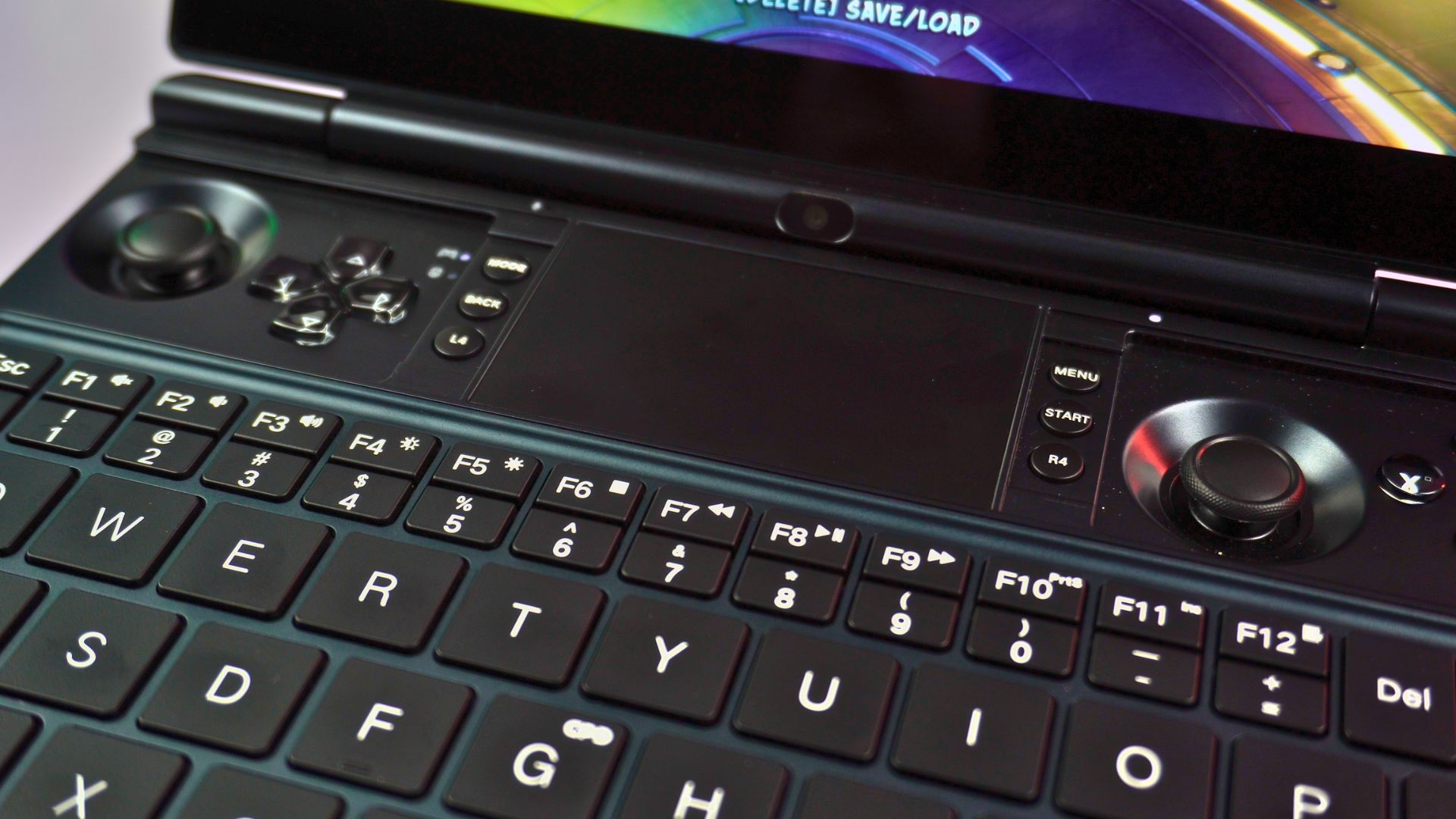
Test each of the following:
- Left mini joystick
- Right mini joystick
- D-pad
- A, B, X and Y buttons
- Left and right shoulder buttons
- Left and right analogue triggers
- L4 and R4 buttons
- Start and Select buttons
- Xbox Game Bar button
- GPD Tool button
- Macro controls
Move each joystick slowly around its full range. When released, it should return to the centre without sticking or showing unexpected movement.
Press the analogue triggers gradually and check that the tester detects the complete range of input rather than only the fully pressed position.
Checking the keyboard and touchpad
The GPD WIN MAX 3 includes a backlit chiclet keyboard and a Microsoft Precision touchpad. Open Notepad and press each main key, number key and commonly used function key. Check that characters appear correctly and that no key remains stuck.

The keyboard backlight has two brightness levels and an off setting. Cycle through these by holding the Fn key and tapping the Space bar.
Test the touchpad with:
- One-finger pointer movement
- Left and right clicking
- Two-finger scrolling
- Multi-finger gestures
- Selecting and dragging files or windows
If the pointer feels too slow or too fast, adjust the touchpad sensitivity in Windows Settings.
Test the connections
Use a USB mouse, keyboard, flash drive or headphones to check the relevant connections. Avoid forcing any plug into a port.
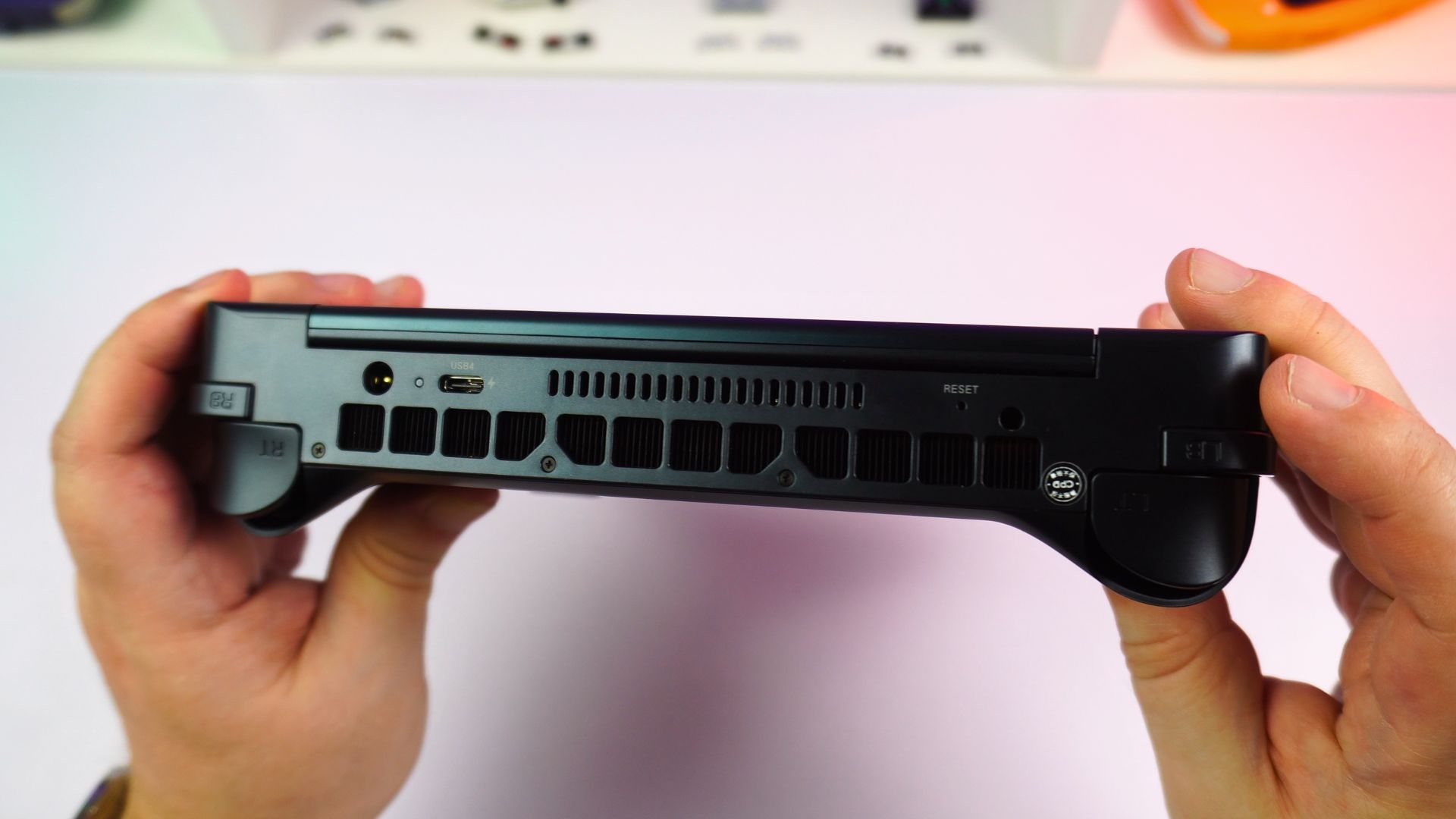
The GPD WIN MAX 3 provides:
- 1 × USB4 Type-C port
- 1 × USB 3.2 Gen 2 Type-C port
- 2 × USB 3.2 Gen 2 Type-A ports
- 1 × HDMI 2.1 FRL port
- 1 × 3.5mm headphone/microphone combo jack
- 1 × microSD Express slot
- 1 × DC power input
The USB4 port supports up to 40Gbps data transfer, DisplayPort 2.1, USB Power Delivery and external graphics connectivity. The other USB-C port provides data and DisplayPort output.
Check audio
Play a video or audio file through the built-in speakers. Then connect headphones or a headset to the 3.5mm combo jack and check the output again.
The WIN MAX 3 has built-in stereo speakers. The published specifications also list DTS:X Ultra support.
Fitting the external battery
The GPD WIN MAX 3 uses a removable external battery module. It does not rely on a permanently installed battery in the main computer section. The supplied battery has a capacity of approximately 97.53Wh and connects magnetically to the front of the device.
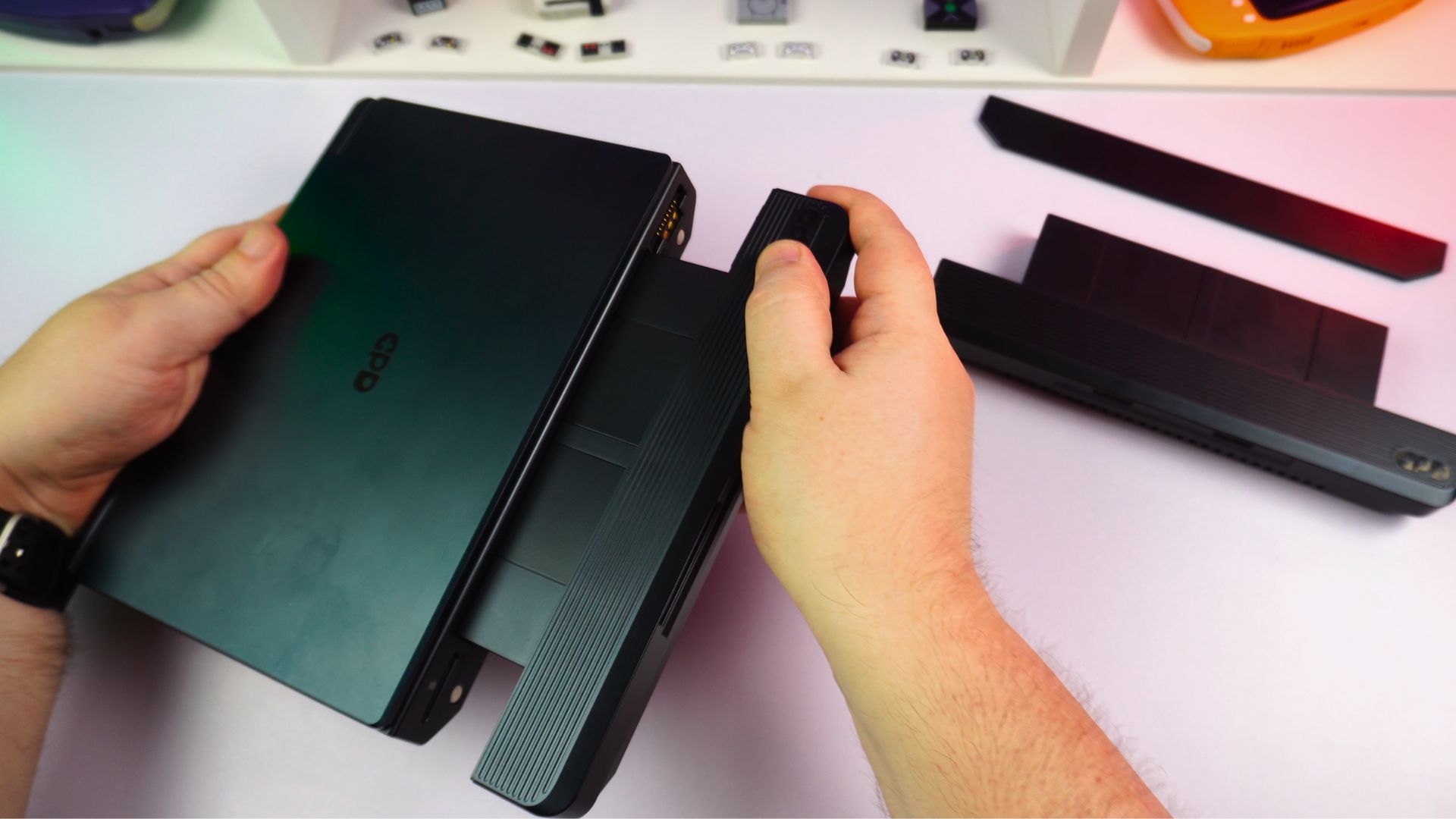
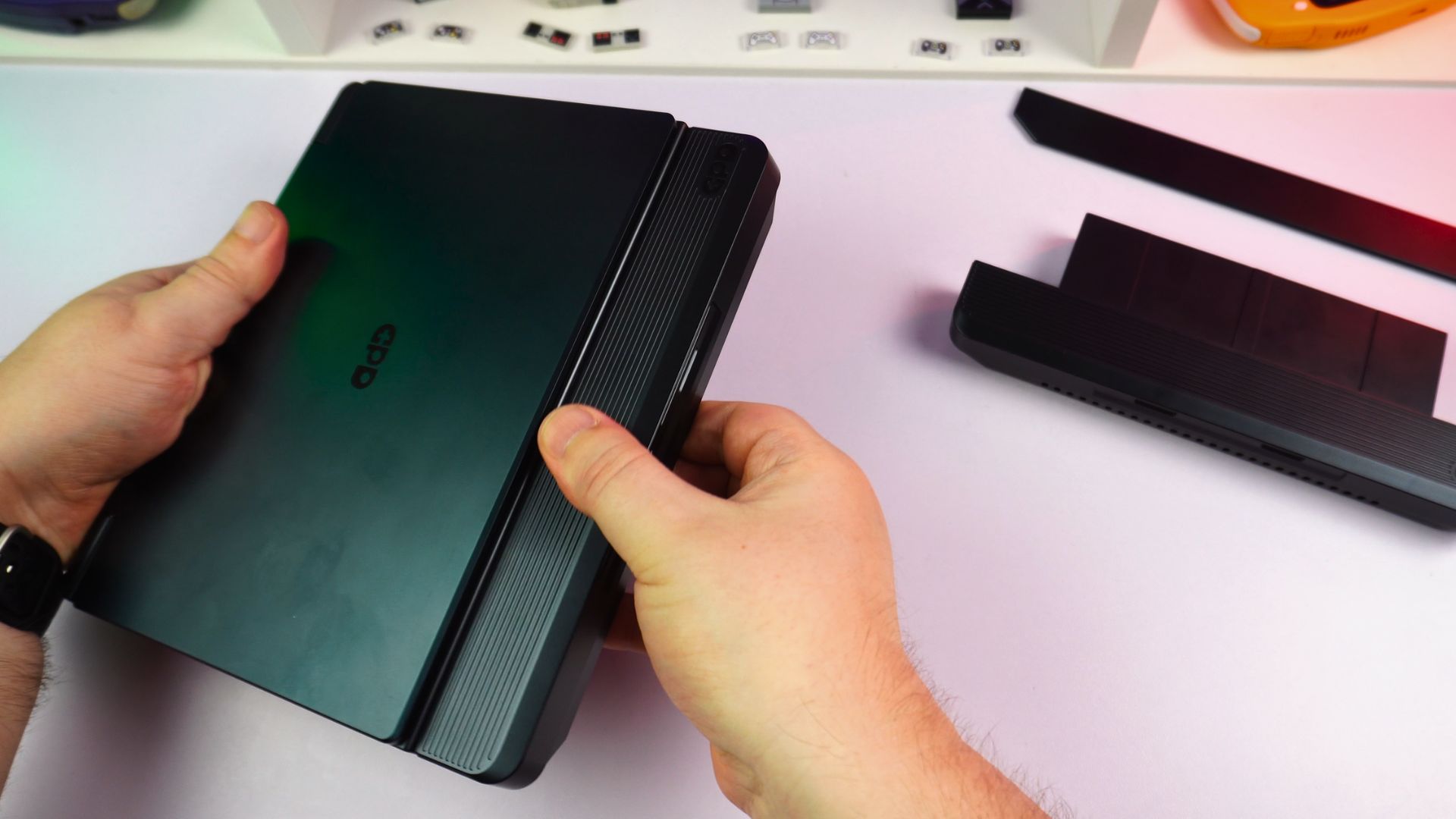
To install it:
- Shut down the GPD WIN MAX 3.
- Remove the cover from the module connector, if one is fitted.
- Line up the battery with the connector on the device.
- Move the battery into place and allow the magnets to guide it home.
- Check that the module sits straight and is fully connected.
- Attach the DC power adapter.
- Leave the battery charging before taking the device away from mains power.
The battery should remain secure during ordinary use. When removing it, support the module with both hands and pull it away carefully rather than twisting it across the connector.
The WIN MAX 3 can also run from the DC adapter without the external battery connected.
Completing the first Windows setup
The GPD WIN MAX 3 is supplied with Windows 11 Home 64-bit.
Follow these steps when starting the device for the first time:
- Fit the battery or connect the 180W DC adapter.
- Press the power button located on the right side.
- Select your country or region when prompted.
- Choose the required language and keyboard layout.
- Connect to your Wi-Fi network.
- Sign in with a Microsoft account, or create one if needed.
- Choose a Windows sign-in method.
- Review the privacy and device settings.
- Leave Windows to finish preparing the desktop.
The fingerprint reader is built into the power button. If fingerprint sign-in is enabled on your retail configuration, you can register a fingerprint under Windows Settings after the initial setup.
Make a recovery backup
Once Windows is ready, create a backup of important files. You can use Windows Backup, OneDrive or another backup service.
To create a Windows recovery drive:
- Open the Start menu.
- Type Recovery Drive into the search box.
- Open Create a recovery drive.
- Follow the on-screen instructions.
- Store the USB recovery drive somewhere safe.
Use a suitable USB drive and remember that creating the recovery drive may erase existing data on it.
Installing Windows updates
Windows updates provide security fixes, compatibility improvements and system updates. Run Windows Update before installing a large game library or making major changes to the system.
To check for updates:
- Open Start.
- Select Settings.
- Open Windows Update.
- Select Check for updates.
- Install the available updates.
- Restart when Windows asks you to.
- Check again until Windows reports that the system is up to date.
Keep the GPD WIN MAX 3 connected to power during large updates. It may restart several times. Open Advanced options in Windows Update to check optional updates, update history and restart preferences.
Updating system drivers
Windows Update
Windows Update can install many of the drivers used by the GPD WIN MAX 3.
- Open Settings.
- Select Windows Update.
- Choose Advanced options.
- Open Optional updates if the option is available.
- Install relevant driver updates.
- Restart the device.
If everything is working correctly, do not remove a driver simply because a newer version appears. If you are unsure, contact support before changing it.
Device Manager
Use Device Manager when you need to check or update a particular component.
- Right-click the Start button.
- Select Device Manager.
- Expand the category for the component you want to inspect.
- Right-click the device.
- Select Update driver.
- Choose Search automatically for drivers.
A warning icon beside a device may indicate a missing or incorrectly installed driver.
AMD graphics and chipset drivers
The GPD WIN MAX 3 uses AMD Ryzen AI Max+ processors with integrated Radeon 8060S graphics.
For AMD graphics and chipset updates, use the official AMD support website and its automatic driver detection utility: https://www.amd.com/en/support/download/drivers.html
Make a note of your current driver version before installing a replacement. This makes it easier to roll back or describe the change if a problem appears afterwards.
GPD firmware and device software
GPD-specific software and updates may be supplied through GPD Store or official GPD support resources. Only use BIOS files, firmware and model-specific drivers from GPD, DROIX or another approved source. Never install a BIOS intended for a different WIN series model.
Setting up GPD Tool
The GPD WIN MAX 3 has a dedicated control for opening GPD Tool.
Depending on the installed software version, GPD Tool may allow you to manage:
- Performance modes
- TDP and power limits
- Fan behaviour
- Controller settings
- Gyroscope functions
- Macro buttons
- Display options
- Device information
The menu layout and available controls may change with future software and firmware updates.
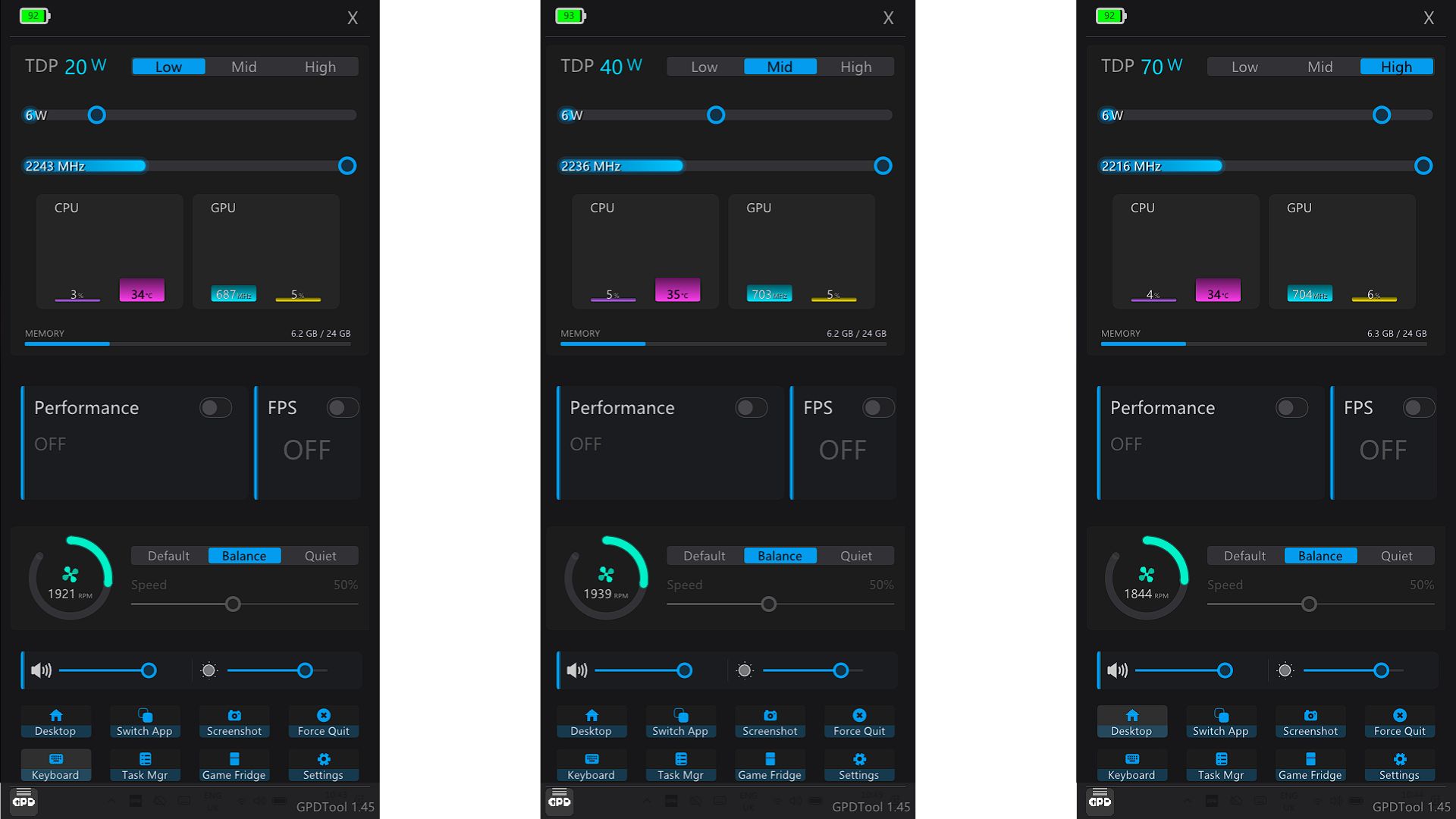
For your first session, use the default or balanced profile. Higher power limits can raise game performance, but they also increase heat, fan noise and battery drain.
Change BIOS settings only when you know what the setting does or when GPD Store support has provided specific instructions.
Choosing display settings
The 9.06-inch AMOLED panel has a native resolution of 2400 × 1504 and supports HDR10.
To select a resolution or refresh rate:
- Right-click the Windows desktop.
- Select Display settings.
- Choose the built-in WIN MAX 3 display.
- Open Advanced display if required.
- Select 60Hz, 120Hz, 144Hz or 165Hz.
Higher refresh rates make compatible games, animation and scrolling look smoother. They can also increase power consumption.
As a starting point:
- Use 60Hz for reading and basic office work
- Use 120Hz for a practical balance
- Use 144Hz or 165Hz for games that benefit from the extra refresh rate
HDR can improve supported games and video content. It may require more brightness and power, so switch it off when battery life is the priority.
Installing games and software
Because the GPD WIN MAX 3 runs Windows 11 Home, it supports normal Windows applications and PC game stores.
Common game platforms include:
- Steam
- Xbox and PC Game Pass
- Epic Games Store
- GOG
- Ubisoft Connect
- EA app
- Battle.net
The display’s 2400 × 1504 resolution is higher than the resolution used by many games. For demanding titles, try 1920 × 1080 or another lower resolution if you need more frames or lower power consumption.
Use the game’s recommended settings as a starting point. You can then adjust the resolution, graphics preset, textures, shadows, anti-aliasing, upscaling, frame-rate cap and performance profile.
Results will vary between games and depend on the processor version, TDP, drivers, power source and cooling arrangement.
Connecting an external monitor or TV
You can connect the GPD WIN MAX 3 to an external screen using HDMI 2.1 or the USB4 Type-C port.
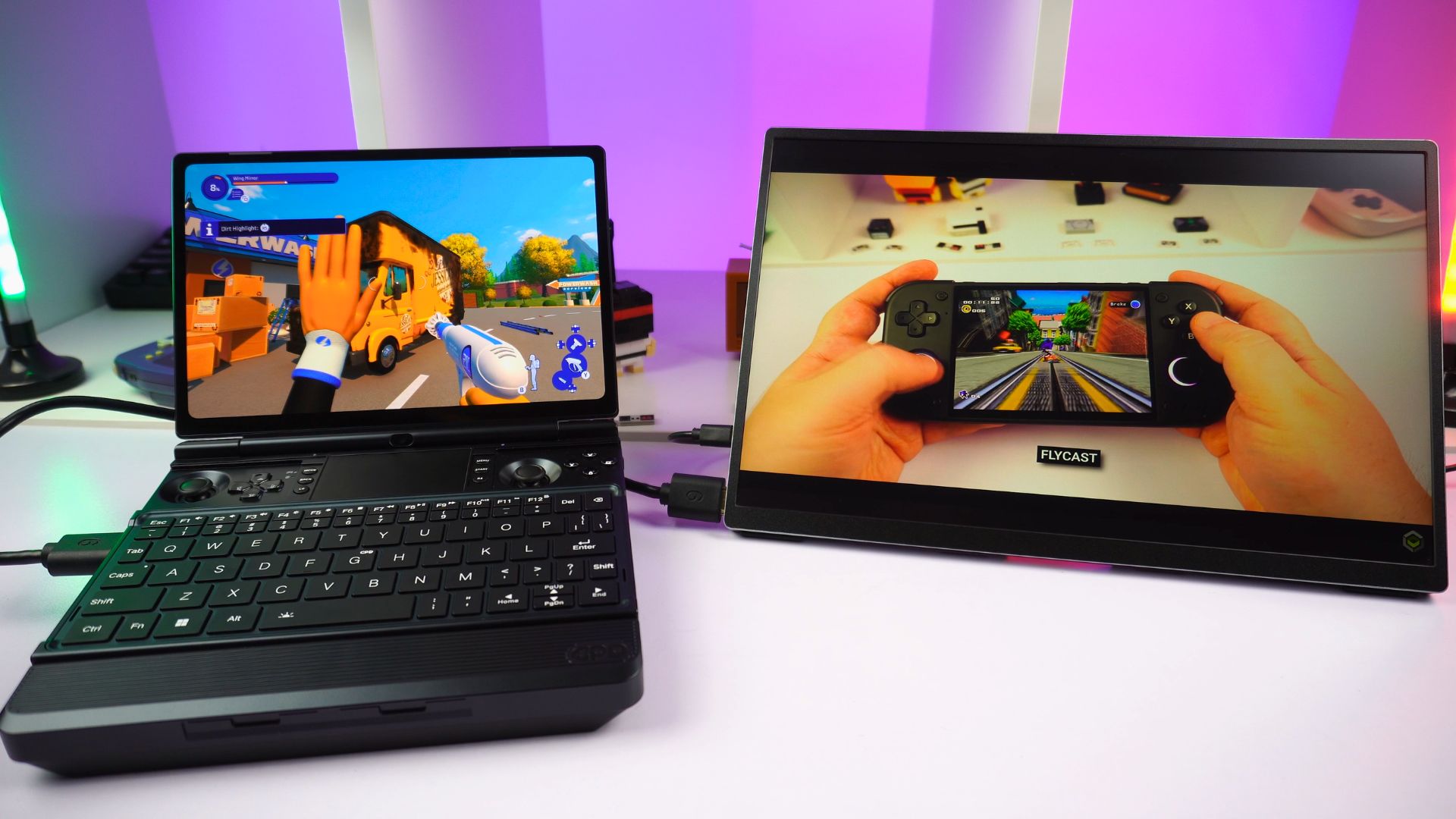
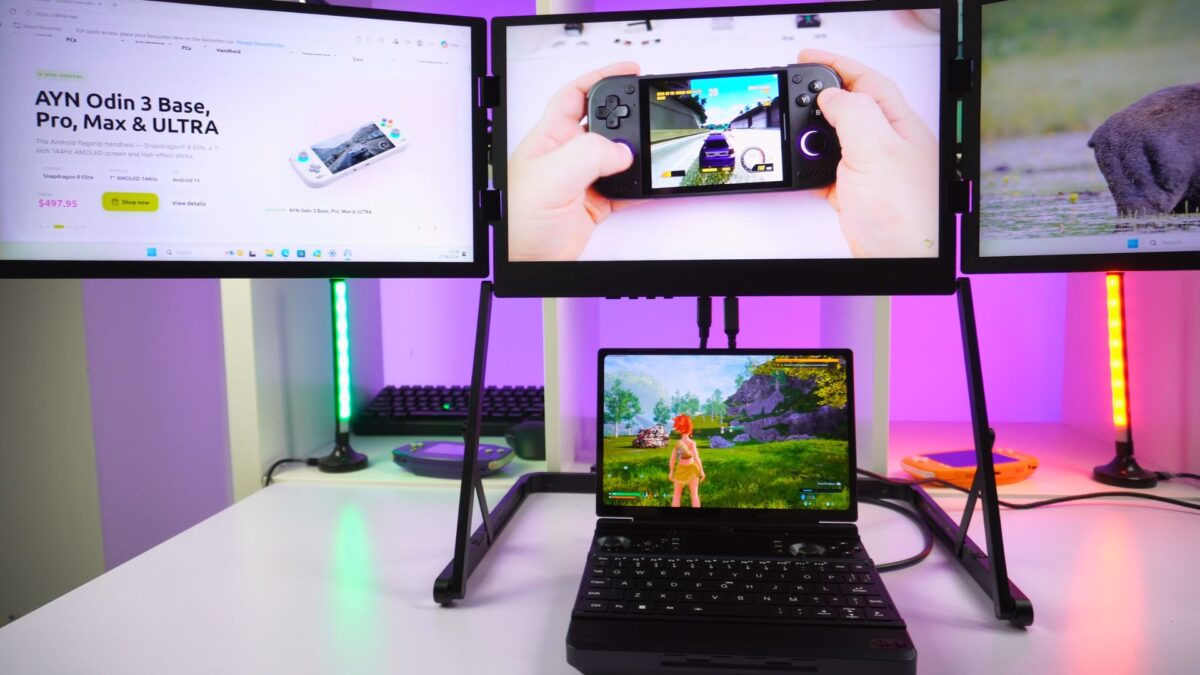
To connect over HDMI:
- Switch on the monitor or TV.
- Connect the HDMI cable to the WIN MAX 3 HDMI 2.1 port.
- Select the matching input on the monitor or TV.
- Press Windows key + P key.
- Select Duplicate, Extend or Second screen only.
The USB4 port supports DisplayPort 2.1 output and resolutions up to 8K at 60Hz according to the published specifications.
A compatible USB-C or USB4 dock can add more USB ports, networking and additional display connections.
Adding storage
The GPD WIN MAX 3 has a main M.2 2280 PCIe 4.0 NVMe SSD and an internal M.2 2230 NVMe expansion slot. A microSD Express slot provides another way to add removable storage.
Before opening the computer:
- Back up your files.
- Shut down Windows.
- Unplug the power adapter.
- Remove the external battery module.
- Wait for the device to cool.
- Use the correct tools and work on a clean surface.
Installing an internal M.2 2230 drive may require removing part of the chassis. If you are not familiar with compact electronics, ask a qualified technician or contact support instead.
After installing an SSD:
- Start Windows.
- Right-click Start.
- Select Disk Management.
- Find the new drive by checking its capacity.
- Initialise it if Windows asks you to.
- Create and format a new volume.
- Give the volume a drive letter.
Take care not to format the existing Windows drive. Confirm the capacity and drive identity before accepting any Disk Management prompt.
The microSD Express slot is suitable for game libraries and file storage. Older standard microSD cards may work at reduced speeds, depending on the card and the device’s compatibility.
Managing the battery and cooling modules
External battery
Battery runtime depends on the application, game, screen brightness, refresh rate, power profile and TDP setting.
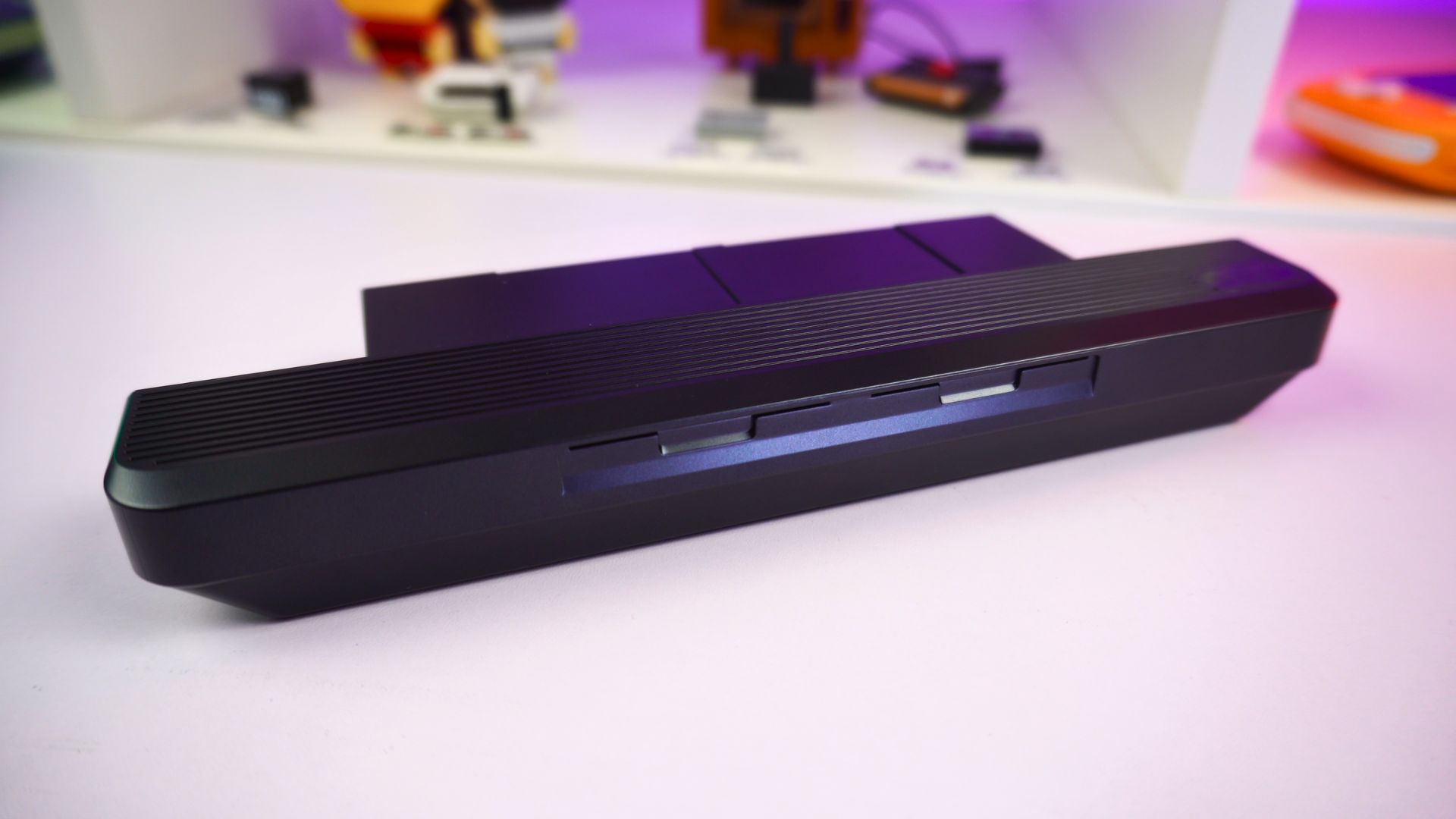
In our GPD WIN MAX 3 review, testing recorded approximately:
- 1 hour 47 minutes in a full-load Cinebench loop at a 45W limit
- 12 hours while sitting idle on the Windows desktop
- Six hours during more typical everyday use
These results came from a pre-production Ryzen AI Max+ 388 system. Actual runtime will vary between configurations and users.
Optional fan module
The optional fan module adds cooling capacity during long, high-power workloads. It can be useful for demanding games, high TDP settings, rendering tasks or a permanent desk setup.
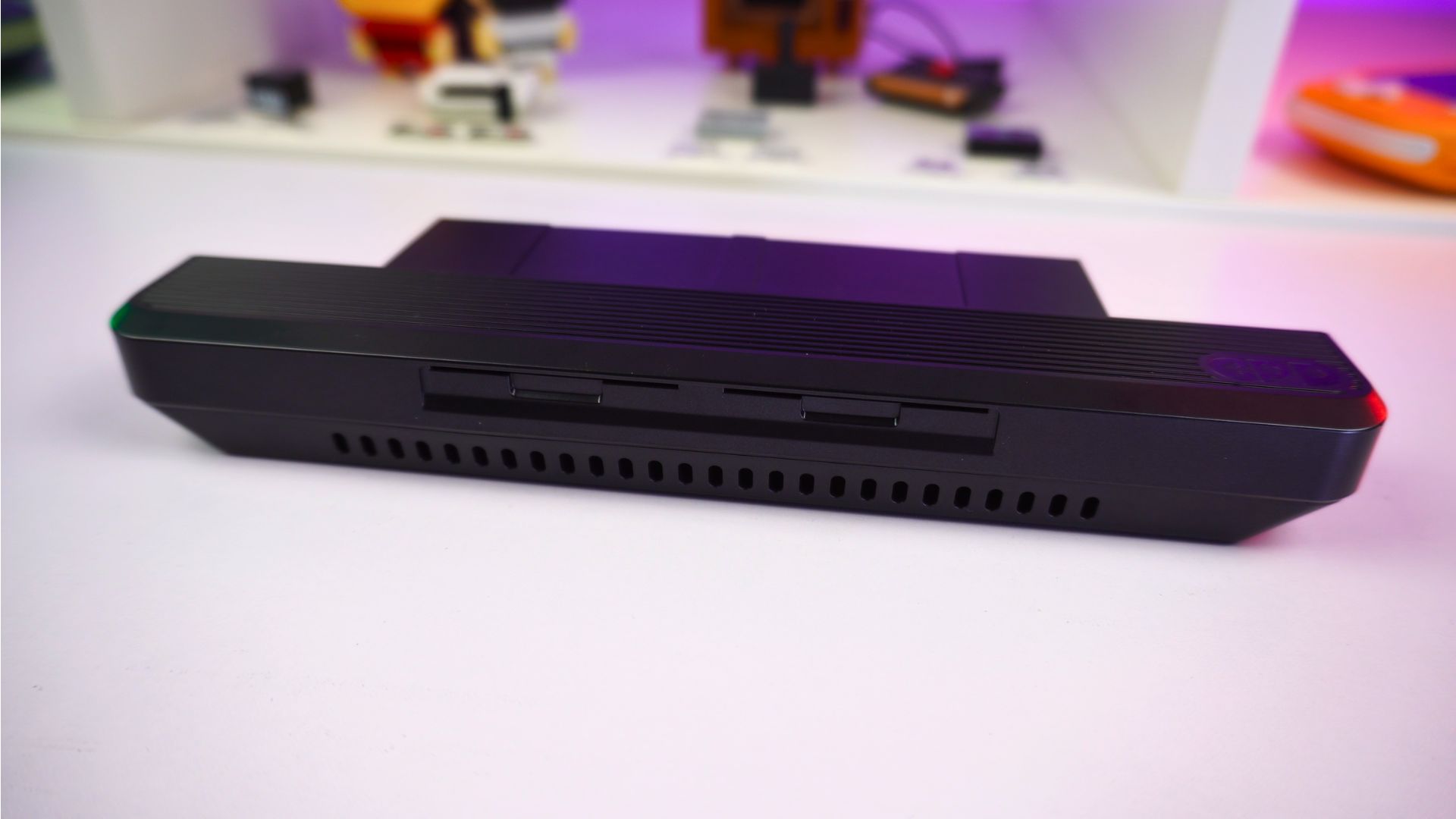
The fan module is not listed in the standard package contents. Check the relevant GPD Store product listing before ordering to see whether it is included in a particular bundle.
Selecting a power profile
Use a lower-power profile when operating from the battery and a higher-performance profile when connected to the 180W DC adapter.
Higher power settings may provide more performance, but they also increase operating temperature, fan speed and battery consumption.
Useful software to install
Gaming
- Steam for downloading and organising PC games
- Xbox app for PC Game Pass
- Epic Games Store
- GOG
Emulation
- RetroArch for compatible classic systems
- RPCS3 for compatible PlayStation 3 titles
- Vita3K for compatible PlayStation Vita titles
- Xenia for compatible Xbox 360 titles
Use emulator applications and game files in accordance with the law in your country. Compatibility is different for every emulator and game.
Productivity and media
- Microsoft 365 or LibreOffice
- OneNote
- Microsoft Edge, Google Chrome or Firefox
- VLC Media Player
Utilities
- 7-Zip
- ShareX
- HWiNFO
- CrystalDiskInfo
Download software from the official publisher or developer whenever possible.
Common troubleshooting steps
The GPD WIN MAX 3 will not start
Try the following steps:
- Connect the 180W DC adapter.
- Leave the device connected for at least 15 minutes.
- Confirm that the DC plug is fully inserted.
- Remove and refit the battery module.
- Hold the power button down for several seconds.
- Try powering on with the battery removed and the DC adapter connected.
If it still does not start, stop troubleshooting and contact GPD Store support.
Windows does not see the battery
Check that:
- The battery is aligned with the front connector
- The contacts are clean and undamaged
- The module is fully seated
- The DC adapter is connected
- Windows has been restarted
Never use a battery module that is swollen, cracked, leaking, unusually hot or otherwise damaged.
Performance is lower than expected
Check whether Windows is still installing updates, the system is running from battery, a quiet or low-power profile is active, the game resolution is too high, the storage drive is almost full, background programs are using resources or the device needs better cooling.
Press Ctrl + Shift + Esc to open Task Manager and check CPU, GPU, memory and disk activity.
The fan is louder than expected
The fan can become louder during games and other demanding tasks, especially at higher power limits.
Try:
- Closing programs that are not needed.
- Choosing a balanced profile.
- Reducing game graphics settings.
- Selecting a lower refresh rate.
- Keeping all air intakes and exhausts clear.
- Using the optional fan module for sustained high-power workloads.
Do not use the GPD WIN MAX 3 on soft bedding or cover its ventilation openings.
An external display shows no picture
Check that the monitor is on the correct input, reseat the HDMI or USB-C cable, press Windows + P and choose a display mode, restart the WIN MAX 3 with the display connected, try another cable or screen, and install the latest compatible graphics driver.
The touchscreen does not respond
Restart Windows and clean the panel with a soft, dry microfibre cloth. Remove anything that could be pressing on the screen, check touchscreen and HID entries in Device Manager, and install available Windows and driver updates.
Do not use abrasive cleaning products or apply heavy pressure to the AMOLED panel.
The game controls are not registering
Restart Windows, disconnect any external controller, test the controls at Hardware Tester, review the settings in GPD Tool, check for driver or firmware updates, and test again with third-party controller software closed.
If a button or stick is physically stuck, do not force it. Contact support for advice.
Caring for your GPD WIN MAX 3
For everyday use:
- Keep the ventilation openings unobstructed.
- Do not block the fan intake or exhaust.
- Keep the device away from liquids and damp environments.
- Store the battery module safely when it is not connected.
- Do not leave the WIN MAX 3 in direct sunlight or inside a hot vehicle.
- Use the supplied charger or a compatible, good-quality replacement.
- Keep Windows, AMD drivers and GPD software current.
- Back up important files.
- Avoid opening the chassis unless there is a good reason.
- Never install BIOS firmware made for another GPD model.
- Carry the device in a protective case when travelling.
Clean the AMOLED display with a dry or lightly dampened microfibre cloth. Never spray liquid directly onto the screen.
Getting help from support
If this guide does not resolve the problem, contact GPD Store support before opening the device or attempting a repair.
Include the following information in your support request:
- GPD Store order number
- Ryzen AI Max+ processor model
- Installed memory and storage configuration
- A clear description of the problem
- Any error messages shown
- The steps that reproduce the issue
- Photos or video where useful
- Any recent driver, BIOS, firmware or software changes
Purchases from GPD Store include a two-year GPD product warranty. Refer to the current GPD Store warranty terms for the complete coverage details and exclusions.