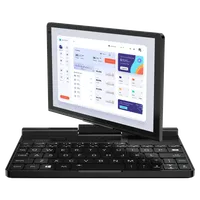
How to install Ubuntu Linux 24.10 on the GPD Pocket 3
Installation
Refer to the official Ubuntu installation tutorial for general guidance on the installation process.
- Download the installer named
ubuntu-24.10-desktop-amd64.isofrom the Ubuntu 24.10 download page and write it to a USB disk. - Proceed with the installation as usual, then reboot when it’s complete.
Post-installation
Screen Scale
- Right-click on the desktop wallpaper and select Display settings.
- Enable Fractional scaling.
- Adjust the window if needed.
- Set the scale to 150%.
- Click Apply and confirm by selecting Keep Changes.
- Close the Display settings.
- Alternatively, you can adjust the font size using gnome-tweaks.
Unpin Apps from the Sidebar
- Right-click on any unwanted apps in the sidebar and select Unpin.
- Go to Settings → Ubuntu Desktop → Icon size, and set the size to 32.
Display Orientation on Startup
To correct the screen orientation during startup and shutdown:
- Open Terminal from the menu.
- Paste the following command and press Enter:
echo 'GRUB_CMDLINE_LINUX_DEFAULT="$GRUB_CMDLINE_LINUX_DEFAULT fbcon=rotate:1 video=DSI-1:panel_orientation=right_side_up"' | sudo tee /etc/default/grub.d/fbcon-rotate.cfg && sudo update-grub && echo Success - Enter your password when prompted.
- If the command executes successfully, you should see a Success message.
- Reboot to apply the changes.
Screen Auto-rotation
- Open Terminal and paste the following command, then press Enter
sudo apt install --update gnome-shell-extension-manager && echo Success - Enter your password when prompted and wait for the Success message.
- Launch Extension Manager from the menu.
- Click Browse, search for “rotate,” and install the Screen rotate extension.
- Switch to the Installed page, and click the ⚙️ settings icon for the Screen rotate extension.
- Set the orientation offset to 1.
- If the screen orientation is incorrect, reboot the device.
- You can now toggle screen auto-rotation from the quick menu in the top-right corner. Test by rotating the device.
On-Screen Keyboard — Option 1
- Open the ⚙️ settings of the Screen rotate extension again.
- Check the box for Show OSK in portrait orientation.
- Note: There is still a need to find a way to hide the accessibility icon.
- In this configuration, the on-screen keyboard (OSK) will only be enabled in portrait mode. Swipe up from the bottom to show the keyboard, and use the hide button to dismiss it.
On-Screen Keyboard — Option 2 (Currently Broken)
This method is awaiting compatibility with Gnome 47.
- Open Extension Manager from the menu.
- Click Browse, search for “OSK,” and install the TODO extension.
- You can now toggle the on-screen keyboard from the menu bar in the top-right corner.
KVM Module
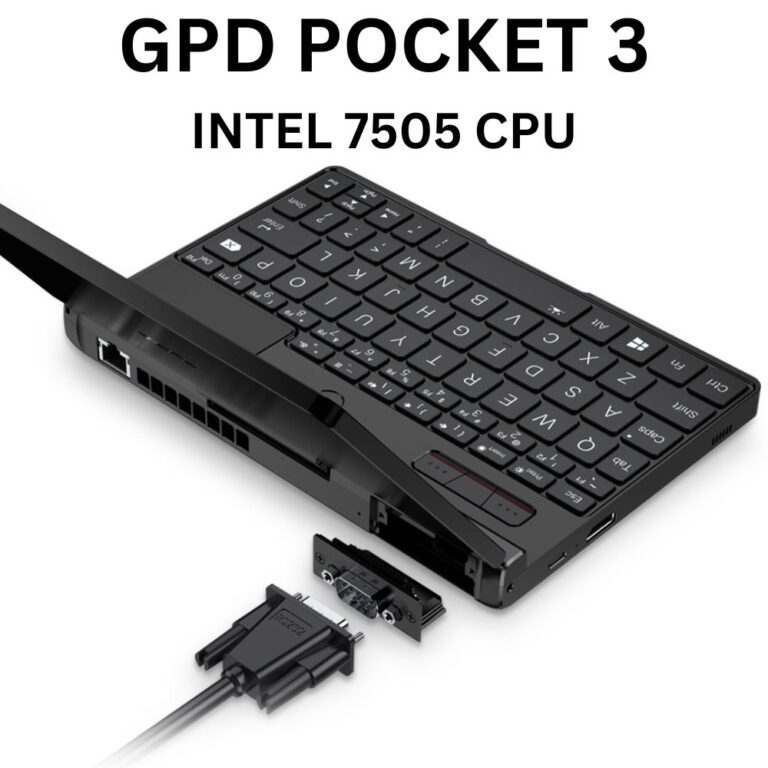
The KVM module functions as a standard webcam. TODO: Explore compatible apps.
Fingerprint Reader
The fingerprint reader (FocalTech FTE3600) is not supported. For more details, see the related issue on libfprint.
Further Reading
Information taken from https://gist.github.com/epsimatic
Questions on this guide
4 answeredThanks for the guide, as regards the KVM module, what do you really mean the “KVM module functions as a standard webcam” for someone who is particularly to buy the GDP pocket 3 or 4, install Linux/Ubuntu for the sole purpose of using it as a KVM on headless servers in a Datacenter. That “webcam” part isn’t clear.
Clarify on it, with a demo perhaps.
Thanks

The Linux guide was based on a guide from https://gist.github.com/epsimatic you can find information there.
Good question, like can the KVM module function without booting into an OS (at bios), just like a lapdock ( battery-powered screen, keyboard, touchpad in a laptop formfactor without compute motherboard from brand like NexDock, Uperfect or Dopesplay).
Or requires a special app/software from within a booted OS (and here it’s what is referred to as “webcam”?
The Linux guide was based on a guide from https://gist.github.com/epsimatic you can find information there.
fingerprint works with a workaround solution from https://github.com/vobademi/FTEXX00-Ubuntu/tree/main, and it looks like there’s a WIP OSS solution. Enrolling fingerprint using the CLI works. I’m on the Pentium Gold 7505 variant of GPD Pocket 3 running Ubuntu 24.04 LTS
Is it possible to install / dual-boot Ubuntu next to Windows on the GPD Pocket 3?
Yes, you can dual boot. Though we do recommend backing up anything important first and that you know what your are doing if setting up dual boot.
Does the Pocket 3 have a webcam?
It has a 1080P high-definition ultra-thin mini camera with 2 million pixels and a wide 77° field of view