כיצד לעדכן את ה-GPD MicroPC 2 BIOS
קבצים המשמשים במדריך זה
גרסאות (4)
- Source guide: How to update the GPD MicroPC 2 BIOS
גרסאות ישנות יותר נשארות זמינות להורדה לצורך שחזור — כל גרסה שומרת על הקובץ המאומת שלה.
עדכון הקושחה של GPD MicroPC 2 הוא הליך פשוט, אבל זה יכול להיראות מאיים עבור מתחילים. המדריך שלנו ילווה אתכם בכל שלב בתהליך.
הגרסה הנוכחית v2.13 כוללת את השינויים הבאים:
- הוסרו הגדרות תדר DDR לא חוקיות
- נוספו אפשרויות הגדרת TDP עבור 6W, 8W, 10W, 12W; 6W ו-8W תומכים במצב מאוורר שקט
- אפשרויות מתקדמות זמינות
שימו לב שבדרך כלל עדכון BIOS הוא בסדר, אך ישנם סיכונים. אנא ודאו שאתם מבצעים את כל השלבים בצורה נכונה, מזהים שאתם מתקינים את ה-BIOS הנכון עבור המכשיר שלכם, שסוללת המכשיר טעונה במלואה ומחוברת למטען. אל תכבו את המכשיר אלא אם כן הונחו על כך. איננו מקבלים אחריות אם משהו משתבש.
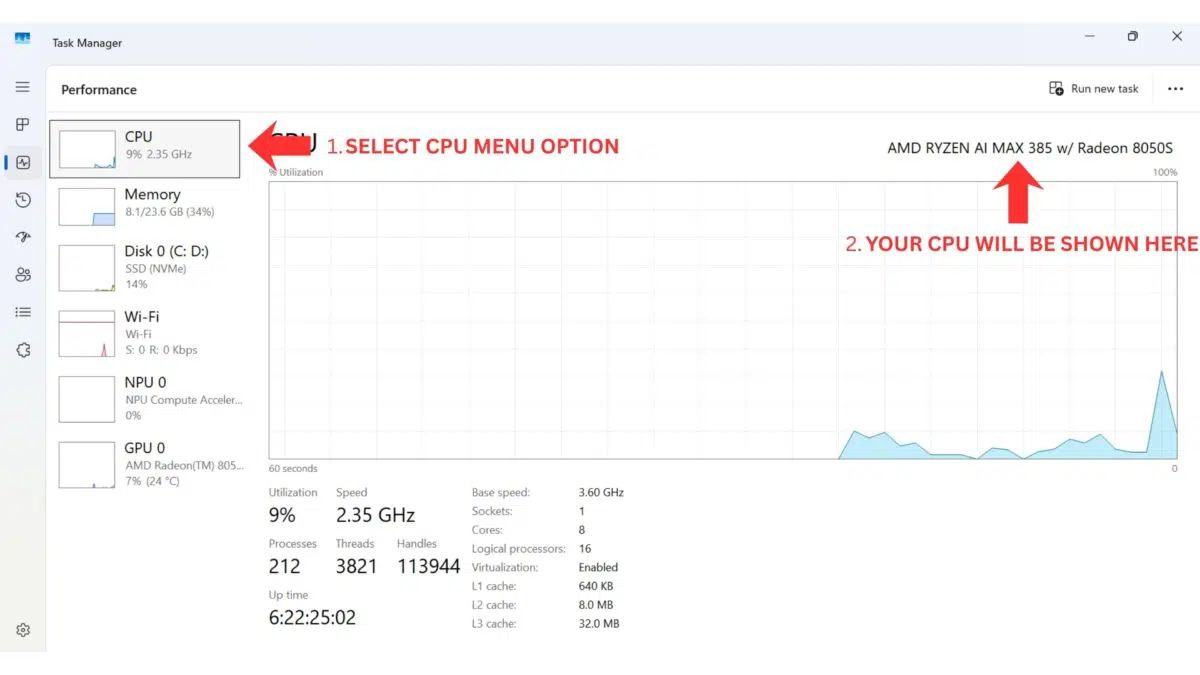
דרכים לזהות את המעבד במכשיר שלך:
- כדי לגשת למנהל המשימות, לחץ לחיצה ימנית על סמל התחל של Windows ובחר מנהל משימות מהרשימה. לחלופין, ניתן להקליד מנהל משימות בסרגל החיפוש של Windows.
- ניתן למצוא את דגם המעבד שלך ב-Windows במהירות דרך הגדרות (אודות המחשב שלך) , או דרך אפליקציית מידע המערכת (msinfo32) , שכולם מציגים את שם המעבד והמפרט שלו.
שימוש בהגדרות (הכי קל עבור Windows 10/11)
לחצו על תפריט התחל (סמל Windows) והקלידו אודות .
בחר אודות המחשב שלך מהתוצאות.
חפש תחת ” מפרט התקן” את הערך “מעבד “, המפרט את דגם המעבד שלך (למשל, Intel Core i7-10750H).
בדוק באיזו גרסת BIOS אתה משתמש כעת
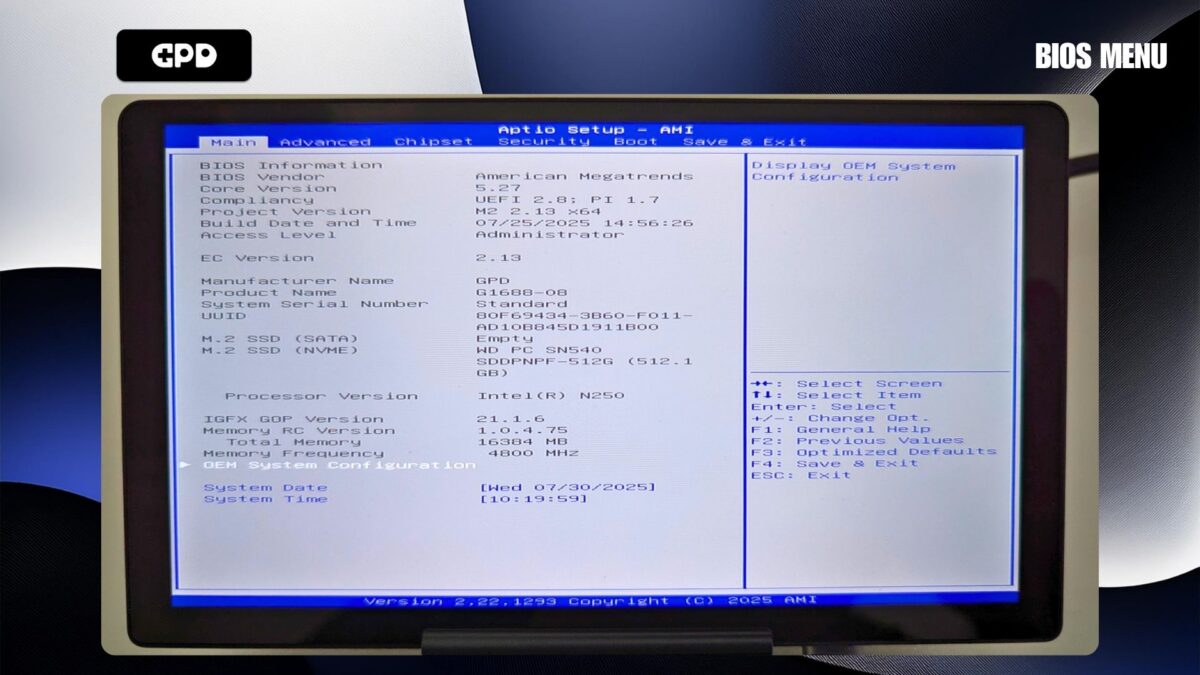
הפעל את GPD MicroPC 2 ומיד והקש שוב ושוב על מקש Backspace במקלדת. המשך לעשות זאת עד להצגת תפריט ה-BIOS. אם הוא מאתחל ל-Windows, חזור על התהליך שוב.
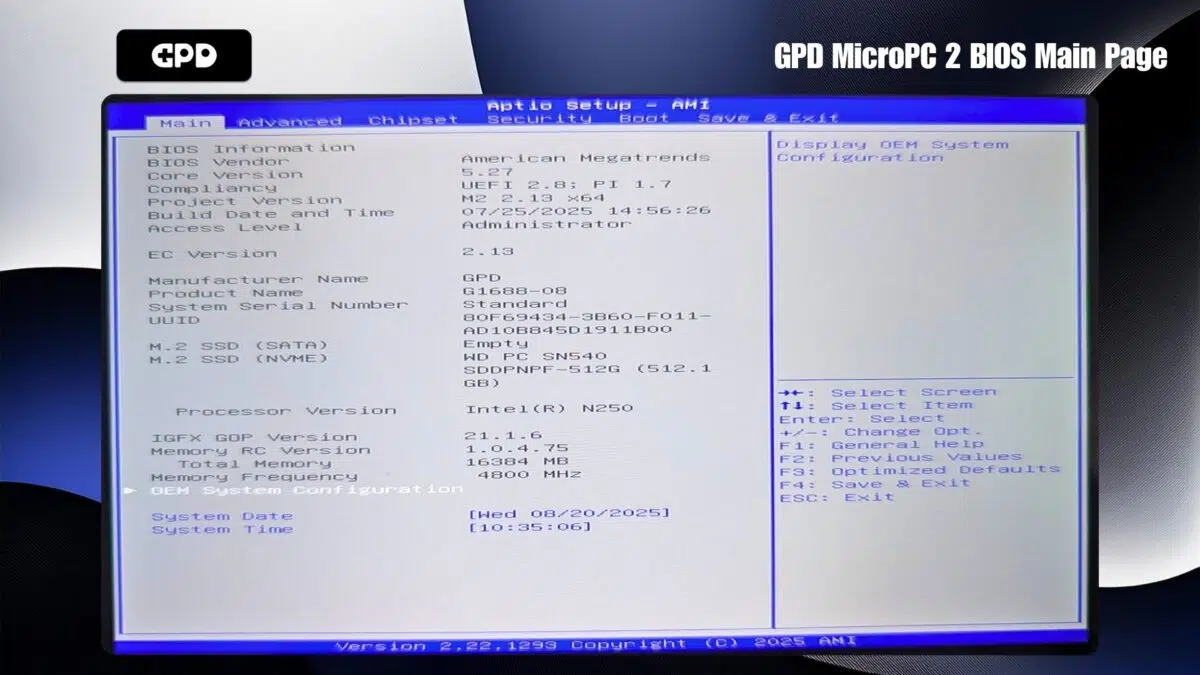
מספר גרסת ה- BIOS יוצג בגרסת הפרויקט, בתמונה למעלה הוא 2.13 וגרסת ה- EC היא 2.13, שהיא BIOS v2.13
הורדת העדכון
ראשית, תצטרך לקבל את עדכון ה-BIOS של GPD MicroPC 2 כאן. שים לב שתוכניות אנטי-וירוס מסוימות עשויות לסמן את הקובץ באופן שגוי כאיום מכיוון שמטרתו היא לשנות את ה-BIOS של המערכת.
שינויים עבור v2.16
תיקון חריגות במסך המגע תחת לינוקס
תיקון התנהגות חריגה כאשר אתחול מאובטח מופעל
תקן את בעיית האתחול מחדש בפעם הראשונה להתעורר לאחר איפוס ה-BIOS
שלבי הכנה
לפני תחילת ההתקנה, ודא שה-GPD MicroPC 2 שלך טעון במלואו ומחובר למתאם החשמל. אנו ממליצים גם לסגור כל תוכנה פתוחה, מכיוון שהמכשיר יופעל מחדש באופן אוטומטי לאחר סיום העדכון.
לאחר ההורדה, חלץ את תוכן קובץ .zip. אתה אמור לראות קובץ בשם משהו כמו BIOS_M2_V2.16_GPD.exe, אם כי מספרי הגירסאות עשויים להיות שונים.
התקנת עדכון ה-BIOS
הפעל את קובץ .exe על-ידי לחיצה כפולה עליו ואשר את בקשות הגישה של מנהל המערכת שיופיעו. לאחר רגע, ייפתח חלון שורת פקודה כדי להתחיל בעדכון.
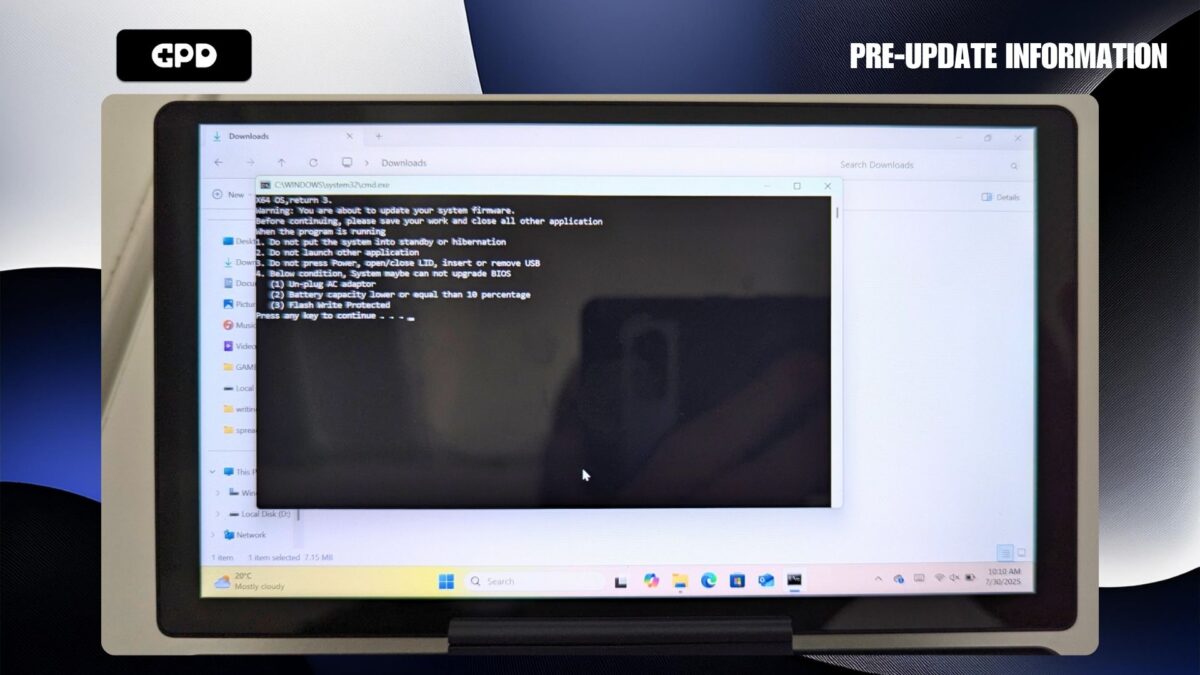
לפני שתמשיך, ודא שהסוללה של המכשיר שלך מלאה ומתאם החשמל מחובר. כשתהיה מוכן, הקש על מקש כלשהו כדי להתחיל את עדכון ה-BIOS.
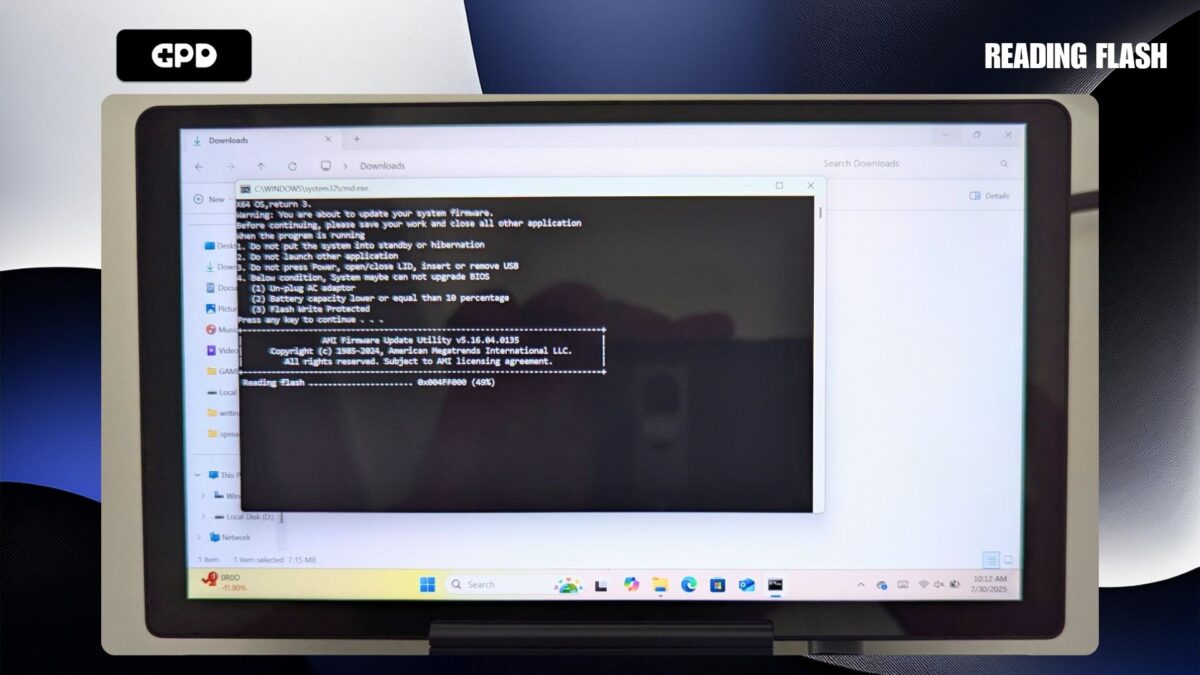
תהליך העדכון אמור להימשך בין 3 ל-5 דקות, במהלכן תוכל לצפות בהתקדמות.
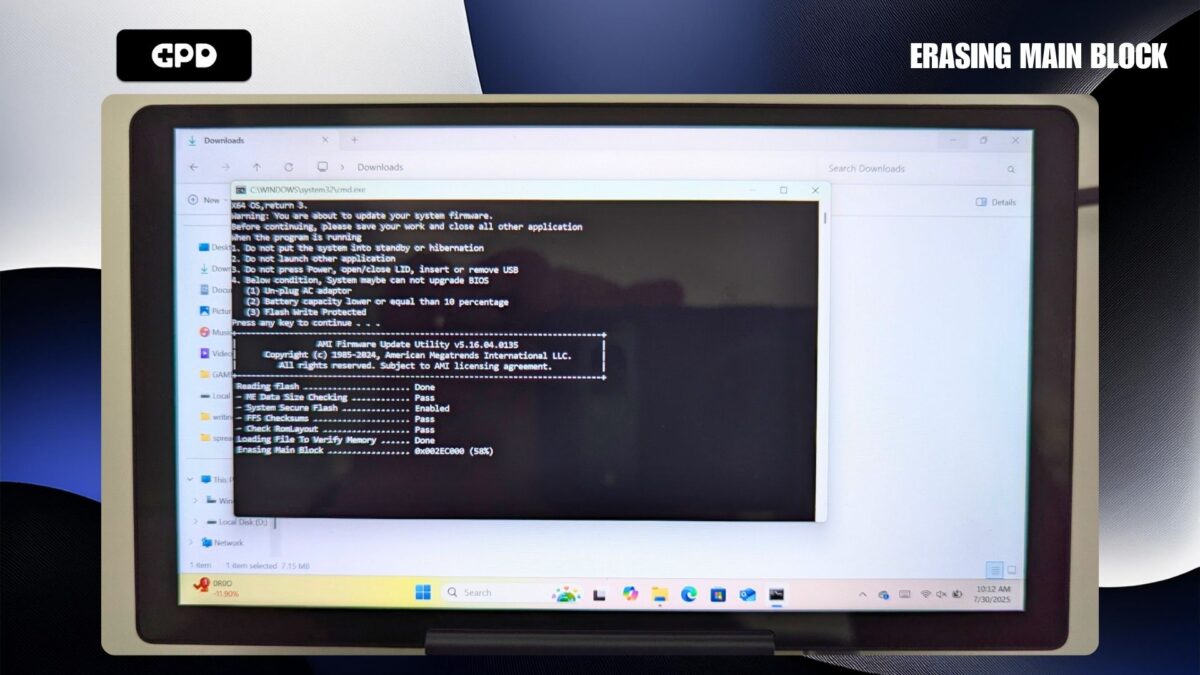
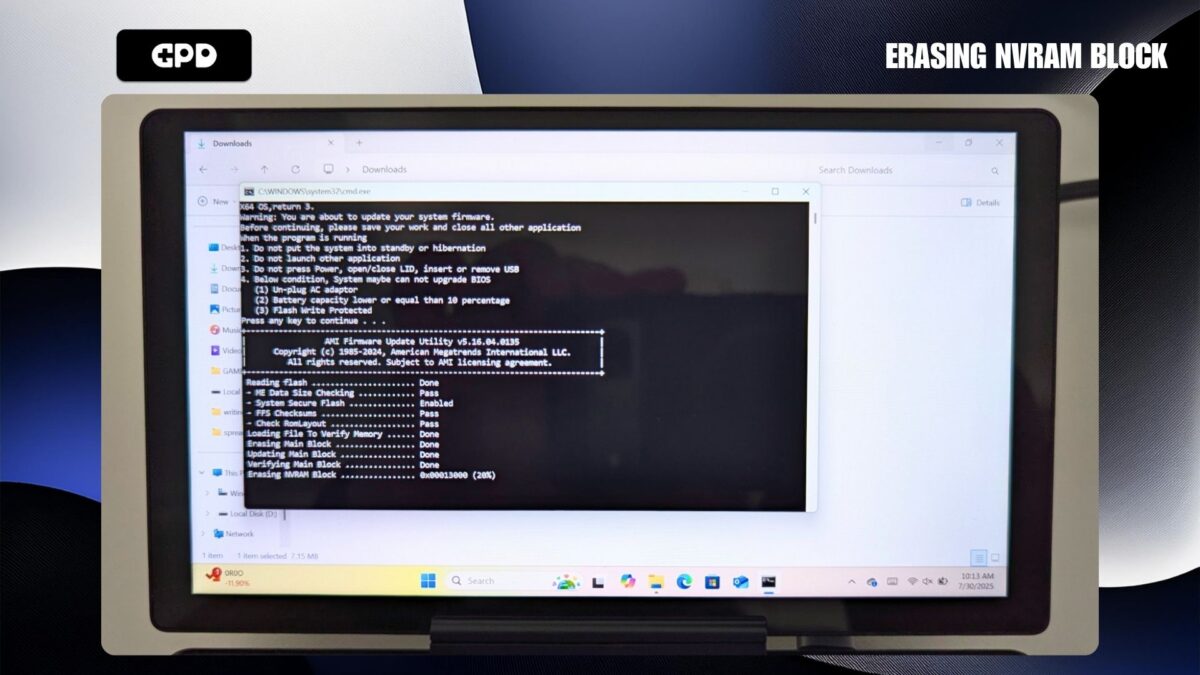
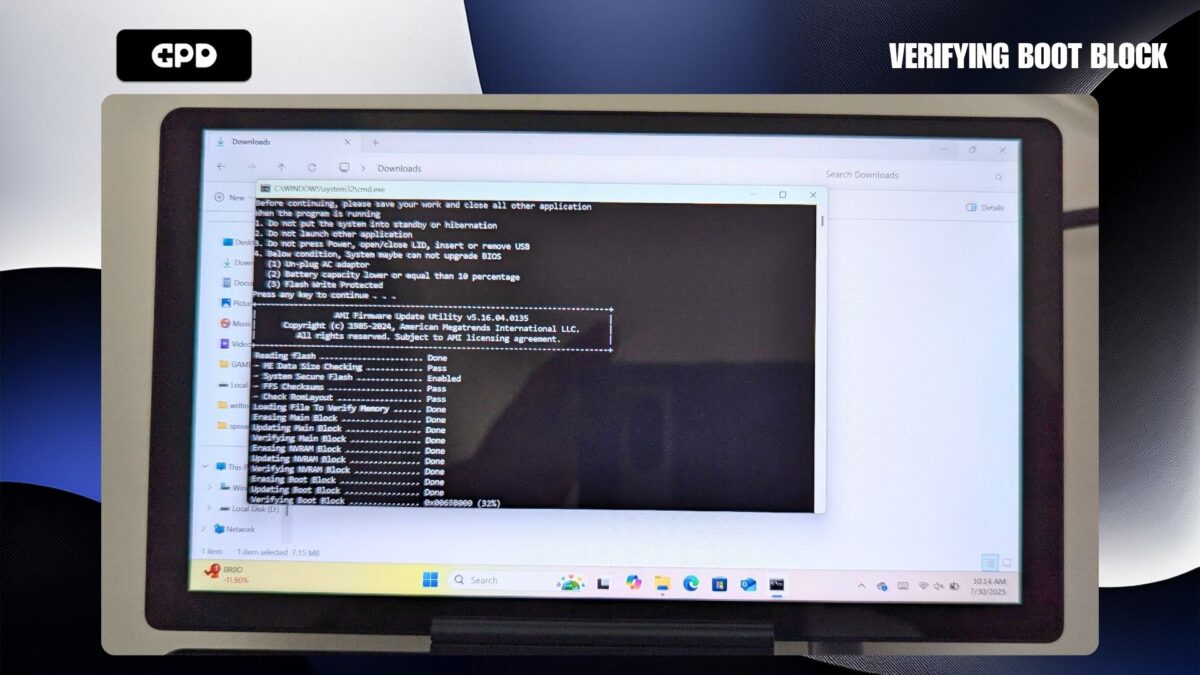
לאחר מספר דקות, תוצג הודעה על המסך כדי לאשר את השלמת החלק הראשון של ההתקנה.
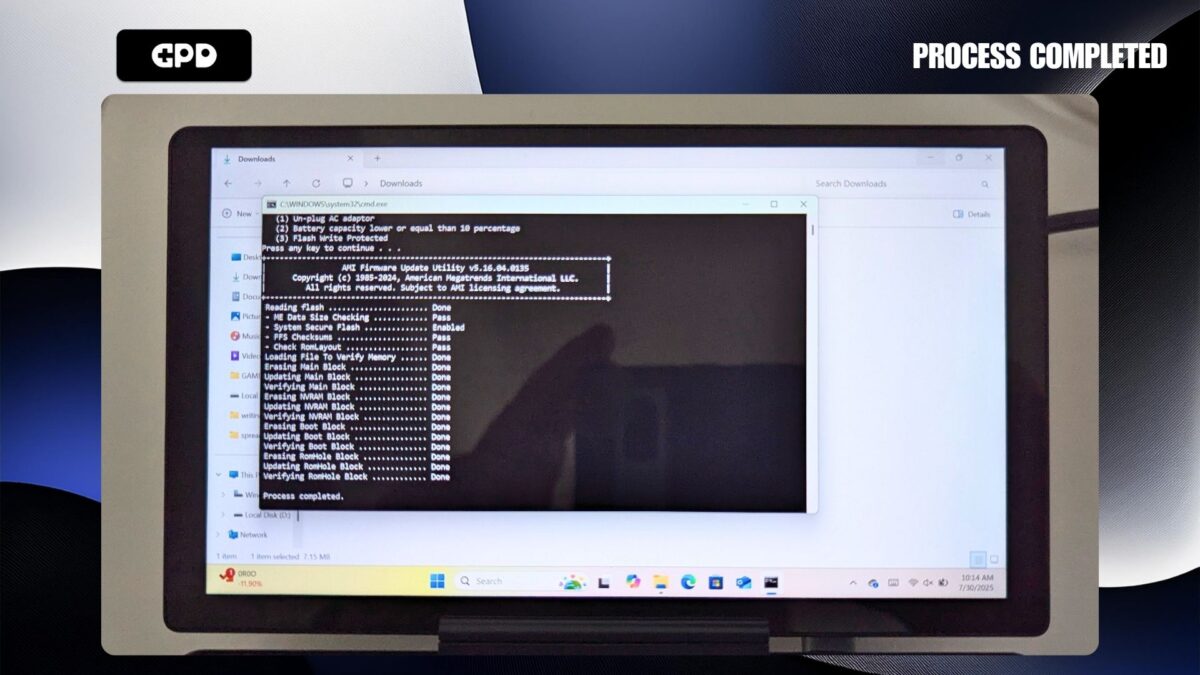
לאחר הפסקה קצרה, העדכון ימשיך לשלב ההבהוב של ה-BIOS. תראה מספר הודעות המופיעות במהירות בתצוגה, אשר יסתיימו בהודעת ‘PASS’ כדי לציין התקנה מוצלחת.
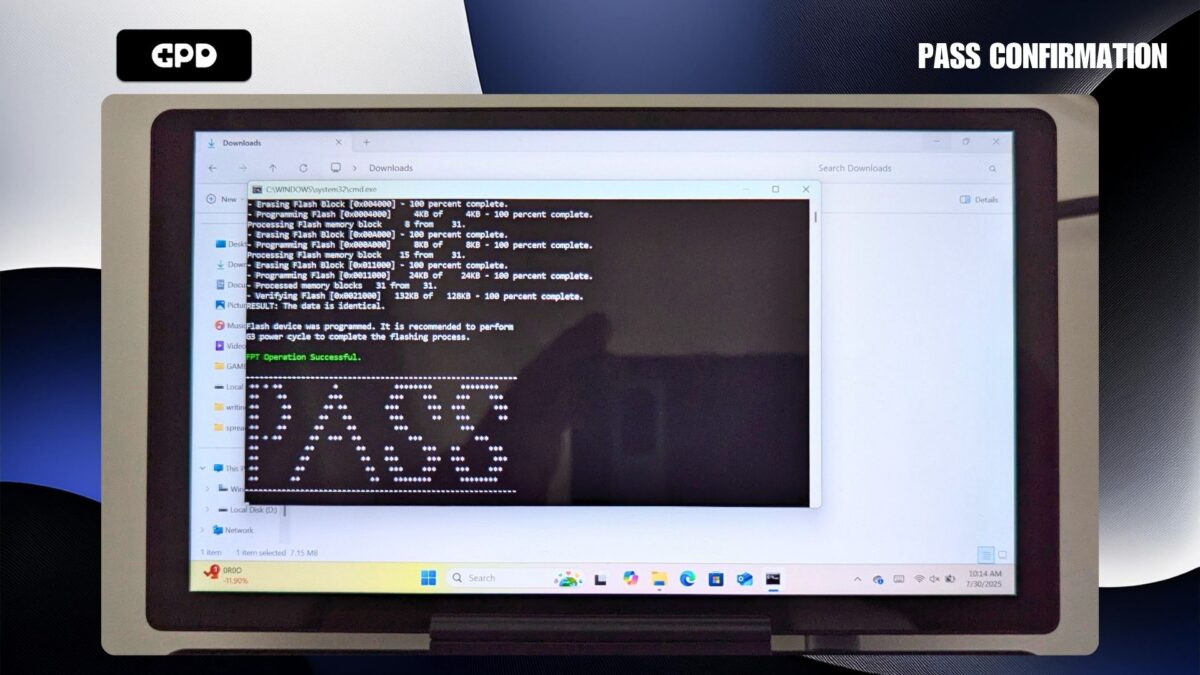
לאחר המתנה קצרה, תקבל הודעה מ-Windows על אתחול אוטומטי קרוב. לא נדרשת פעולה; פשוט אפשר למחשב לבצע הפעלה מחדש.
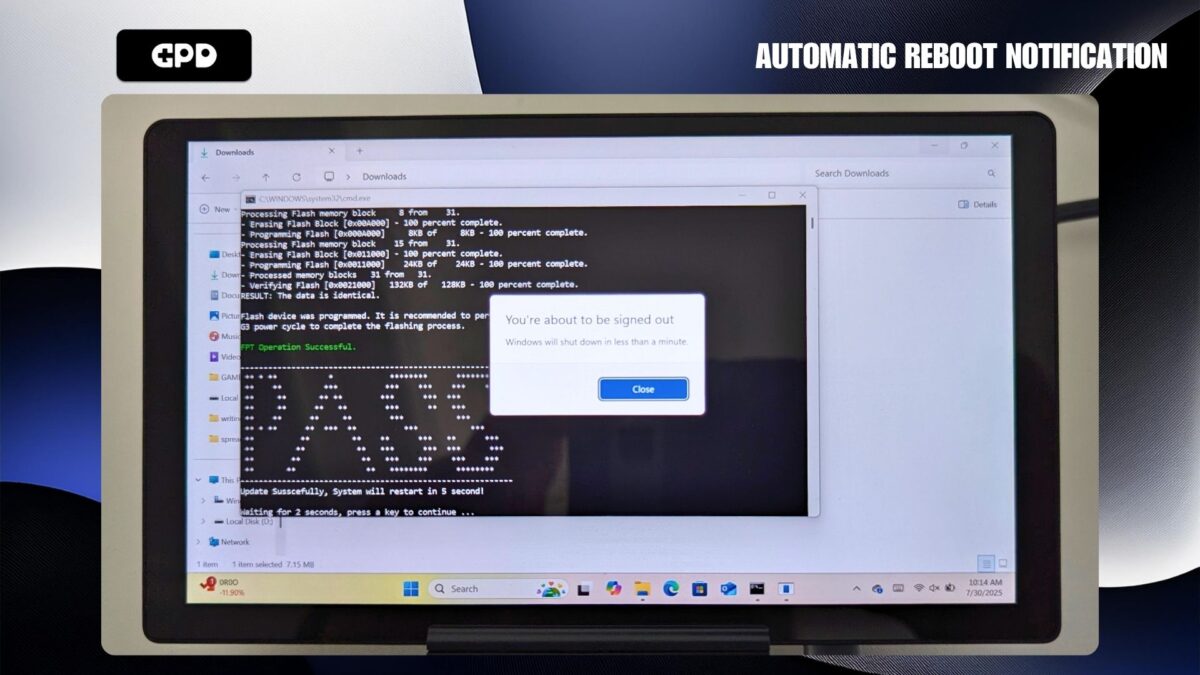
אפשר רגע עד שה-GPD MicroPC 2 יכבה ויכבה לחלוטין. המתן עד שנורית ההפעלה לא תידלק יותר, ולאחר מכן לחץ על לחצן ההפעלה כדי להפעיל את המכשיר מחדש. לאחר מכן, Windows יאתחל כרגיל. שים לב שהאתחול הראשוני לאחר עדכון ה-BIOS עשוי להימשך לפעמים מעט יותר זמן מהרגיל.
בכך מסתיים תהליך עדכון ה-BIOS, וההתקן שלך מוכן כעת לשימוש.
כדי לוודא שהעדכון הצליח, תוכל להיכנס לתפריט ה-BIOS ולבדוק את המספר המוצג לצד גרסת ה-EC. מספר זה אמור להתאים לגירסה שהתקנת זה עתה (לדוגמה, 2.13).
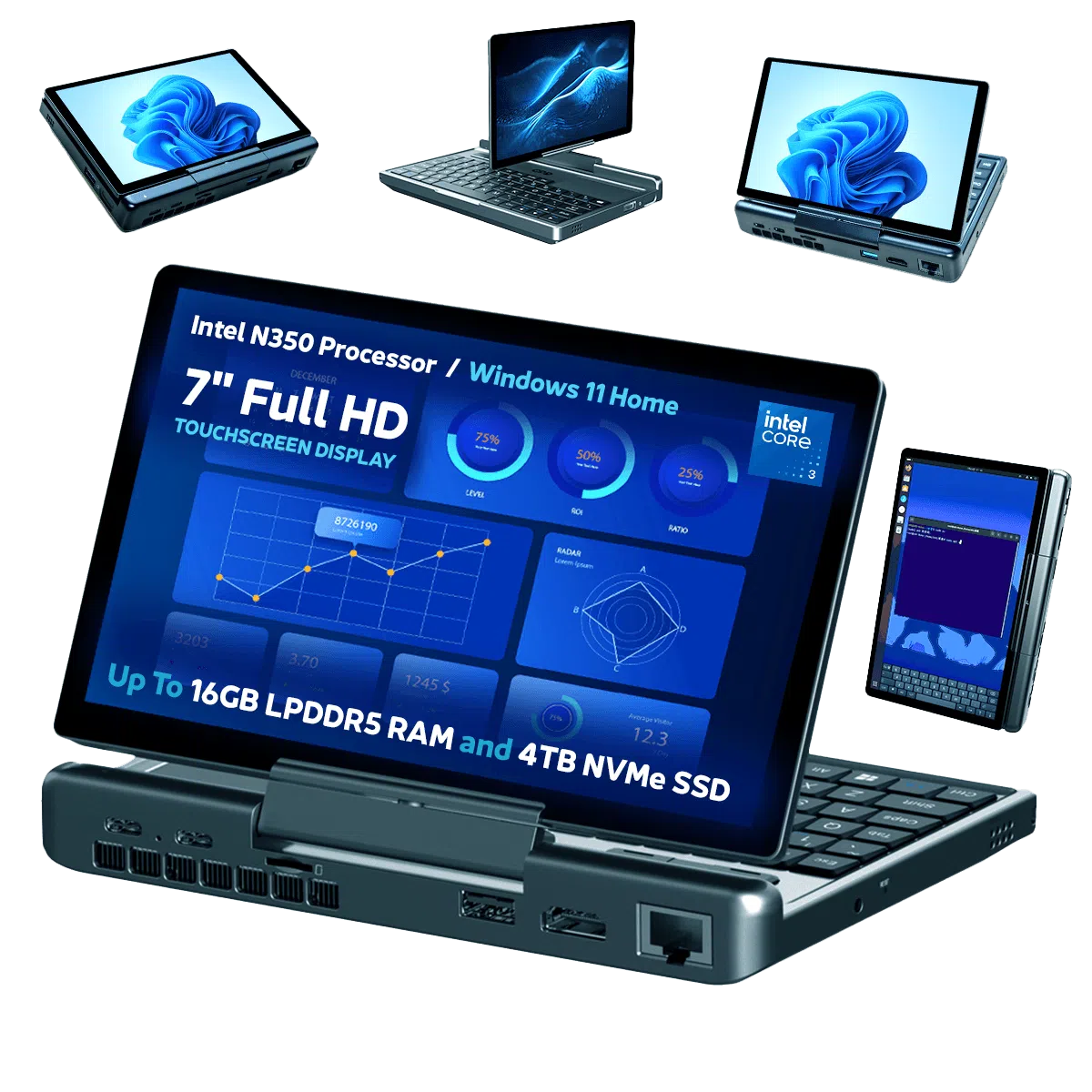
GPD MicroPC 2 UMPC
 GPD MicroPC 2 N350 זמין כעת: רענון 2026 מוסיף כוח אינטל חדש יותר
4 ביוני 2026
GPD MicroPC 2 N350 זמין כעת: רענון 2026 מוסיף כוח אינטל חדש יותר
4 ביוני 2026
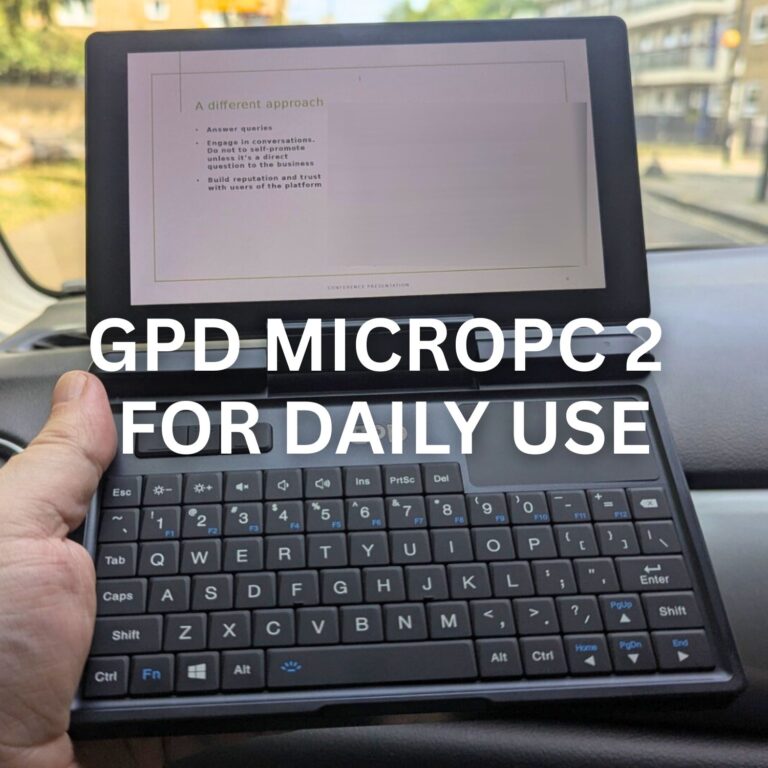 האם ה-GPD MicroPC 2 לשימוש יומיומי באמת יכול להחליף את המחשב הנייד והטאבלט שלך? מבחן של שבוע
10 בנובמבר 2025
האם ה-GPD MicroPC 2 לשימוש יומיומי באמת יכול להחליף את המחשב הנייד והטאבלט שלך? מבחן של שבוע
10 בנובמבר 2025
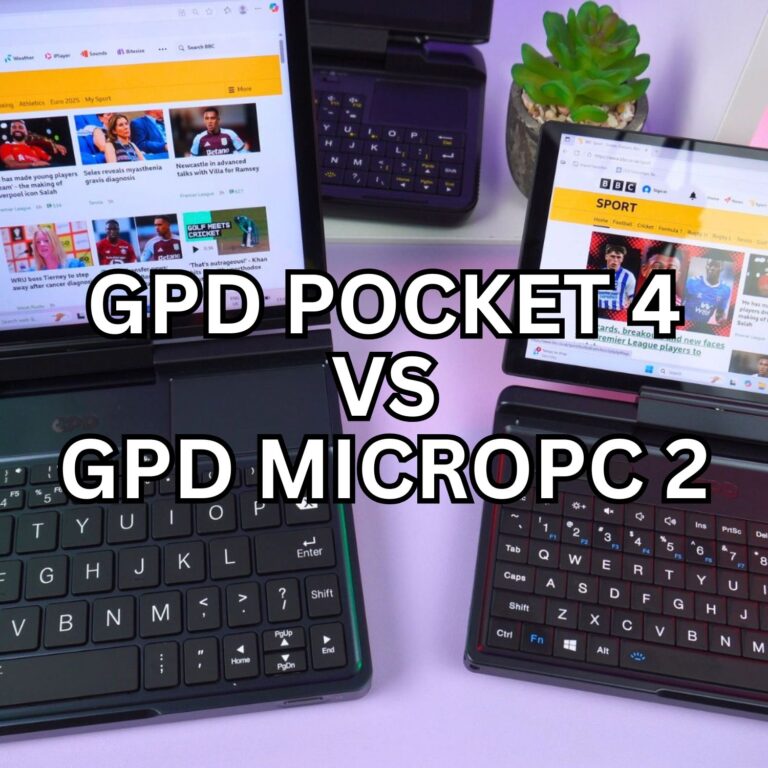 GPD MicroPC 2 לעומת GPD Pocket 4: הדילמה של איש המקצוע
4 בספטמבר 2025
GPD MicroPC 2 לעומת GPD Pocket 4: הדילמה של איש המקצוע
4 בספטמבר 2025
 5 מקצועות שהוגדרו מחדש על ידי מחשב נייד מיני GPD MicroPC 2 לעבודת שטח
3 בספטמבר 2025
5 מקצועות שהוגדרו מחדש על ידי מחשב נייד מיני GPD MicroPC 2 לעבודת שטח
3 בספטמבר 2025
שאלות במדריך זה
6 נענוTo whom this may be useful: I followed this tutorial to update from BIOS version 2.13 to BIOS version 2.16.
After the update, the “EC version” was still on 2.13. However, the “Project version” is on 2.16 and the “Build date and time” matches the date of version 2.16 in the file “BiosChanges..txt” – 2025-09-03.
So I assume that the BIOS has been updated to 2.16, although the EC version is still on 2.13.
This is contradictory to the statement on this site: “If you want to check the BIOS update has been applied, you can check in the BIOS menu under the EC Version number”.
Go here and scroll down to see a screenshot of the BIOS screen after updating to 2.16:
https://droix.net/knowledge-base/article/how-to-update-the-gpd-micropc-2-bios/

Thanks for the info.
Hi.
Version 2.17 is now available but it seems to be corrupted.
I had no problem installing 2.16.
You need to enter the password “123” to extract the archive if you downloaded from GPD website. We have updated this page with v2.17 BIOS update, please download it from above and follow the updated guide to install it.
Hi Dave.
Thank you for the info and the BIOS update file.
For some reason I couldn’t get the GPD website file to work.
The one I downloaded from your site worked well.
HOWEVER my PC was locked by Bitlocker after upgrading the BIOS !
Luckily I had the Bitlocker code and now everything is fine.
Thanks again 🙂
As the BIOS can update some hardware information between versions, it may cause Bitlocker to think something has changed and lock the system for security.
I had applied the 2.17 bios. PC had automatically rebooted and bios seemed to be updated. Then, the power had been down. After that, I could not turn on the PC’s power. Could anyone help me?
Press and hold the power button for a few moments. It may take a little longer to boot than usual after a BIOS update. Also try pressing the reset button with a pin, hold it down for a moment, release and then press and hold the power button until it switched on.
Thank you, Dave.
I’ve tried long pressing the power button, and resetting by a pin, however, the power didn’t turn on.
I will ask to repair to the dealer in Japan.
Thanks.
Mini PC 2 N300.
I flashed the BIOS from Windows 11, 2.16 –> 2.17 downloaded from gpd.hk.
The PC went into a BIOS screen and a 100 % write, then it restarted and I saw the BIOS boot screen.
A second after the PC turned off and it’s bricked.
It doesn’t charge the battery and it doesn’t have a power indicator. No amount of holding the power button or “reset pin” has any effect.
Please fix the issue and remove the 2.17 BIOS from gpd.hk
This is happening on a large scale
We are not GPD.hk so you would need to speak to them about removing it from their site. Many of our customers and ourselves have updated many using our own guide and have not run into any issues. If you downloaded it from GPD website then you may not have followed our guide. If you purchased it from us at GPD STORE, please contact our customer service at [email protected] with your order number and our customer service will be able to assist. If not, you would need to contact where you purchased it from.
2.17 BIOS bricked my device as well.
Many of our customers and ourselves have updated many using our own guide and have not run into any issues. If you downloaded it from GPD website then you may not have followed our guide. If you purchased it from us at GPD STORE, please contact our customer service at [email protected] with your order number and our customer service will be able to assist. If not, you would need to contact where you purchased it from.
If anybody is reading this page because they want to update BIOS before completely removing Windows to have a tiny Linux machine, and EC 2.17 promises to fix touchscreen after wake up, my experience shows that EC 2.15 (which came with my device) works perfectly with Omarchy 3.5 (Arch Linux): everything works without any issues except screen rotation (easily configurable), middle mouse button (didn’t try to fix it yet) and fingerprint reader (no device detected). Touchscreen has no issues after wake up. I was afraid to install EC 2.17 after reading comments so removed Windows completely and left EC 2.15 version. Overall GPD MicroPC 2 is awesome with Linux.