



 Doc Summary

GPD Tool serves as a successor to the MotionAssist software that has shipped with GPD devices for many years. It introduces a modern, redesigned interface alongside a range of new functions and features to give you greater control over your GPD handheld gaming PCs.
- Full controller navigation support
- Can be invoked in any fullscreen game, with customizable keyboard and controller shortcuts
- TDP adjustment support
- In-game performance monitoring and frame rate limiting
- Customizable fan silent mode
- Volume and brightness adjustment
- Game “Freezer” feature to suspend processes and save power
- On-screen keyboard support
- Supports 7 languages: Chinese, English, Japanese, Korean, Russian, French, and Spanish
You can download the latest release GPD Tool v1.31 here.
GPD Tool User Guide #
To open the GPD Tool overlay, click the Windows toolbar icon in the bottom right corner of your screen, or use the keyboard shortcut CTRL + SHIFT + F3.
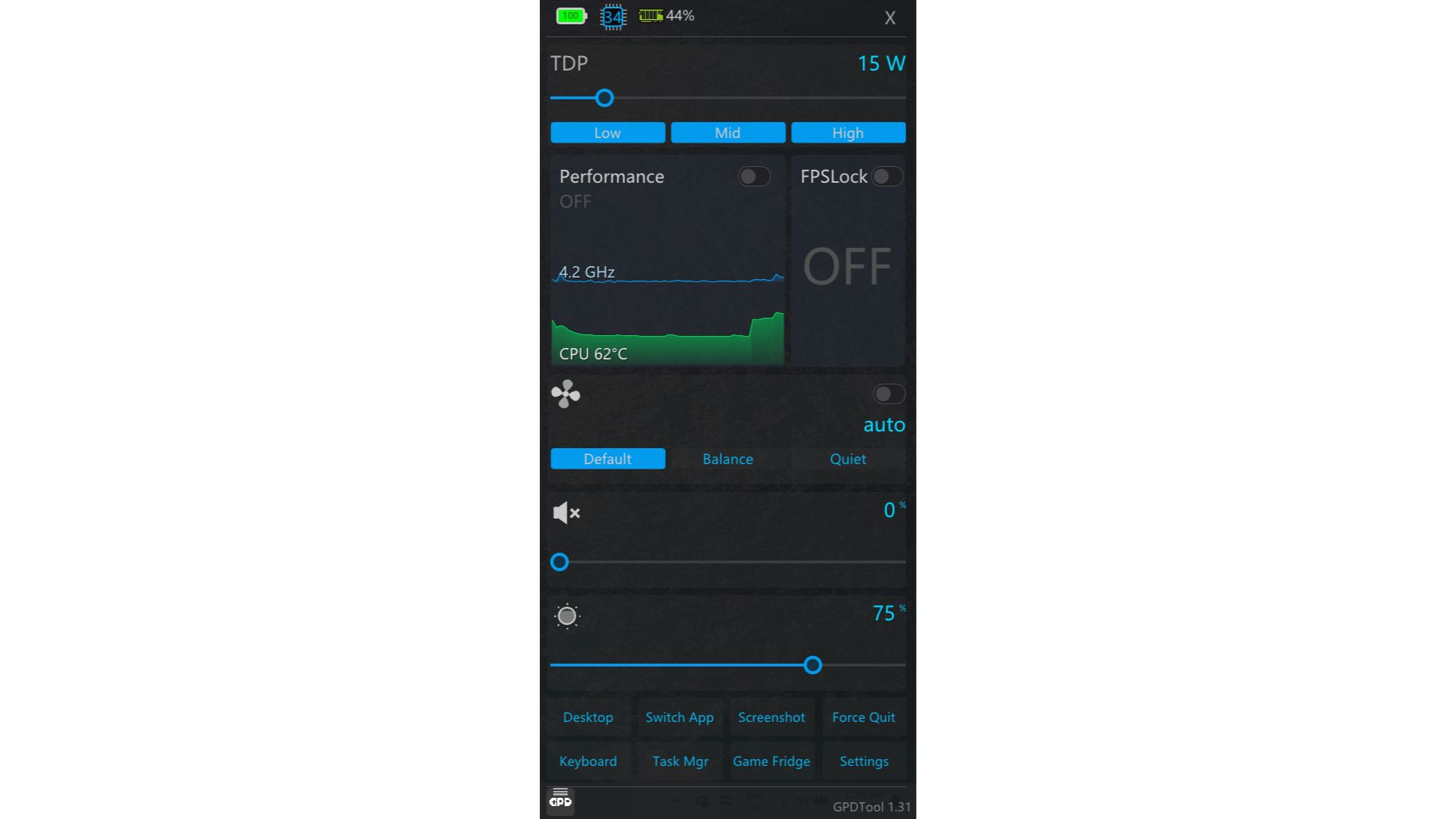
Here’s a breakdown of all the options available to you.
TDP Settings #
This section is used to manage your device’s TDP (Thermal Design Power). The range of values available will vary depending on which device you own.
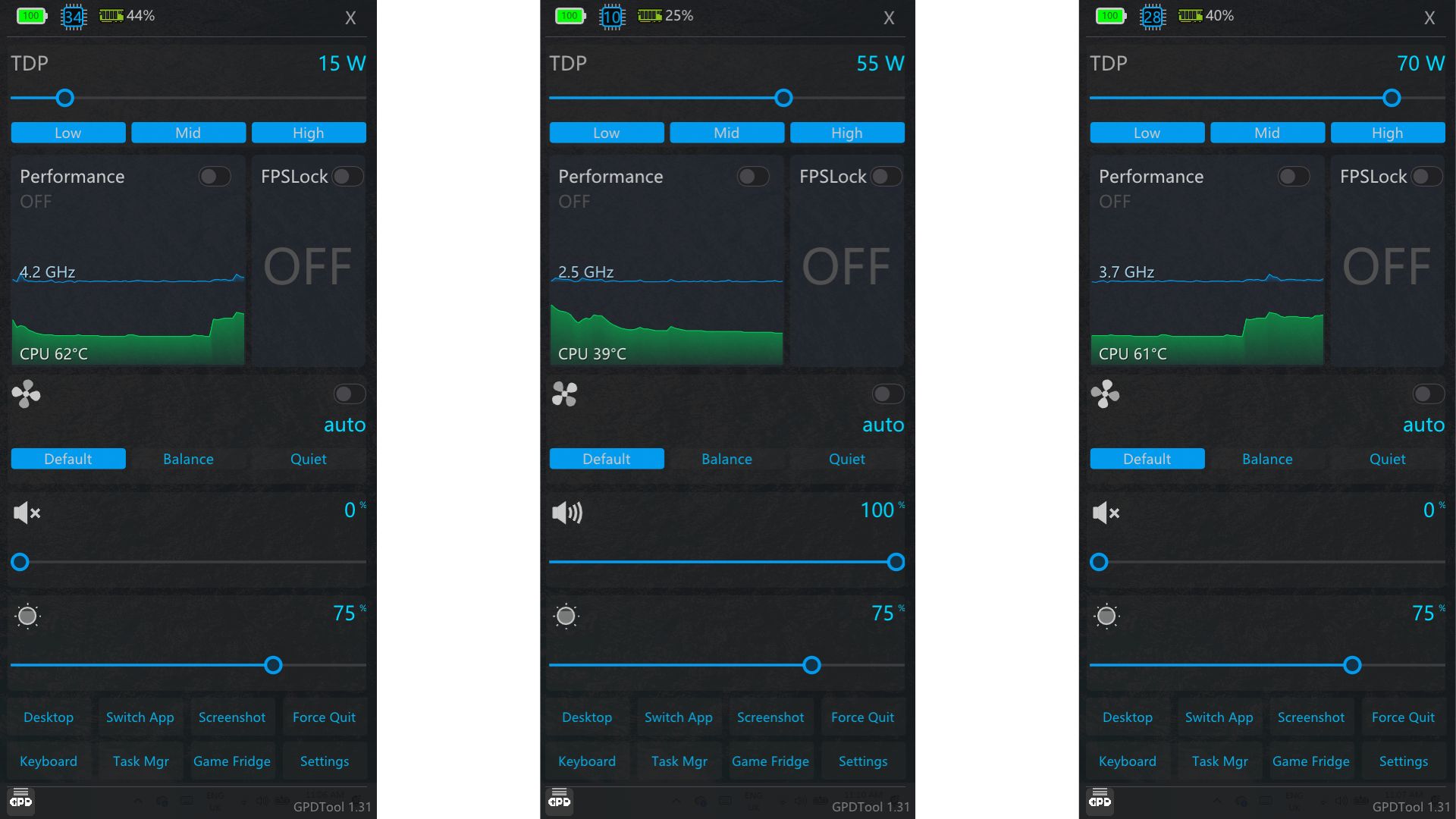
Use the slider to manually set the TDP to your desired level, or choose from the Low, Mid, or High preset buttons to quickly apply a set of default values.
Performance #
Enabling the Performance setting requires RivaTuner to be installed on your device. NOTE: DirectX may also be required for this feature to function correctly — you can download it here.
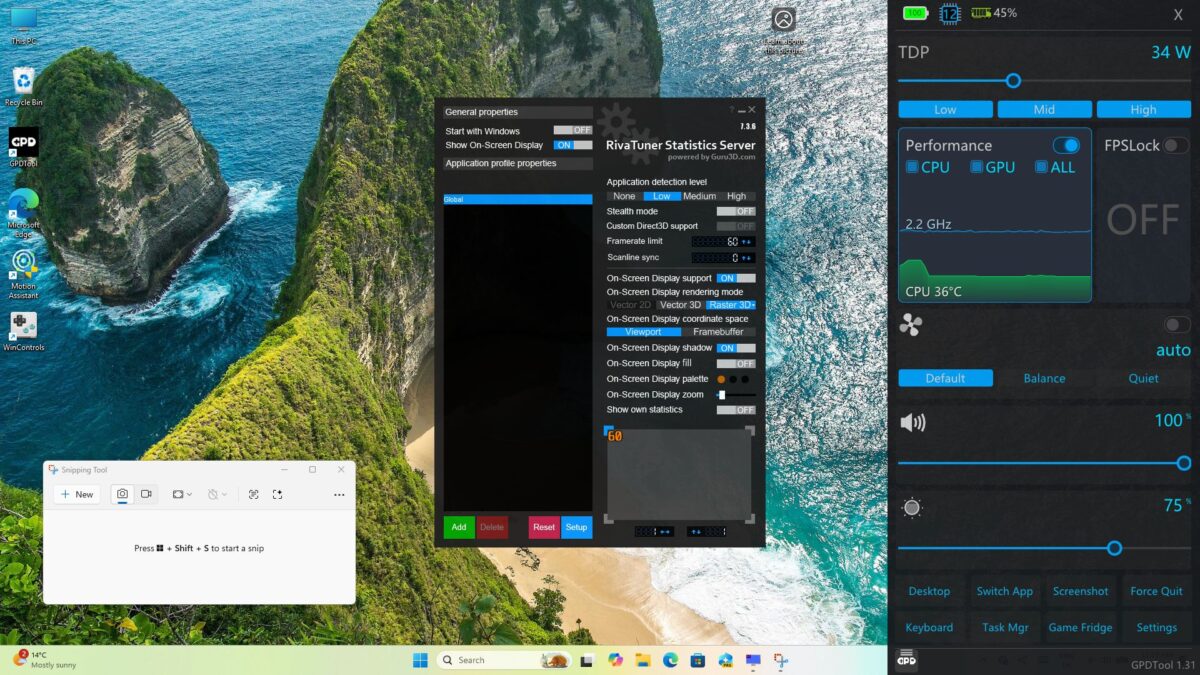
Once activated, RivaTuner lets you display real-time on-screen data including Frames Per Second, CPU Temperature, and more.
FPS Lock #
When FPS Lock is enabled, the frame rate in games will be capped at 60 Frames Per Second (FPS). Turning this off (the default state) allows your games to run at their maximum achievable frame rate.
Fan Speed #
The fan operates in Automatic mode by default. Use the Default, Balance, or Quiet shortcut buttons to switch between fan speed profiles. You can also disable Auto mode and manually adjust the slider to set a specific fan speed of your choosing.
Volume and Brightness Settings #
These are pretty self-explanatory 🙂 Use the sliders to increase or decrease your volume and screen brightness levels respectively.
Shortcut Buttons #
- Desktop – Minimises all open applications and reveals the desktop
- Switch App – Opens the Windows task switcher
- Screenshot – Captures and saves a screenshot to your Photos “Screenshot” folder
- Force Quit – Allows you to select and close a running application
- Keyboard – Displays an on-screen keyboard
- Task Mgr – Opens the Windows Task Manager
- Game Fridge – Freezes and unfreezes compatible applications to help boost overall performance
Settings #
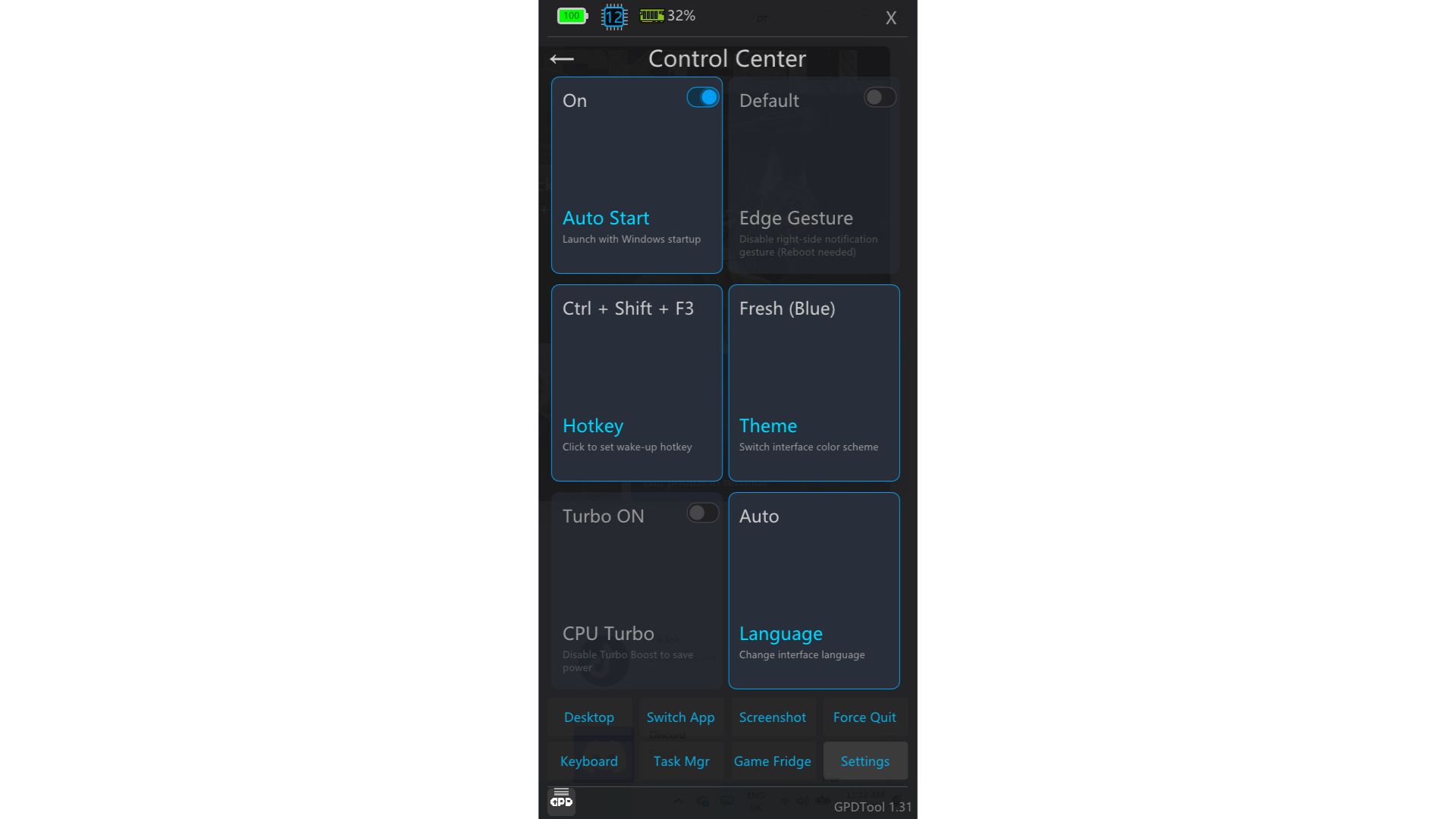
- Auto Start – Toggle whether GPD Tool launches automatically when Windows boots
- Edge Gesture –
- Hotkey – Set a custom hotkey combination to open the GPD Tool overlay
- Theme – Pick from three colour themes: Fresh Blue, Cyber Yellow, and Vibe Purple
- CPU Turbo – Toggle Turbo Boost on or off to improve performance in select games
- Language – Automatically detects your Windows language by default, but can be changed manually here
Back Button Configuration #
Clicking the small GPD logo in the bottom left corner of the overlay (see image below) will open the Back Button Configuration menu.
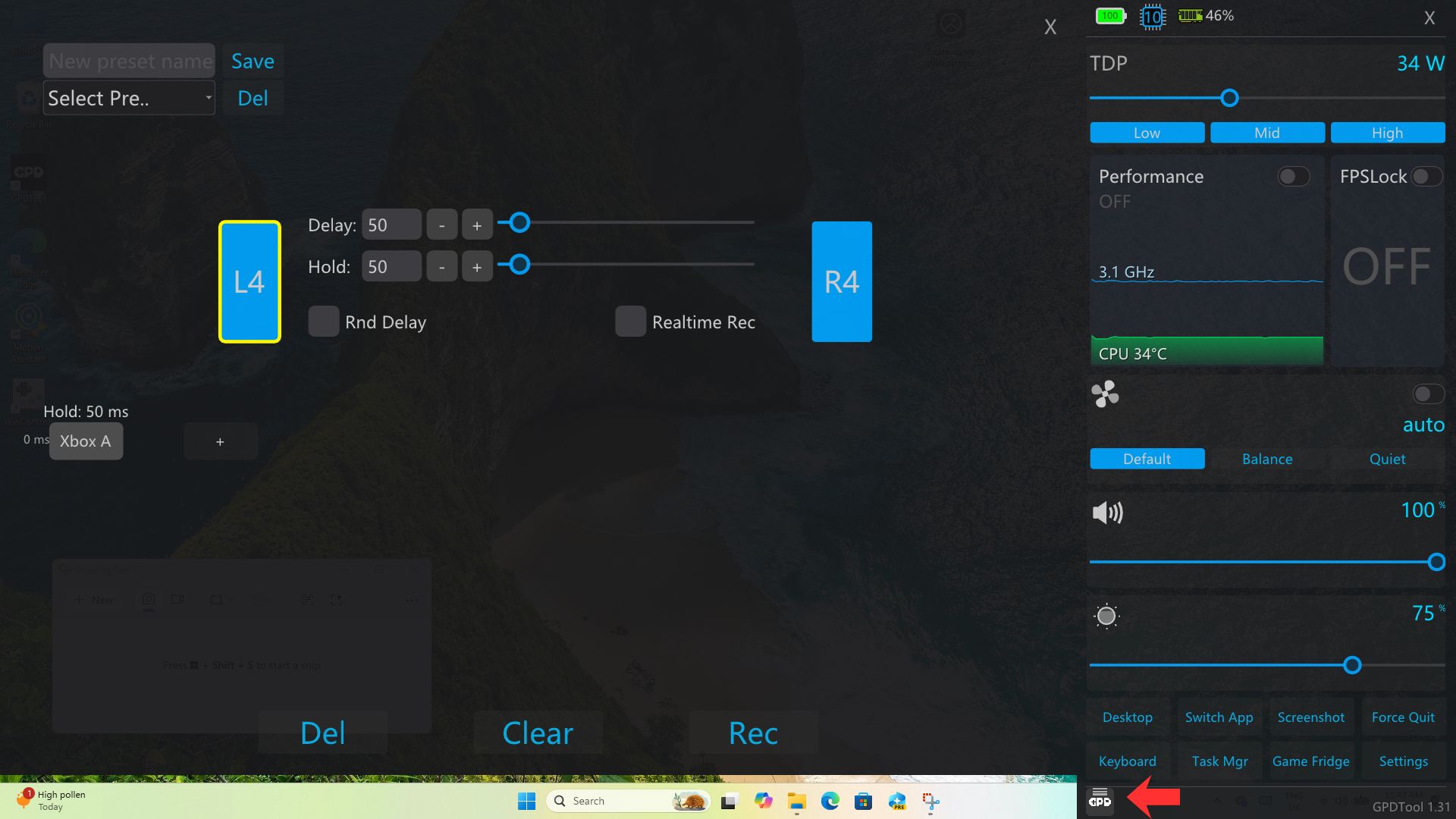
From here you can assign functions to the back buttons on your GPD handheld, if your device has them , such as custom button combinations.
FAQ #
GPD Tool is not opening when I click on the shortcut icon #
Check the taskbar icons in the lower right corner of your screen for the GPD Tool icon. Clicking on it will open the overlay.
We also noticed that on a fresh install, some software that GPD Tool depends on may not be present. Running Windows Update, installing the latest AMD drivers, and rebooting the device resolved this in our experience, after which GPD Tool worked as expected.
GPD Tool Performance setting can’t be enabled #
RivaTuner should be installed alongside GPD Tool, but if needed you can always grab the latest version here. DirectX is also a requirement for this feature to work. You can download the DirectX package here, which includes all prior versions.
how do you uninstall this? it does not show up in the windows uninstaller or does it let me delete the folder it installs.I installed it on the GPD Win 5 and decided to go back to the Motion Control app.
You can leave it installed and it wont run in the background. However you can simply delete the files if its not in Windows Programs to uninstall. Right click on the icon, choose Open Folder and delete the softwares files.