 Doc Summary

From time to time, the thumbsticks on gadgets like gamepads or handheld computers may drift or lose their calibration, causing inputs to be imprecise or wrong. This tutorial will provide a step-by-step explanation of how to set up the required utility and calibrate the joysticks on every GPD handheld gaming PC.
This walkthrough is compatible with:
Download the GPD Joystick Calibration Tool #
Save and unzip the most current release of the GPD Joystick Calibration Tool here. Unpack the compressed archive to locate the Win3TestV1.04.exe application, then launch this program.
Calibrating the GPD Sticks #
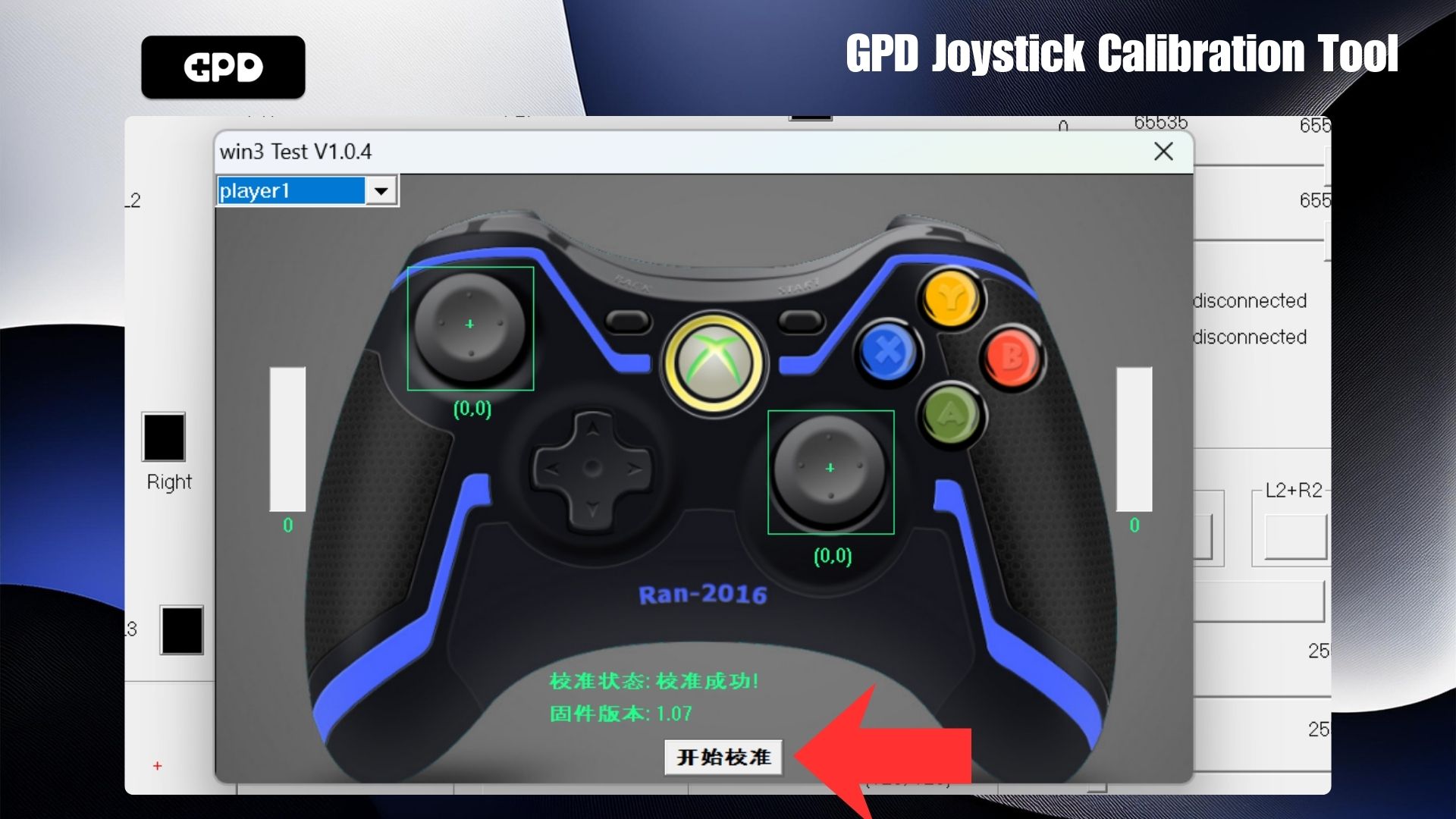
You will see two separate windows pop up, appearing as they do here. Click on the button highlighted in the image below to begin the calibration sequence.
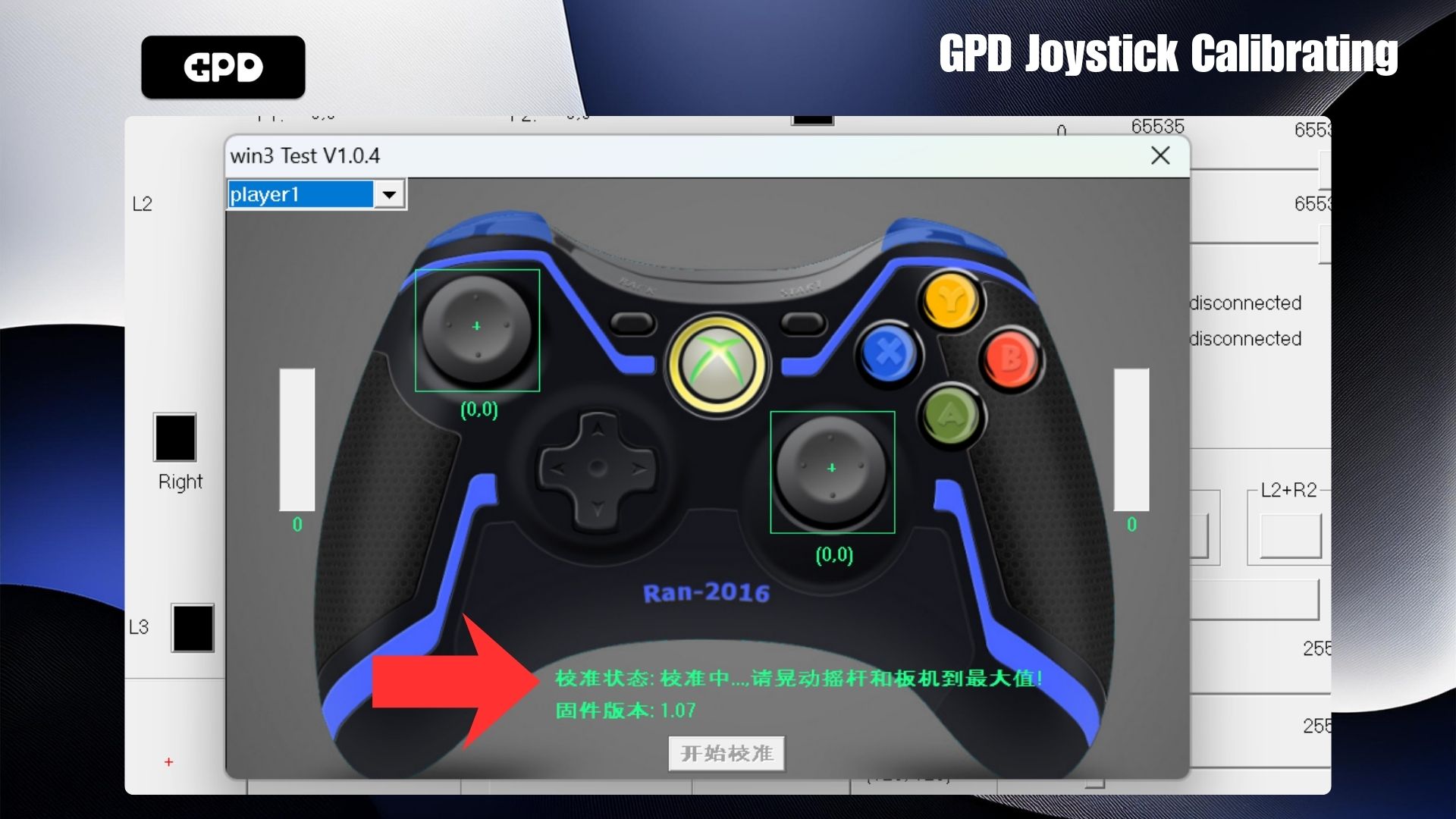
Once you have clicked the button, the application will direct you to move both analog sticks to their outer limits and rotate them continuously, while simultaneously squeezing and letting go of the left and right analog triggers. These movements will be visualized in the corresponding sections on the display.
When the calibration sequence concludes, the green text will refresh to match the example shown below, signaling that the calibration was successful.
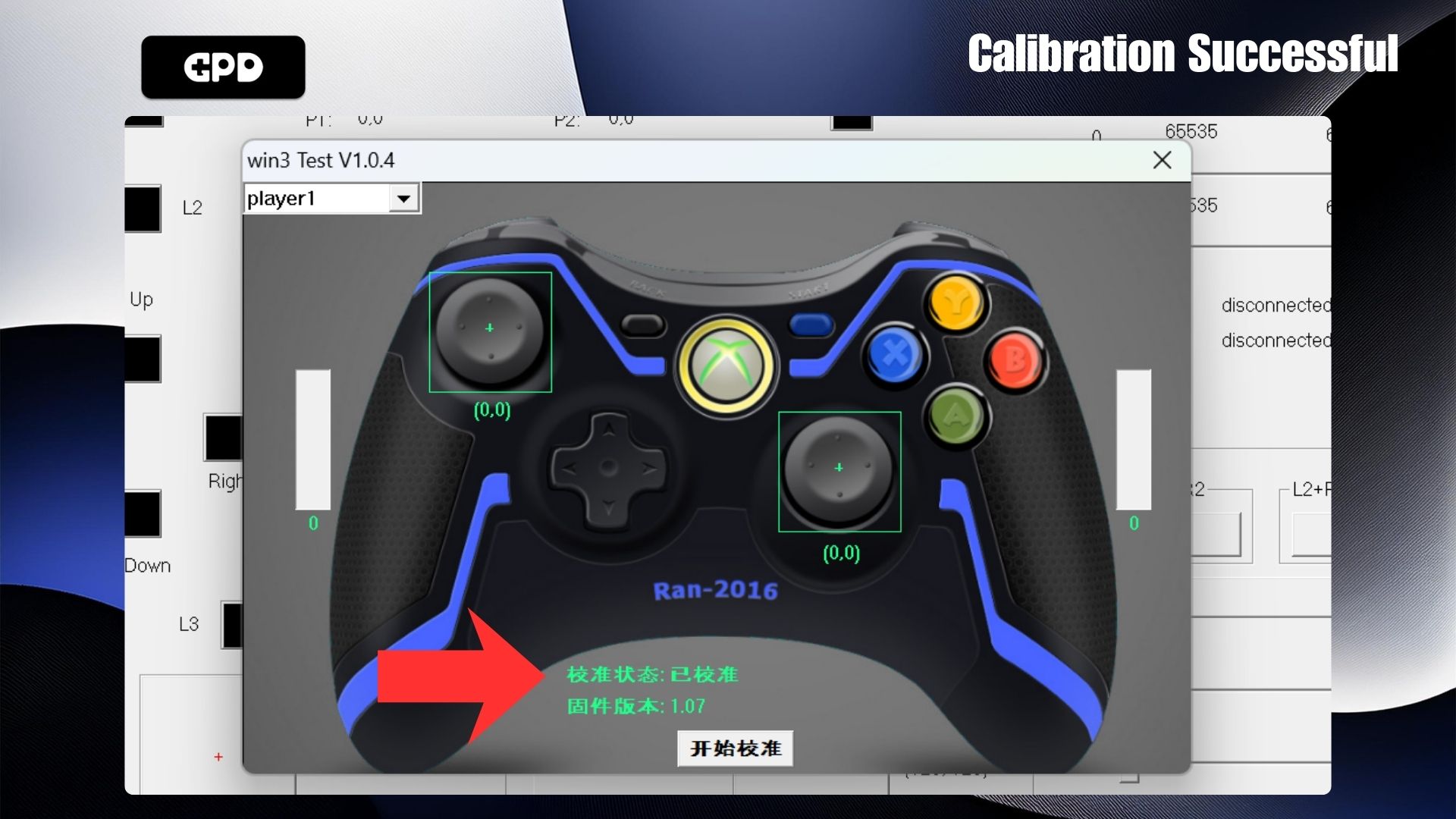
If you suspect that you did not reach the full range of the edges or the triggers, you can hit the button to redo the calibration. You may also verify that the adjustment was successful by moving any of the analog sticks or triggers, and the resulting data will show up in the appropriate fields.
Windows Calibration #
Should the previous technique fail to resolve the issue, you can utilize the native calibration tool included in Windows, as described below. To perform the calibration directly in Windows, launch the “Run” dialog box. With a physical keyboard, use the Windows + R shortcut; otherwise, locate “Run” via the Start menu search bar. When the box appears, input joy.cpl and select “OK”.
A new window will launch; do not be alarmed if Windows detects your input device as an Xbox 360 controller, as this is normal. Select “Properties” to proceed to the next interface.
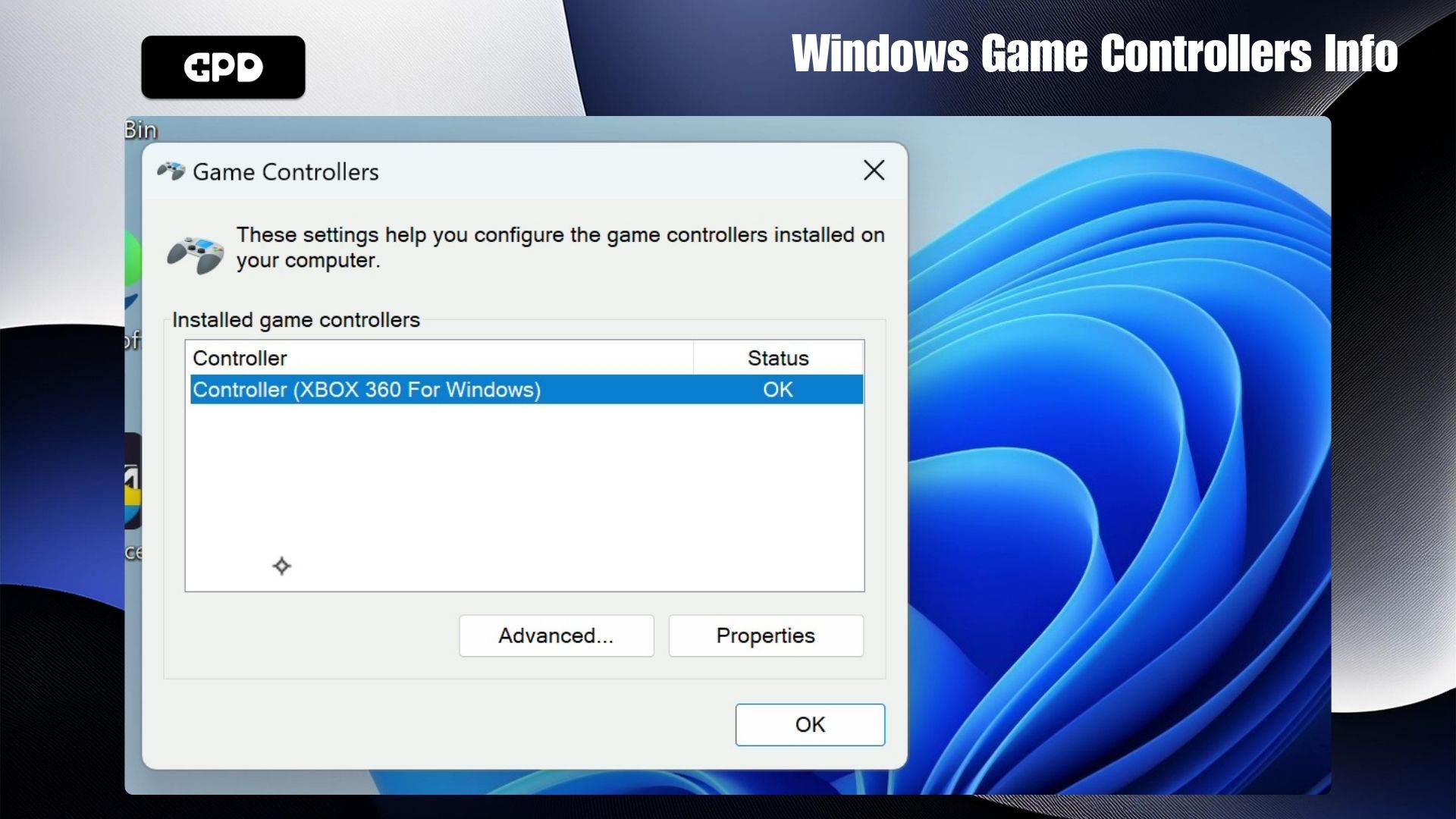
This section allows you to verify the functionality of your gamepad inputs.
- Z Axis corresponds to the Trigger inputs.
- X Rotation represents the horizontal motion of the Right Stick.
- Y Rotation represents the vertical motion of the Right Stick.
- X-Axis / Y-Axis tracks the Left Stick’s movement.
- Point of Video Hat refers to the D-Pad directions.
- Buttons covers all physical keys: A, B, X, Y, LB, RB, LS, RS, LC, and RC. These indicators will illuminate upon activation.
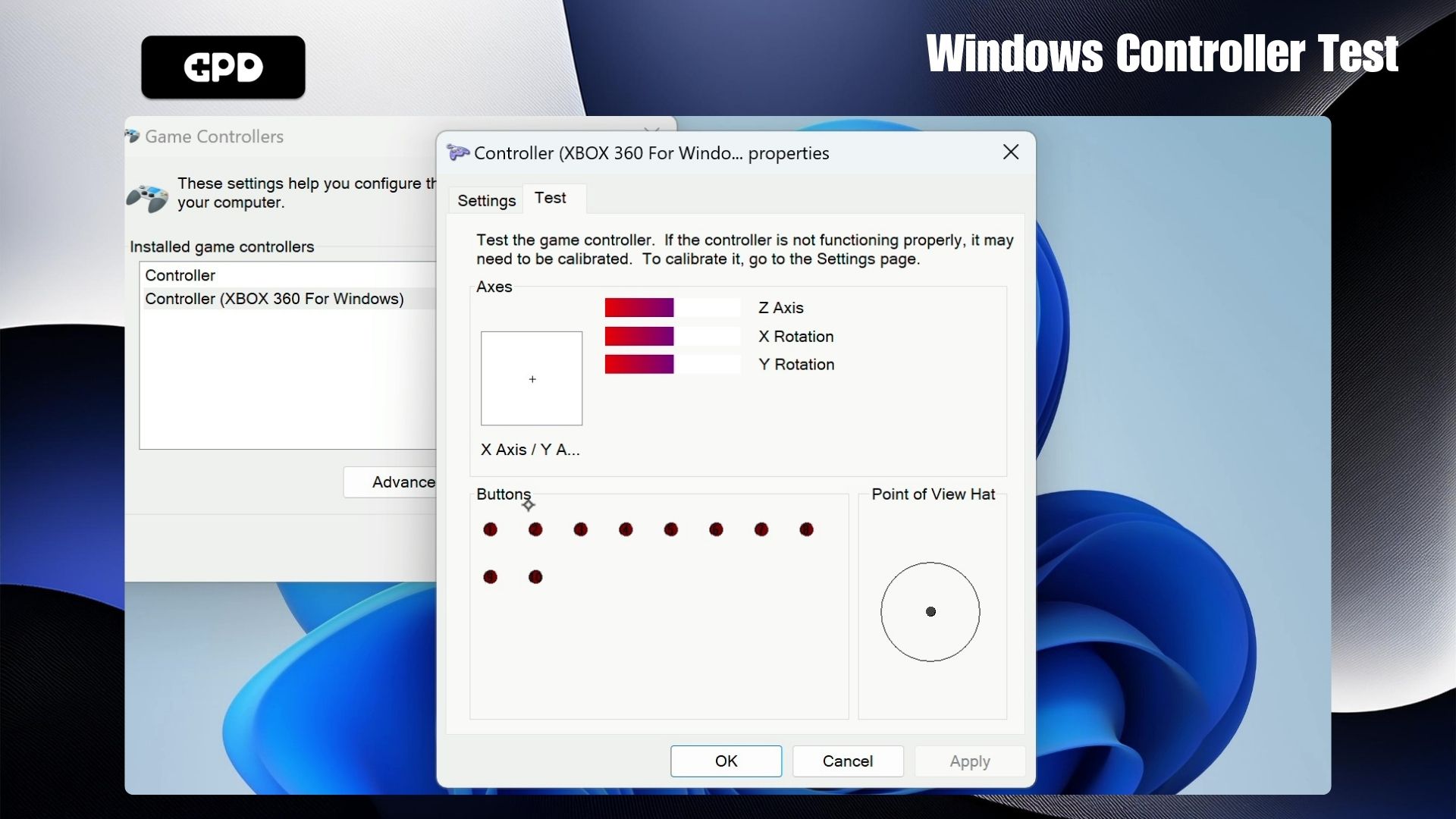
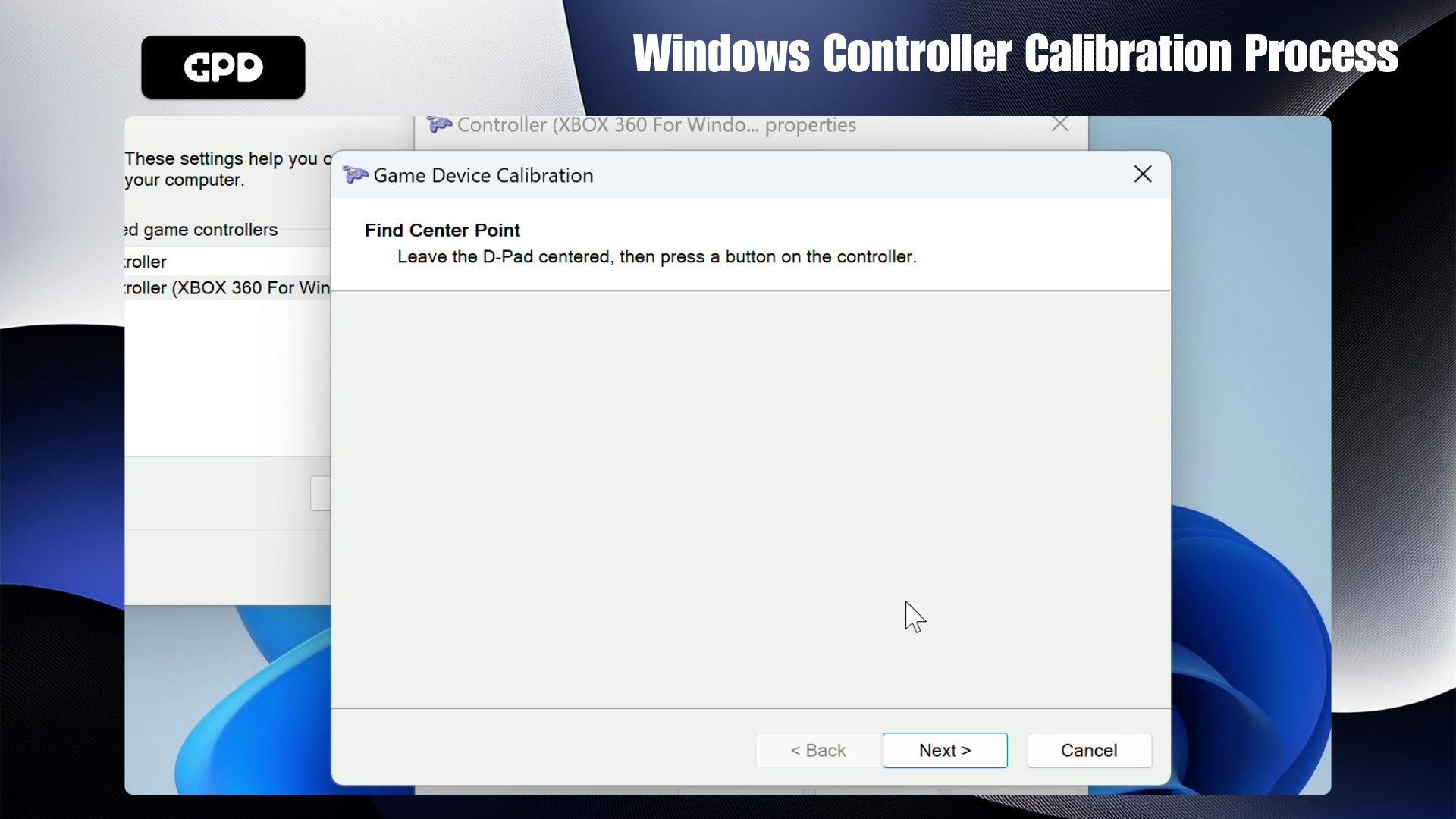
If all inputs respond correctly, your device likely does not require further adjustment. However, if calibration is necessary, switch to the “Settings” tab to view the options shown here. Press the “Calibrate” button to initiate the wizard.
Follow the on-screen prompts to adjust your controller settings. Upon completion, you will return to the Settings tab; from there, navigate back to the Test tab to review the results of your adjustments. If the outcome is unsatisfactory, return to Settings and select “Restore Default.” If you are satisfied, you may proceed with using your newly calibrated device.
Gamepad-Tester #
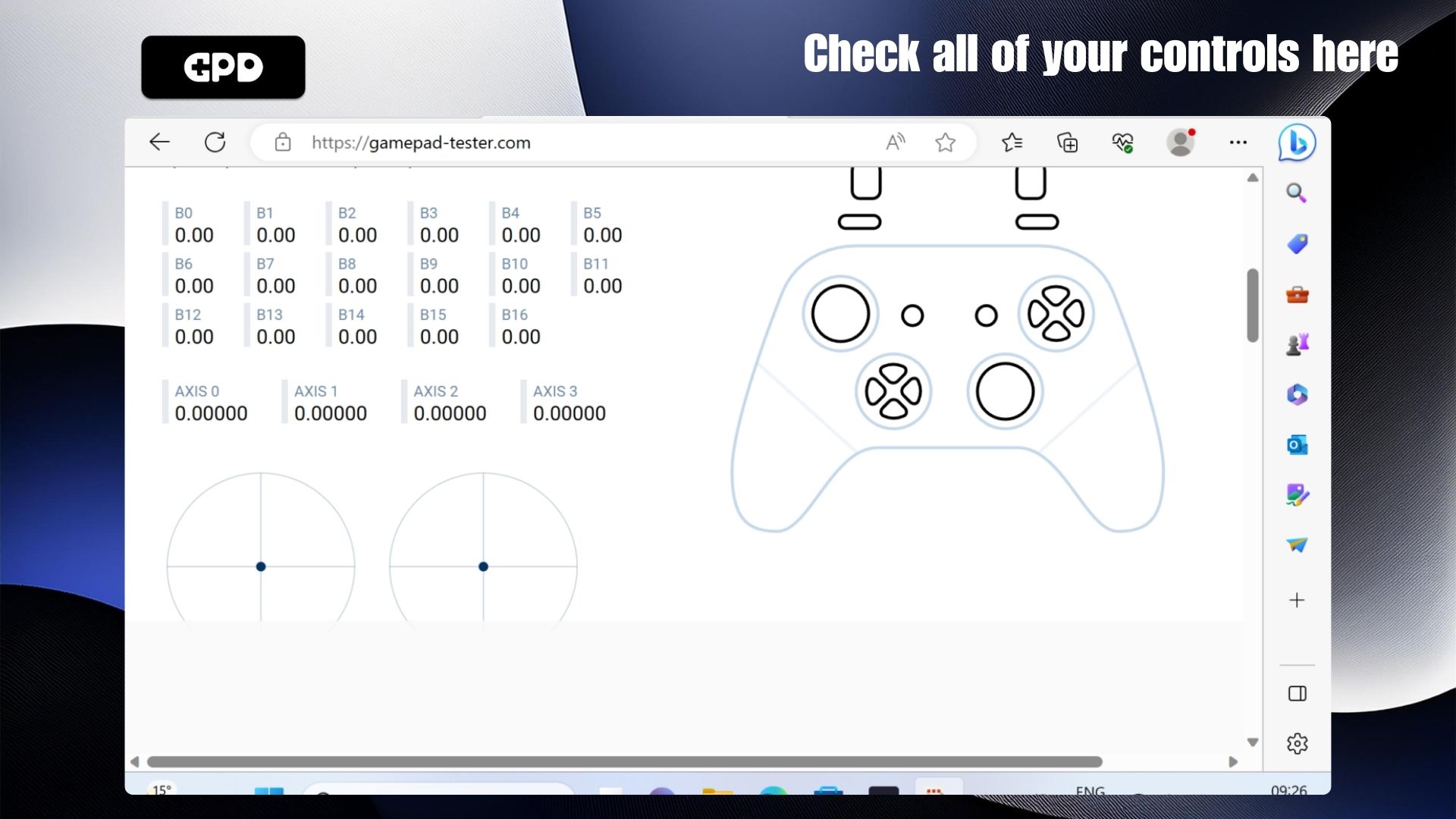
Gamepad Tester is a widely recognized resource within the gaming community, providing a simple and user-friendly method for evaluating your controller hardware. It actually provides more detailed data than the standard Windows tools. Navigate to the website https://hardwaretester.com/gamepad. You will be presented with the display shown below.
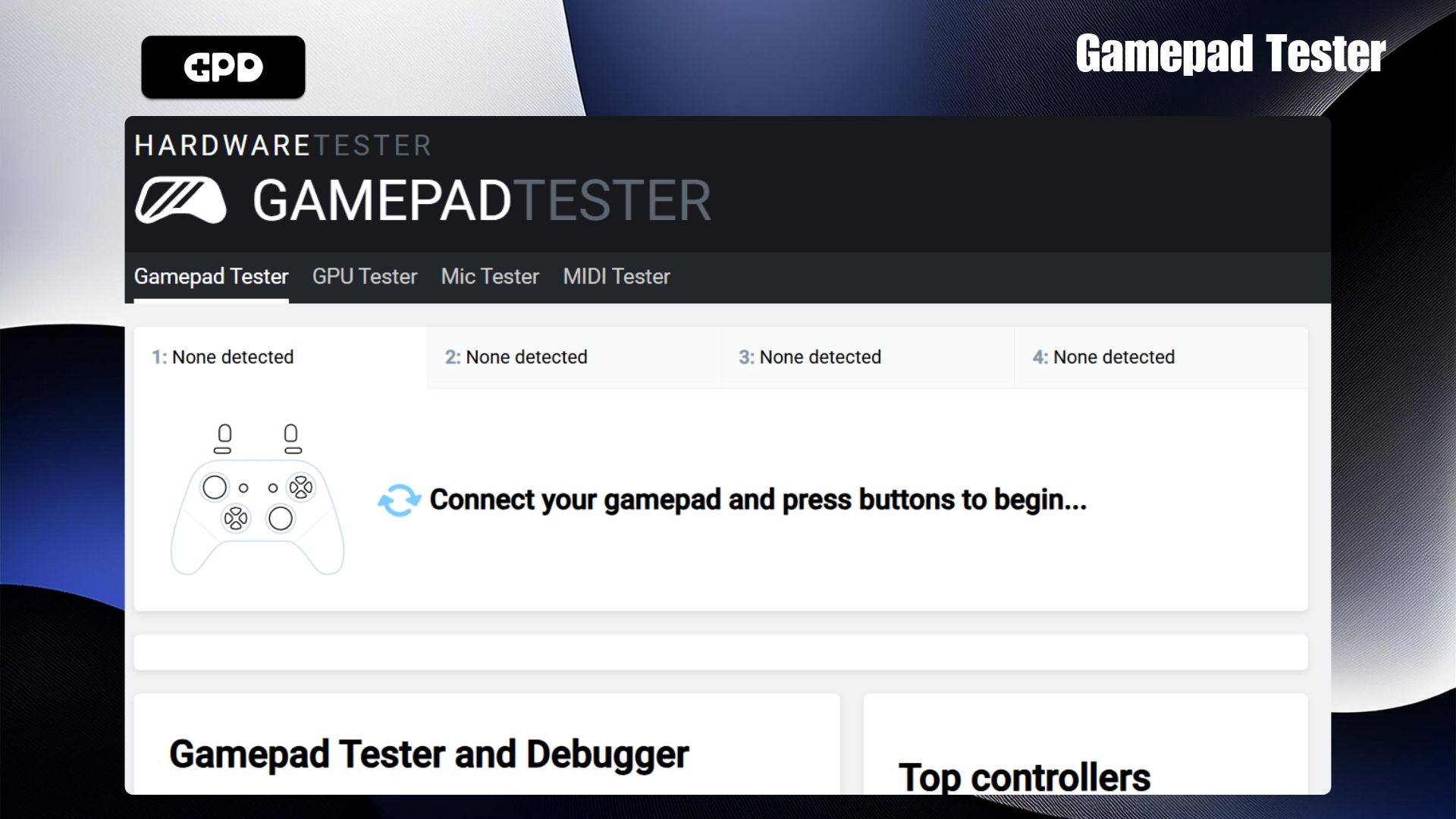
Push any key to recognise the controller and it will launch the diagnostic interface. On this screen, you can observe the exact angle and pressure intensity being detected for your thumbsticks, triggers, and face buttons. Using these details, you can pinpoint errors and accurately adjust your hardware.