أداة GPD Tool – برنامج الواجهة الأمامية لأجهزة GPD
الملفات المستخدمة في هذا الدليل
الإصدارات (8)
- Added options for the On-Screen Keyboard (OSK) and TAPTIP Touch Keyboard. The default setting has been changed to the TAPTIP Touch Keyboard; right-click the button to switch between different keyboards
- Added Keyboard Lock and Touchscreen Lock features. These utilize the original Screenshot button position; right-click to switch between different shortcut buttons
- Added compatibility support for the MINI ULTRA model
- Removed the UAC prompt when launching RTSS and disabled automatic updates for a smoother user experience.
- Improved the stability of the frame-rate limiter UI.
- Fixed a bug with the power linkage feature.
- Fixed an issue where TDP was not automatically applied on first launch.
- Added screen refresh-rate adjustment settings.
- Added controller vibration adjustment options.
- Increased the adjustable power limit to 100W on WIN 5 and 40W on other models.
- Added 144 FPS as a new frame-rate limit option.
- Added helpful tips for the functions at the top of the interface.
- Added OSK and TabTip keyboard options to the on-screen keyboard settings. Right-click the button to select an option
- On WIN 5, the physical button can be used to bring up the keyboard.
- Fixed several bugs.
- After closing the UI, the background service will no longer execute any operations. This fixes an issue causing abnormal fan behavior on system startup.
- Added power tuning parameters for the GPD MAX3.
- Fixed hidden bugs.
- Updated kernel driver for improved stability; no need to add to whitelist, no antivirus warnings.
- Fixed issue with automatic multi-language settings during installation.
- Added Chinese, Japanese, and Korean prompts to the performance monitoring horizontal and vertical buttons.
- Modified TDP PL2 calculation method to PL1+1 for more accurate power consumption locking.
- Source guide: GPD Tool Download, Setup Guide & Troubleshooting for GPD Devices
- Source guide: GPD Tool Download, Setup Guide & Troubleshooting for GPD Devices
- Source guide: GPD Tool Download, Setup Guide & Troubleshooting for GPD Devices
تظل الإصدارات الأقدم قابلة للتنزيل من أجل التراجع عن الإصدارات السابقة — يحتفظ كل إصدار بملفه الخاص الذي تم التحقق منه.
تعمل أداة GPD Tool كخلف لبرنامج MotionAssist الذي تم شحنه مع أجهزة GPD لسنوات عديدة. وهي تقدم واجهة حديثة معاد تصميمها إلى جانب مجموعة من الوظائف والميزات الجديدة لتمنحك تحكماً أكبر في أجهزة كمبيوتر GPD المحمولة للألعاب.
- دعم التنقل الكامل لوحدة التحكم
- يمكن تفعيلها في أي لعبة بملء الشاشة، مع اختصارات لوحة المفاتيح ووحدة التحكم القابلة للتخصيص
- دعم تعديل TDP
- مراقبة الأداء داخل اللعبة ومراقبة معدل الإطارات والحد من معدل الإطارات
- وضع المروحة الصامت القابل للتخصيص
- ضبط مستوى الصوت والسطوع
- ميزة “تجميد” اللعبة لتعليق العمليات وتوفير الطاقة
- دعم لوحة المفاتيح على الشاشة
- يدعم 7 لغات: الصينية، والإنجليزية، واليابانية، والكورية، والروسية، والفرنسية، والإسبانية
GPD Tool Downloads
You can download the latest release as well as previous releases below.
| GPD Tool v1.60 | Download here |
| GPD Tool v1.49 | Download here |
| GPD Tool v1.45 | Download here |
| GPD Tool v1.31 | Download here |
Changes in GPD Tools v1.60
Updated kernel driver for greater stability; no need to add to whitelist, no antivirus warnings.
Fixed issue with automatic multi-language setting during installation.
Added Chinese, Japanese, and Korean prompts to the performance monitoring horizontal and vertical buttons.
Modified TDP PL2 calculation method to PL1+1 for more accurate power locking.
Changes in GPD Tools v1.49:
Fixed the feature of automatically hiding the desktop UI when clicked.
Fixed an external graphics card display bug
Fixed the GPD BOX fan read address.
Changes in GPD Tools v1.45:
- Can be manually re-enabled in Windows settings if needed
- Brand-new redesigned UI
- Added CPU frequency limit option
- Added CPU and GPU status display in the UI
- Added horizontal layout toggle for RTSS in-game overlay, along with a font size adjustment slider
- Optimized fan control logic for both automatic and manual modes
- On-screen keyboard can now be launched in full screen independently
- On WIN5, it can be triggered via the built-in keyboard shortcut
- You can also assign a separate hotkey for the on-screen keyboard
- Added power profile linkage:
- Automatically switches to high performance when plugged in
- Automatically switches to low power mode when unplugged
- Automatically added to whitelist after installation
- Fixed issue where the service failed to start after installation on some devices
- Fixed issue triggering Easy Anti-Cheat (EAC)
- Fixed issue with WIN5 controller shortcut key not working
- Requires controller firmware update to version 1.10 (version 1.09 is not supported)
- Added D-pad navigation support (same functionality as the left joystick)
- Added uninstall option (can now be removed via Control Panel)
- Removed edge gesture toggle setting
- Windows right-edge gesture is now disabled by default after installation
Procedures for Installing GPD Tool
- Obtain the latest GPD Tool build via the provided download links.
- Unzip the downloaded file if it arrives in a compressed archive format.
- Launch the setup file and adhere to the guided on-screen instructions.
- Permit the process to finish, then reboot your system if the installer requests it.
- Once restarted, locate the GPD Tool shortcut within the Windows notification area (system tray).
- Launch the interface by either clicking the tray icon or using the CTRL + SHIFT + F3 shortcut.
- If the Performance tab isn’t showing, verify that RivaTuner and DirectX are installed, then restart your machine once more.
Procedures for Updating GPD Tool
- Acquire the most recent edition of the GPD Tool software.
- Ensure the current GPD Tool application is completely shut down from the system tray prior to starting the update.
- Execute the new installer and permit it to replace the previous installation if prompted.
- Perform a system restart once the update process concludes.
- Start the GPD Tool to ensure the updated version is functioning as intended.
- In the event a controller firmware update is necessary for this version, finish that update before investigating any other issues.
Procedures for Uninstalling GPD Tool
- Access the Windows Control Panel.
- Navigate to the Programs and Features menu.
- Identify GPD Tool within the list of currently installed applications.
- Highlight the entry and select the Uninstall option.
- Restart your machine once the software has been removed.
- Should you wish to reinstall later, download the current release and perform a clean installation after your reboot.
دليل مستخدم أداة GPD
لفتح تراكب أداة GPD، انقر على أيقونة شريط أدوات الويندوز في الزاوية السفلية اليمنى من الشاشة، أو استخدم اختصار لوحة المفاتيح CTRL + SHIFT + F3.
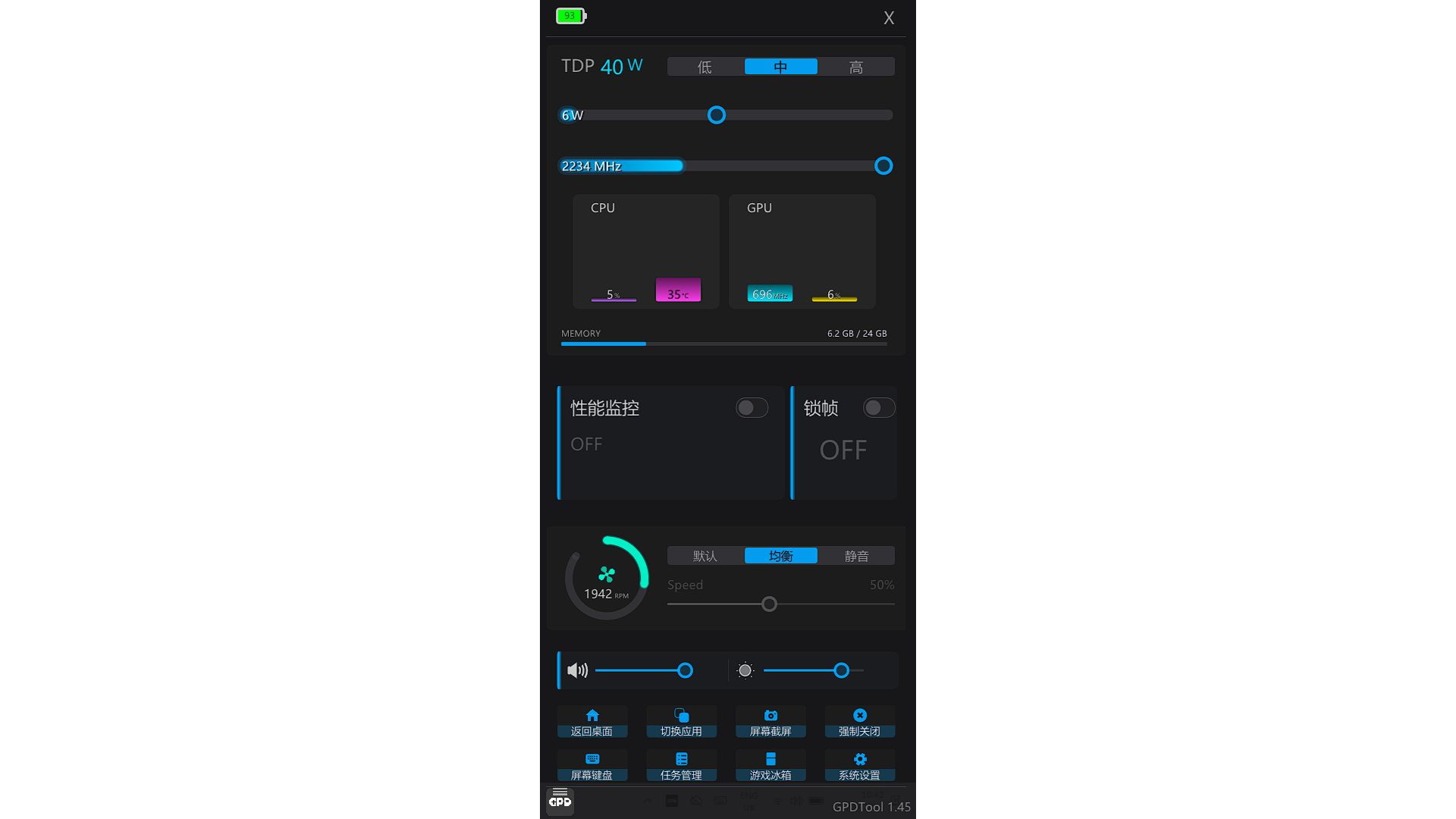
You may find the text is by default in Chinese language, you can change it to your preferred language by following the steps in the below image:
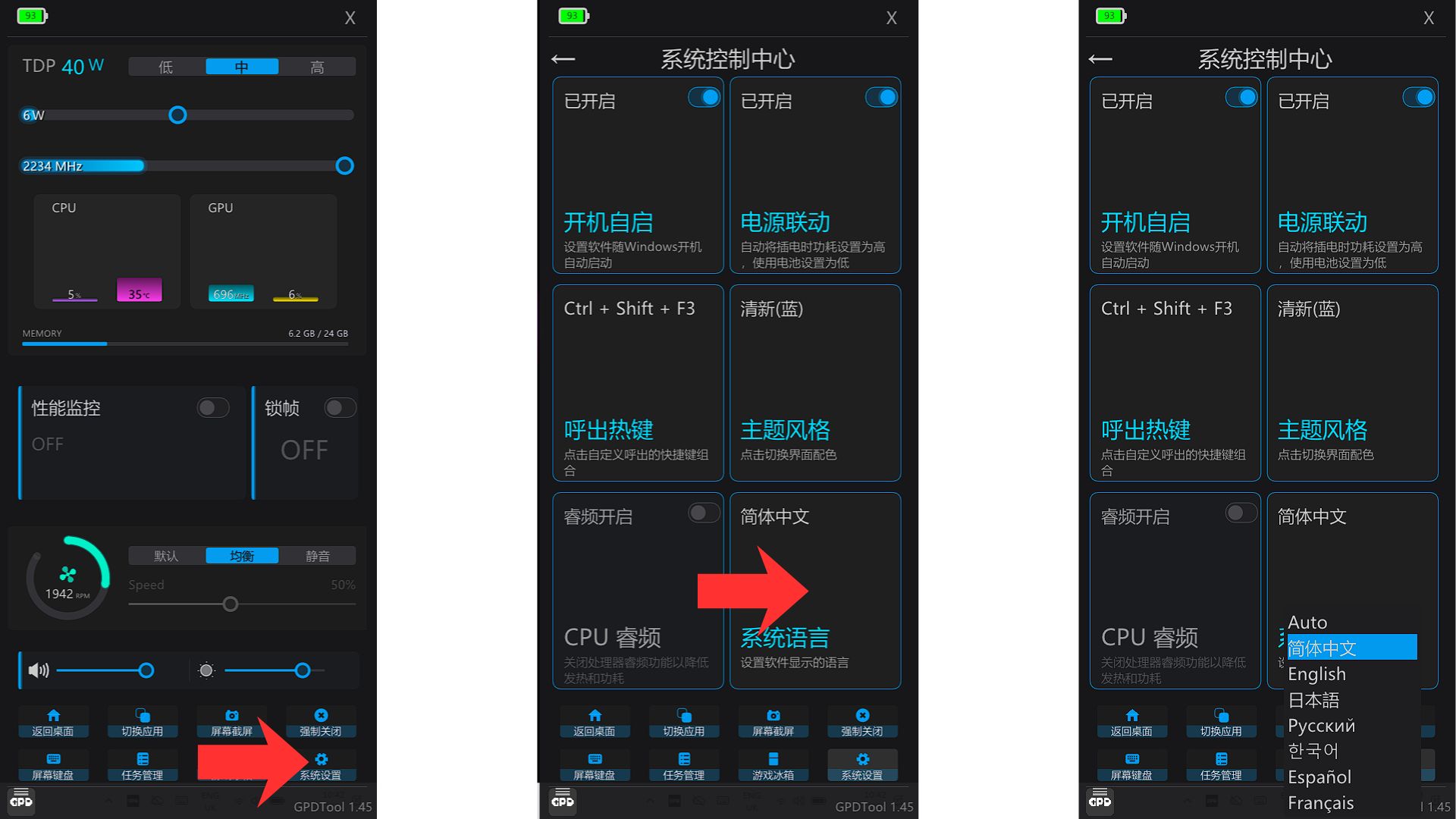
فيما يلي تفصيل لجميع الخيارات المتاحة لك.
إعدادات TDP
يُستخدم هذا القسم لإدارة TDP (طاقة التصميم الحراري) لجهازك. يختلف نطاق القيم المتاحة حسب الجهاز الذي تمتلكه.
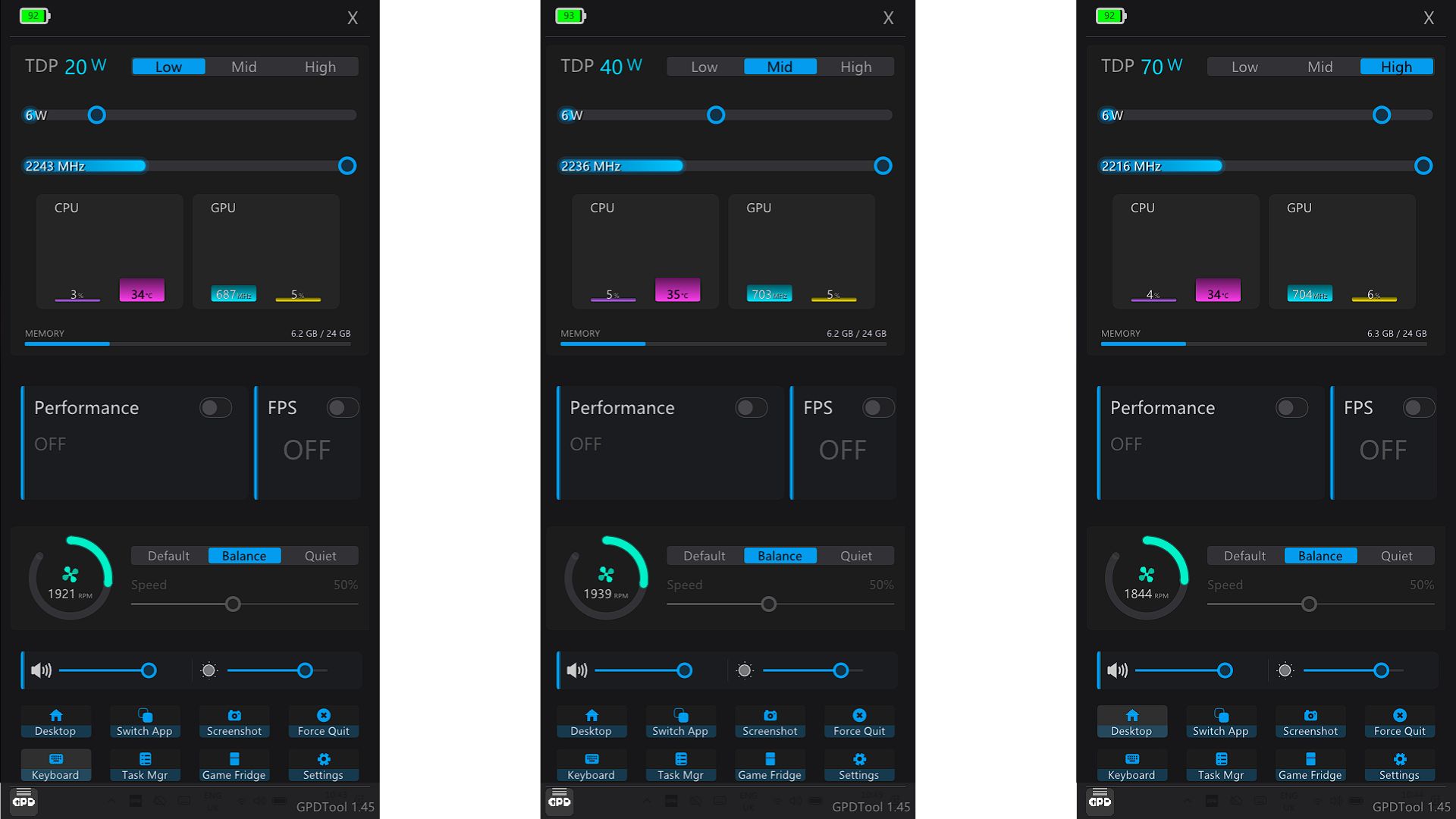
استخدم شريط التمرير لتعيين TDP يدويًا إلى المستوى الذي تريده، أو اختر من أزرار الإعداد المسبق المنخفض أو المتوسط أو العالي لتطبيق مجموعة من القيم الافتراضية بسرعة.
الأداء
يتطلب تمكين إعداد الأداء تثبيت RivaTuner على جهازك. ملاحظة: قد يكون DirectX مطلوبًا أيضًا لكي تعمل هذه الميزة بشكل صحيح – يمكنك تنزيله من هنا.
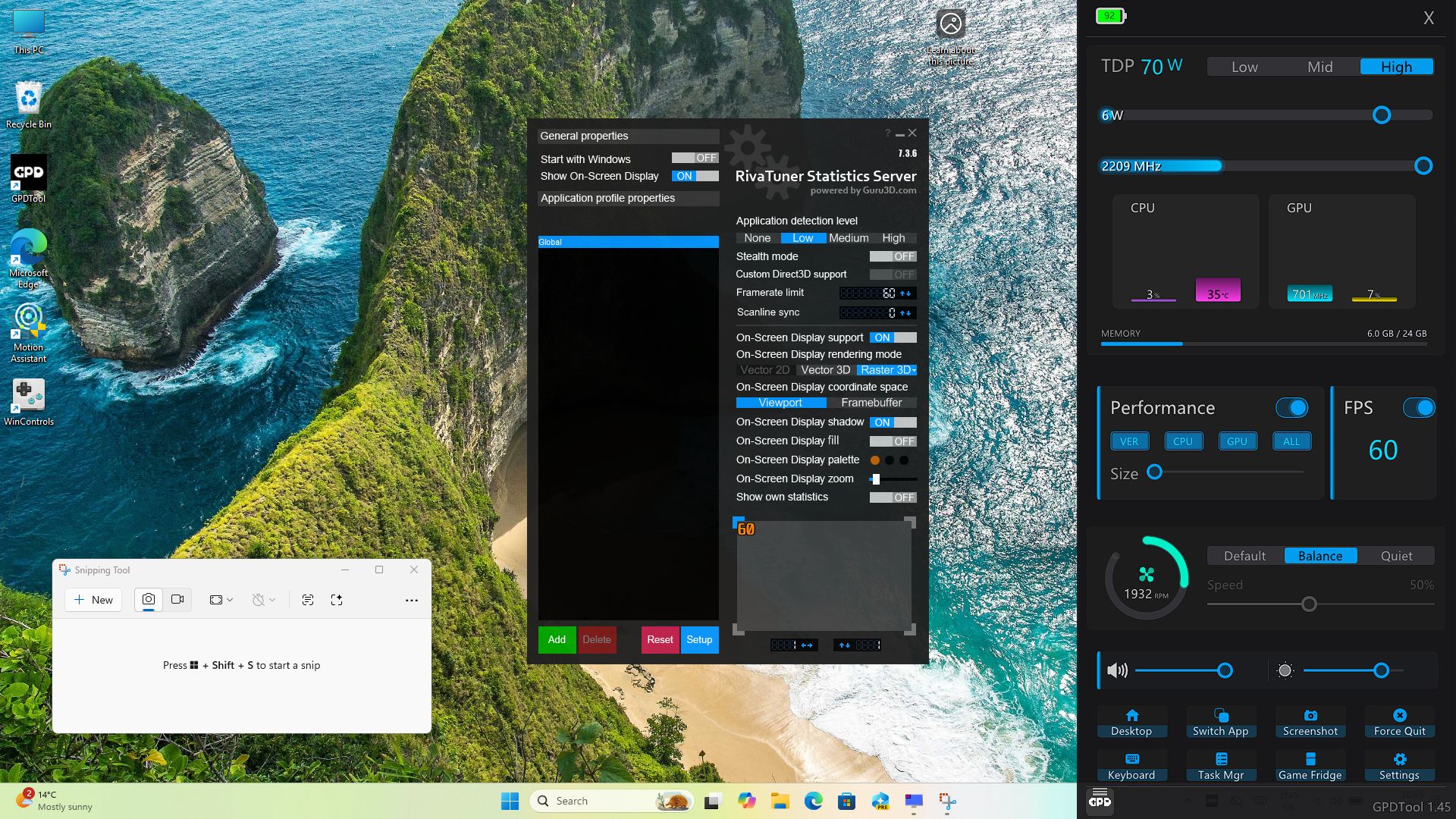
بمجرد تنشيطه، يتيح لك RivaTuner عرض بيانات في الوقت الفعلي على الشاشة بما في ذلك الإطارات في الثانية ودرجة حرارة وحدة المعالجة المركزية والمزيد.
قفل FPS
عند تمكين قفل FPS، سيتم تحديد معدل الإطارات في الألعاب عند 60 إطارًا في الثانية (FPS). يتيح إيقاف تشغيل ذلك (الحالة الافتراضية) تشغيل ألعابك بأقصى معدل إطارات يمكن تحقيقه.
سرعة المروحة
تعمل المروحة في الوضع التلقائي بشكل افتراضي. استخدم أزرار الاختصار Default أو Balance أو Quiet للتبديل بين ملفات تعريف سرعة المروحة. يمكنك أيضًا تعطيل الوضع التلقائي وضبط شريط التمرير يدويًا لضبط سرعة مروحة معينة من اختيارك.
إعدادات مستوى الصوت والسطوع
هذه تشرح نفسها بنفسها 🙂 استخدم أشرطة التمرير لزيادة أو خفض مستوى الصوت ومستويات سطوع الشاشة على التوالي.
أزرار الاختصار
- سطح المكتب – يقوم بتصغير جميع التطبيقات المفتوحة ويكشف عن سطح المكتب
- تبديل التطبيق – يفتح محوّل مهام ويندوز
- لقطة الشاشة – يلتقط لقطة شاشة ويحفظها في مجلد “لقطة الشاشة” في صورك
- فرض الإنهاء – يتيح لك تحديد تطبيق قيد التشغيل وإغلاقه
- لوحة المفاتيح – تعرض لوحة مفاتيح على الشاشة
- مدير المهام – فتح مدير مهام ويندوز
- ثلاجة الألعاب – تعمل على تجميد التطبيقات المتوافقة وإلغاء تجميدها للمساعدة في تعزيز الأداء العام
الإعدادات
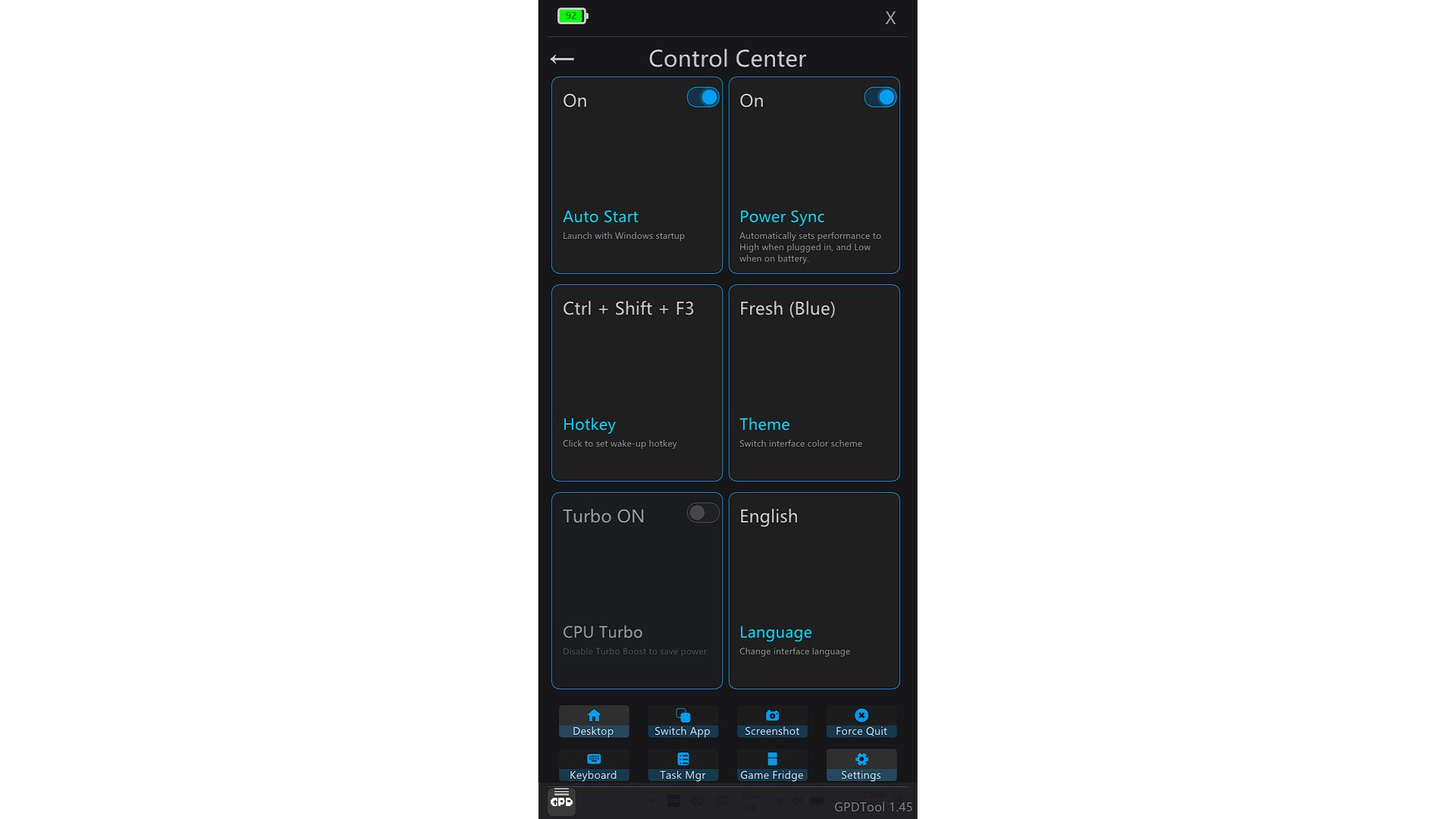
- بدء التشغيل التلقائي – قم بتبديل تشغيل أداة GPD تلقائيًا عند بدء تشغيل Windows
- إيماءة الحافة –
- مفتاح الاختصار – قم بتعيين مجموعة مفاتيح اختصار مخصصة لفتح تراكب أداة GPD
- السمة – اختر من بين ثلاث سمات لونية: أزرق منعش، وأصفر سايبر وأرجواني فايب
- وحدة المعالجة المركزية التوربينية – قم بتبديل تشغيل أو إيقاف تشغيل التعزيز التوربيني لتحسين الأداء في ألعاب محددة
- اللغة – تكتشف لغة Windows تلقائيًا بشكل افتراضي، ولكن يمكن تغييرها يدويًا هنا
تكوين زر الرجوع إلى الخلف
سيؤدي النقر على شعار GPD الصغير في الزاوية السفلية اليسرى من التراكب (انظر الصورة أدناه) إلى فتح قائمة تهيئة زر الرجوع.
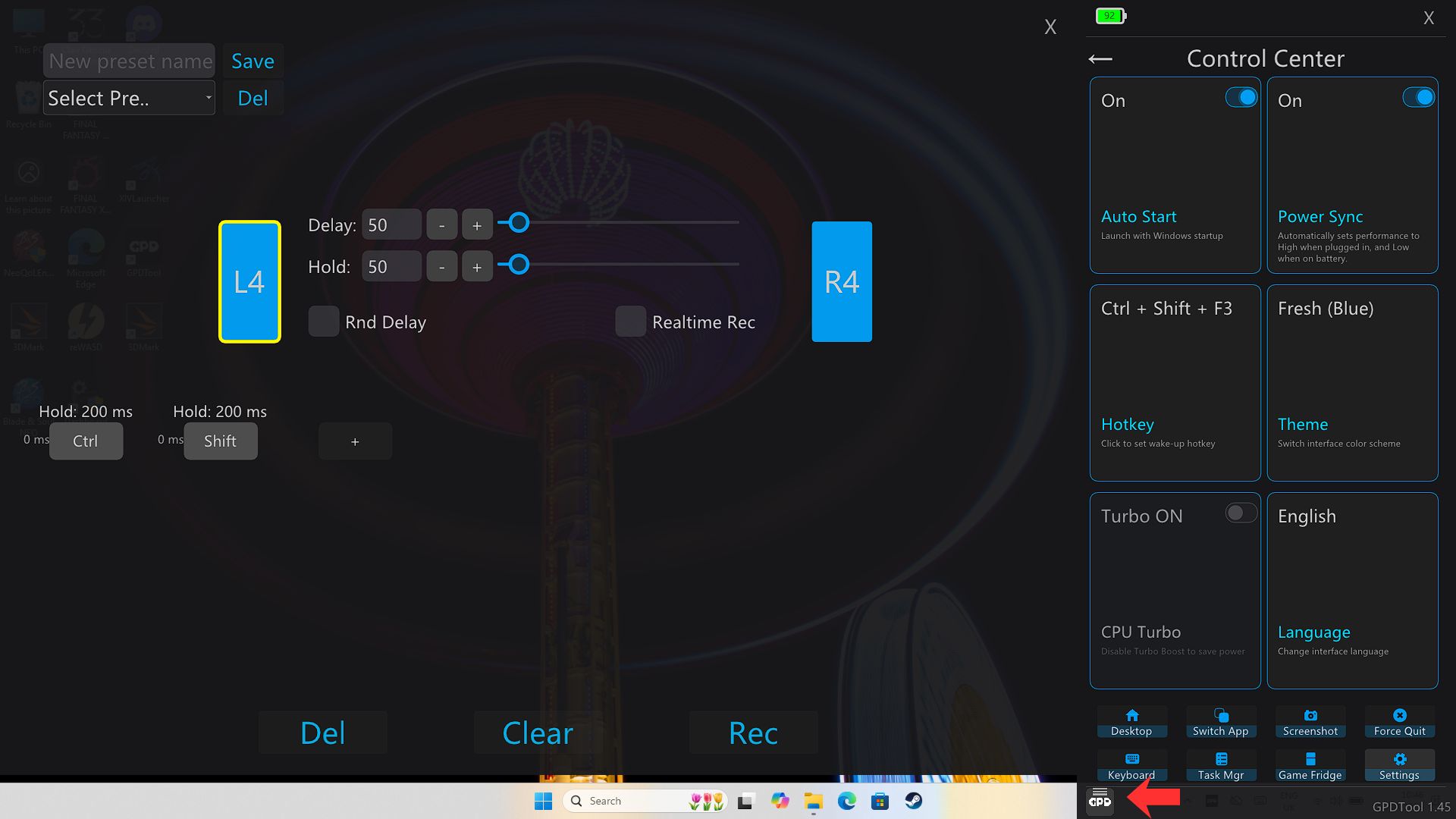
من هنا يمكنك تعيين وظائف للأزرار الخلفية في جهاز GPD المحمول باليد، إذا كان جهازك يحتوي عليها، مثل مجموعات الأزرار المخصصة.
In-Depth Troubleshooting Guide
GPD Tool Fails to Launch
If the application refuses to open, start by checking the Windows system tray for the GPD Tool icon. If the program is active in the background, simply clicking that icon should bring the overlay to the front. Should the icon be absent, try restarting your hardware, running Windows Update, ensuring your AMD drivers are current, and then attempting to launch the software again.
Overlay Not Showing During Gameplay
If the interface isn’t appearing while you are in a game, verify that GPD Tool is actually running and double-check that the assigned hotkey hasn’t been modified. It is helpful to test the default shortcut, CTRL + SHIFT + F3, on your desktop first to confirm it works globally. If the issue is specific to one title, exit the game, restart GPD Tool, and try again. Note that certain anti-cheat software or exclusive fullscreen modes can occasionally block the overlay.
Performance Settings Are Unresponsive or Locked
If you find that the Performance features are greyed out, you likely need to install or refresh your installation of RivaTuner Statistics Server (RTSS) and ensure all DirectX components are present. After installing these, reboot Windows before attempting to toggle the settings again.
- RivaTuner Download: https://www.guru3d.com/download/rtss-rivatuner-statistics-server-download/
- DirectX Package: https://www.microsoft.com/download/details.aspx?id=35
Keyboard Shortcut Fails to Respond
If your hotkey isn’t triggering the tool, navigate to the Settings menu to verify which key combination is currently set. It’s possible another background utility is already utilizing that specific shortcut. Try assigning a unique key combo, saving the changes, and then restarting the GPD Tool.
Functional Issues Following Installation
If certain features remain unavailable after setup, confirm that your Windows OS is fully updated and the latest AMD graphics drivers are installed. Ensure you have performed a full system restart after the initial installation. Be aware that some capabilities are dependent on specific system components or updated device firmware.
Complications Arising After a Software Update
If a newer release introduces bugs, check if that version requires a corresponding controller firmware update or a specific software dependency. For instance, some builds require updated firmware before all shortcuts will behave correctly. If issues persist, uninstall the software, reboot your device, and perform a clean installation of the latest compatible version.
Conflicts with Anti-Cheat or Game Stability
If a game flags the software for anti-cheat reasons or experiences compatibility issues, make sure you have updated to the most recent version of GPD Tool, as patches for these problems are frequently included in new releases. Test the tool with the game closed, then relaunch the title after the update is finished.
Application Doesn’t Launch on System Startup
If GPD Tool is not starting automatically when you boot up, enter the Settings menu and verify that the “Auto Start” option is toggled on. Restart Windows to confirm that the tray icon successfully appears upon login.
Supplementary Frequently Asked Questions
Which legacy software is superseded by GPD Tool? On supported GPD hardware, this application serves as the official successor to the older MotionAssist utility.
What are the ways to access the GPD Tool interface? You can bring up the tool by locating its icon in the Windows system tray or by using the CTRL + SHIFT + F3 hotkey combination.
Is RivaTuner a mandatory requirement? RivaTuner is only essential if you plan to use the real-time performance monitoring capabilities. The core functions of the GPD Tool will remain operational even if RivaTuner is not installed.
Does this software rely on DirectX? While not always required for the base app, specific elements of the performance overlay may need DirectX components to be present on your system to function correctly.
Can I delete GPD Tool at a later date? Certainly. Current versions of the software are fully integrated with the standard Windows removal process, allowing you to uninstall it via the Control Panel whenever you wish.
أسئلة حول هذا الدليل
5 أسئلة تمت الإجابة عنهاhow do you uninstall this? it does not show up in the windows uninstaller or does it let me delete the folder it installs.I installed it on the GPD Win 5 and decided to go back to the Motion Control app.

You can leave it installed and it wont run in the background. However you can simply delete the files if its not in Windows Programs to uninstall. Right click on the icon, choose Open Folder and delete the softwares files.
back buttom configuration won’t show up after clicking the GPD logo on the bottom left, it only shows “about” and “exit”. I am using Win Max2 2024 (8840u) and have tried both v1.49 and v1.60.
[UPDATE] We checked and the Back Buttons are available to configure if you click on the small GPD logo in the corner of the overlay. We tried in 1.49 and v1.60. If you are still having an issue try uninstalling the GPD Tool software and install it fresh.
I will try again after a Windows reinstall. Perhaps it has something to do with the WinControls firmware, as I tried updating from v1.15 to v1.16 yet it still shows v1.15 in “WinControls.exe” after the update. I have also tried GPD Tool with WinControls uninstalled but backbuttom config panel still won’t show up.
If you are still having issues and purchased it from us, please email [email protected] with your order number and some details and our team can look into it further. Thanks.
Wow. The GPD Tool doesn’t show temperature at all, instead you have to rely on Rivia Tuner to achieve what the MotionAssistant app can do independently?
What an upgrade. /s
Riva Tuner provides a lot more information than what motion assist was able to. I think it is a fair trade off.
I heard that the maximum TDP for the GPD WIN Mini 2024 is 20W.
However, when I installed the GPD Tool on my GPD WIN Mini 2024, the TDP presets were:
Low 15W
Mid 22W
High 35W
Are these the intended values?
You can go up to 35W but it is not recommended as the performance vs power usage is very low. The sweet spot for best performance is 28W TDP, anything over that is minimal.