Updating the GPD WIN 5 Controller Firmware
Files used in this guide
Versions (3)
- Updated HID data reporting for third-party software button status.
- Fixed controller calibration issues.
- Update MotionAssistant alongside this firmware.
- Modified HID data reporting to support third-party software reading real-time button status.
- Update MotionAssistant simultaneously for full compatibility.
- Switch to controller mode first, then upgrade.
Older versions stay downloadable for rollbacks — every version keeps its own verified file.
This walkthrough provides a comprehensive look at the process for upgrading the GPD WIN 5 Controller Firmware.
Download the most recent v1.12 controller firmware for the GPD WIN 5 here.
Please note that while firmware updating is generally fine, there are risks. Please ensure you follow all steps correctly, identify that you are installing the correct firmware for your device, have a fully charged battery and also connected to a charger. Do not switch off the device unless instructed to. We do not accept responsibility if something goes wrong.
Changelog:
V1.09
- Fixed an issue where holding a back button would intermittently send release signals when mapped to a single action or multiple actions without intervals.
- Fixed an issue where the controller would occasionally fail to enumerate successfully on startup, requiring a power cycle to connect.
- Three hidden buttons are now triggered by specific HID data reports (BUF[8] → Short-press Mode key, BUF[9] → Left back button, BUF[10] → Right back button, BUF[11] → Reserved).
V1.11
- Updated the HID data reporting method to support third-party software in obtaining button status.
It is recommended to update MotionAssistant accordingly.
V1.12
- Updated the HID data reporting method to support third-party software in obtaining button status.
- Fixed controller calibration issues.
It is recommended to update MotionAssistant accordingly.
Performing the GPD WIN 5 Controller Firmware Upgrade
Unpack the downloaded file onto your GPD WIN 5. Locate the executable titled GPD_WIN 5_V1.12_260512.exe and launch the application by double-clicking it.
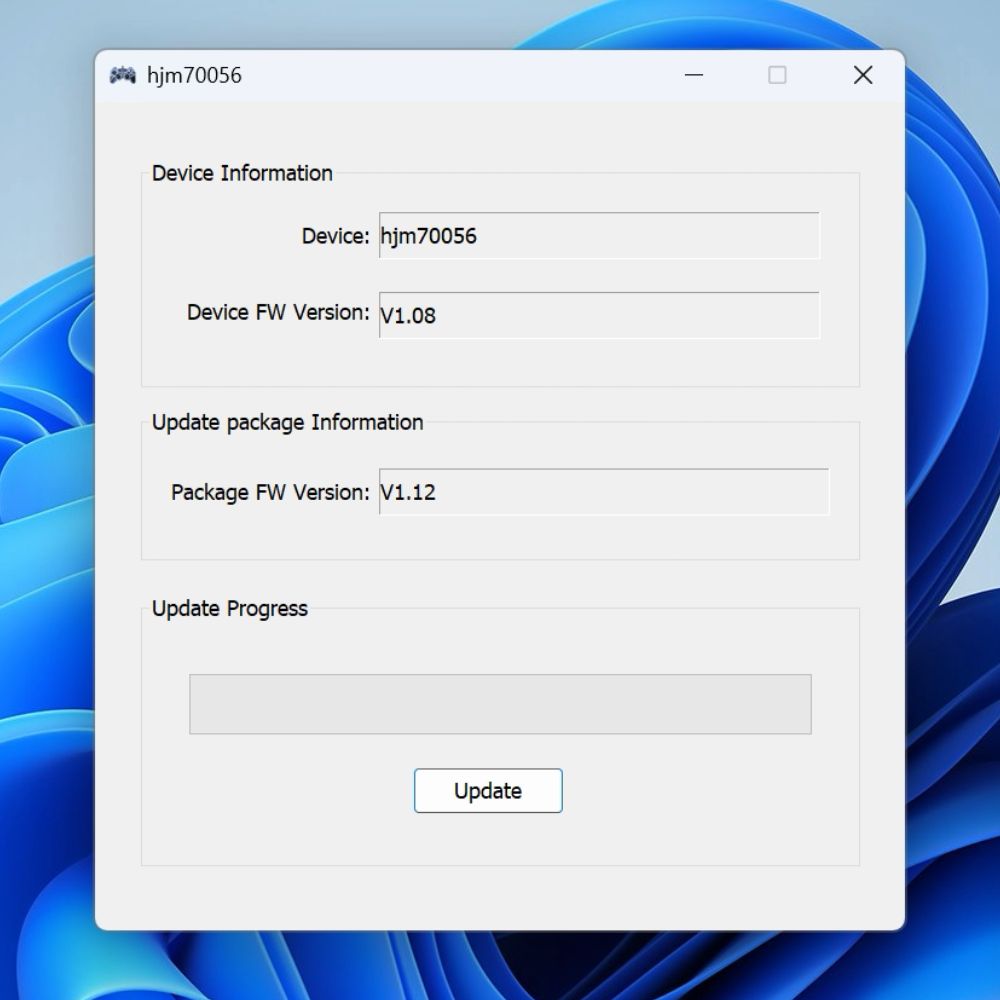
Following a brief pause, the utility will display the existing Device FW Version (v1.08 for this example) alongside the Package FW version that will be installed (v1.12 in this case).
Should the version digits vary, select the Update button to initiate the controller firmware installation.
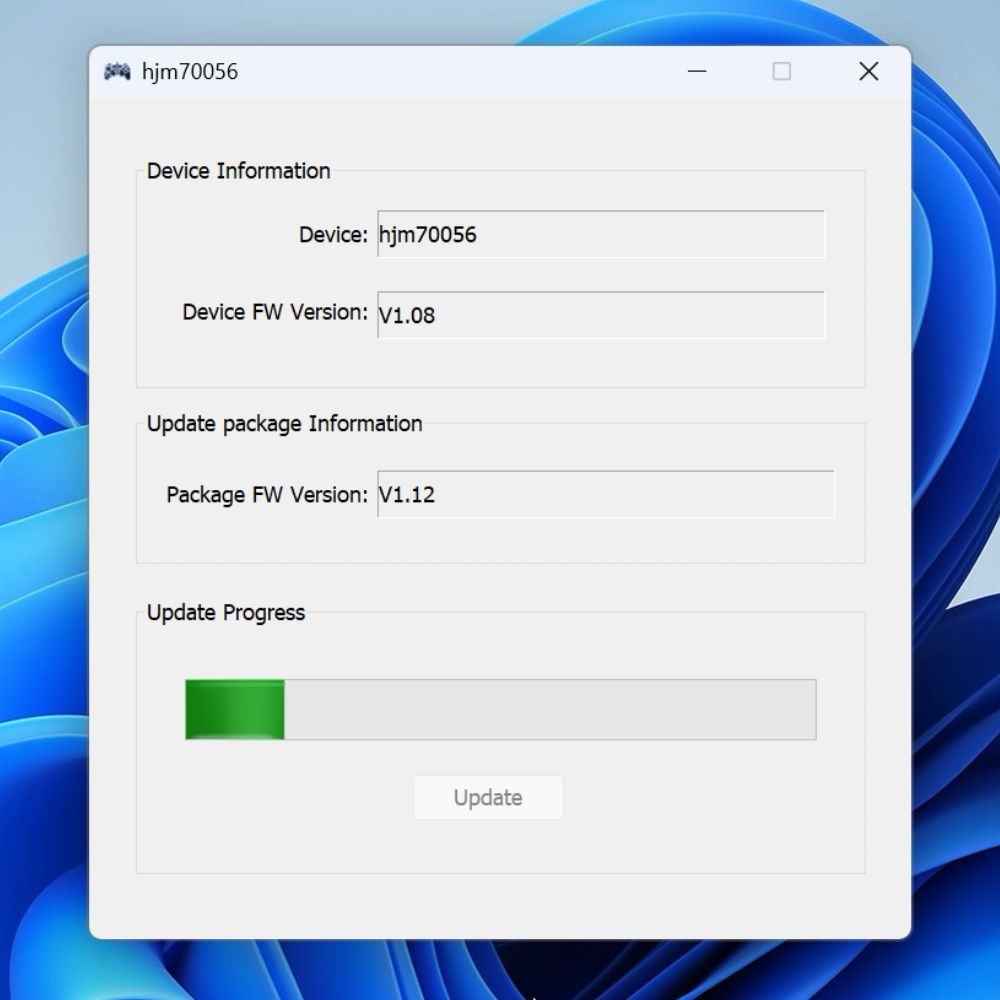
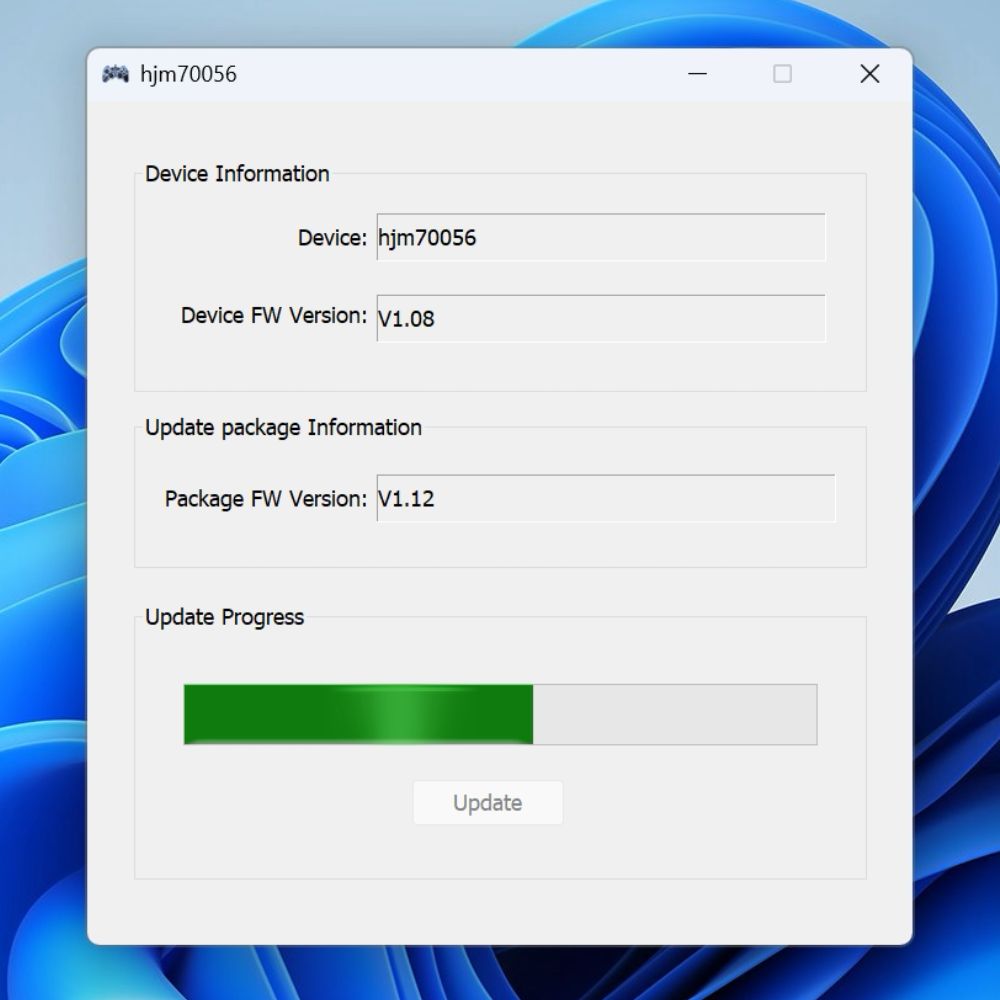
The procedure requires approximately sixty seconds to finish. It is vital that you do NOT power down the handheld, exit the program, or engage any buttons during this window.
Once the installation is finished, a confirmation message will appear on the screen.
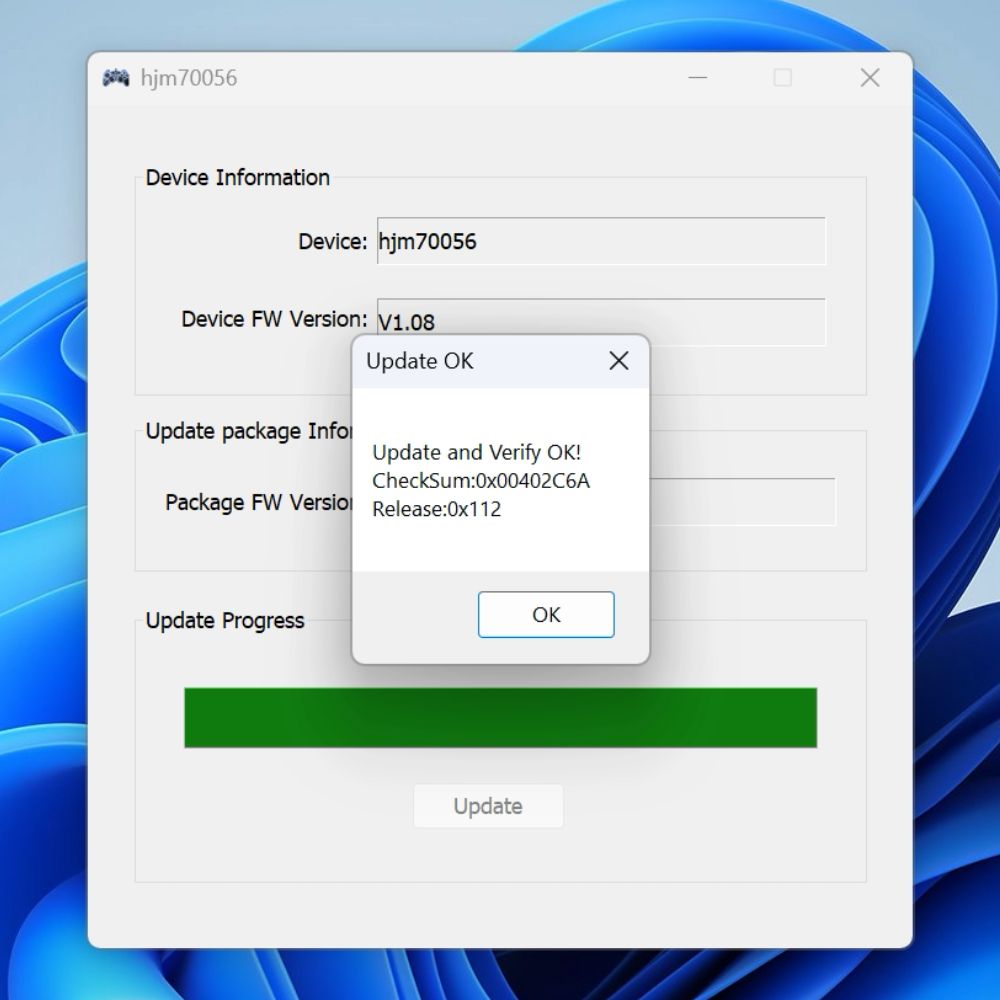
Select the OK button; the application will shortly refresh to indicate that the Device FW Version has successfully shifted to the newest release, which is v1.12 here.
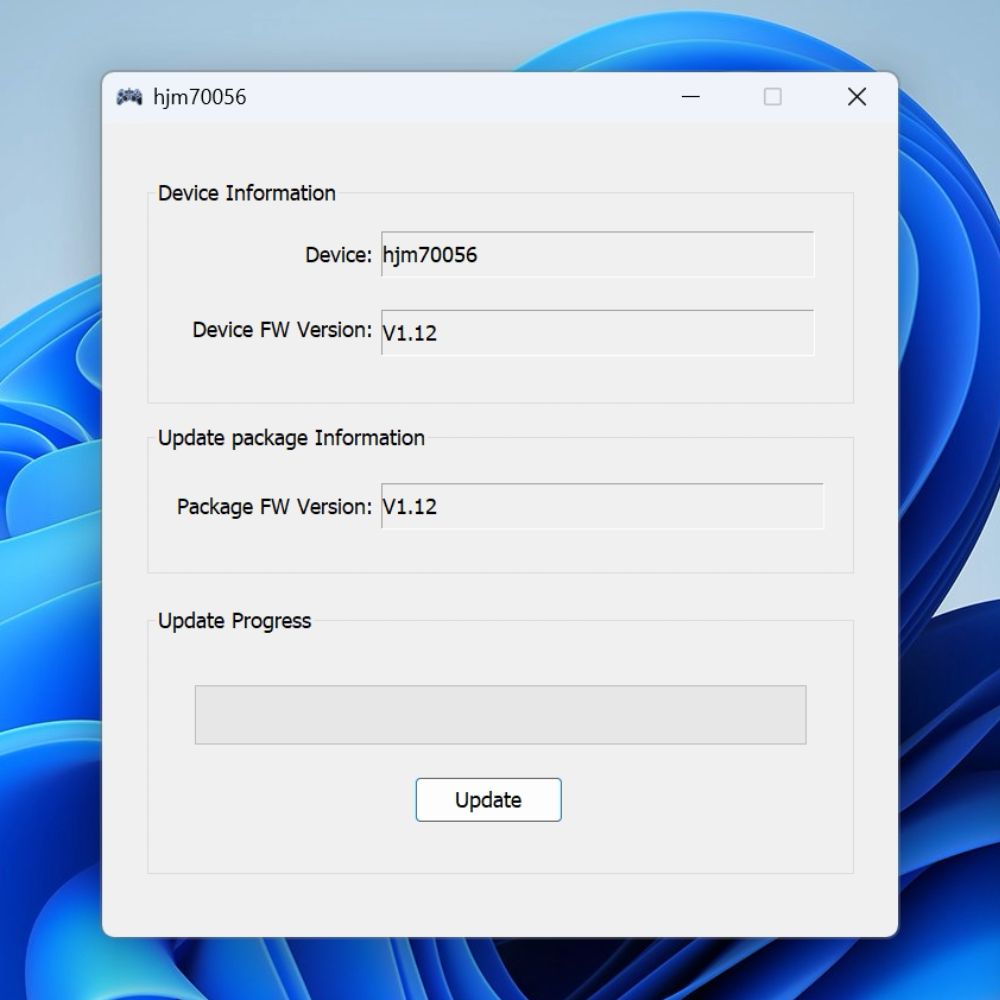
The program can now be exited. It is recommended that you restart the system once before resuming normal use of your GPD WIN 5.
Questions on this guide
2 answeredController says unknown device and sometimes it say firmware is 1.24

I dont think we have experienced this issue before. If you purchased it from us at GPD Store, please email [email protected] with your order number and some details and our tech support can look into this further. Thanks.
Is there anything like this for Linux?
Unfortunately not. Only a Windows based update is available.