How to update the GPD WIN 5 BIOS
Keeping your GPD WIN 5 firmware up to date is essential for ensuring system stability, fixing bugs, and ensuring your handheld performs at its best. While updating the BIOS can sometimes feel intimidating, GPD has streamlined the process into a semi-automated routine. We have create an easy to follow step by step guide on how to update the GPD WIN 5 BIOS.

GPD WIN 5 Gaming Handheld PC
Please note that while BIOS updating is generally fine, there are risks. Please ensure you follow all steps correctly, identify that you are installing the correct BIOS for your device, have a fully charged battery and also connected to a charger. Do not switch off the device unless instructed to. We do not accept responsibility if something goes wrong.
Download the BIOS update
Download the GPD WIN 5 BIOS update here and extract the contents of it to your GPD WIN 5. You will see a file named similar to BIOS_WIN5_V2.25_GPD.exe depending on the BIOS version number.
Changes in v2.25 are:
- Upgrade codebase to PI1.0.0.2a_110 from PI1.0.0.2_109.
- Update DDR ID mapping.
BIOS Update First Stage
Run the BIOS_WIN5_V2.25_GPD.exe file, after a few moments a text screen will appear with some information and a prompt to press any key to continue. Please read the information and follow the advice. Ensure your GPD WIN 5 is powered via the DC Jack and has the battery connected. Once you are ready, press any key to continue.

The software will now run a few checks to ensure everything is OK. This process shouldnt take more than a few minutes.

Once the process has completed, you will be prompted to choose YES or NO to reboot the GPD WIN 5 and continue with the BIOS update. Type Y or N to continue or cancel.

BIOS Update Second Stage
The GPD WIN 5 will now reboot to the BIOS update screen. It will take a few moments for the procedure to start, it may look like it is not doing anything, but let it run.

The BIOS update will then begin. This procedure will take a few minutes and show the progress on screen. It is vital that you do not switch off the GPD WIN 5 or touch any controls etc while this process is running.


After the process is completed, the GPD WIN 5 will reboot and show a black screen for a minute or two. Again, do not switch off the GPD WIN 5 or touch any controls etc while this process is running. Once the process has completed, the GPD WIN 5 will shut down. You will likely hear the fan speed/noise stop when it has powered off.

BIOS Update Third Stage
Once you have confirmed the GPD WIN 5 is fully powered off. Press and hold the power button for a few seconds to power it back on. The boot process will take a short while longer than usual while it performs some checks and updates. Do not switch off or press any buttons during this period.

Once completed Windows will load as normal and you can continue to use your GPD WIN 5.

Checking the BIOS version
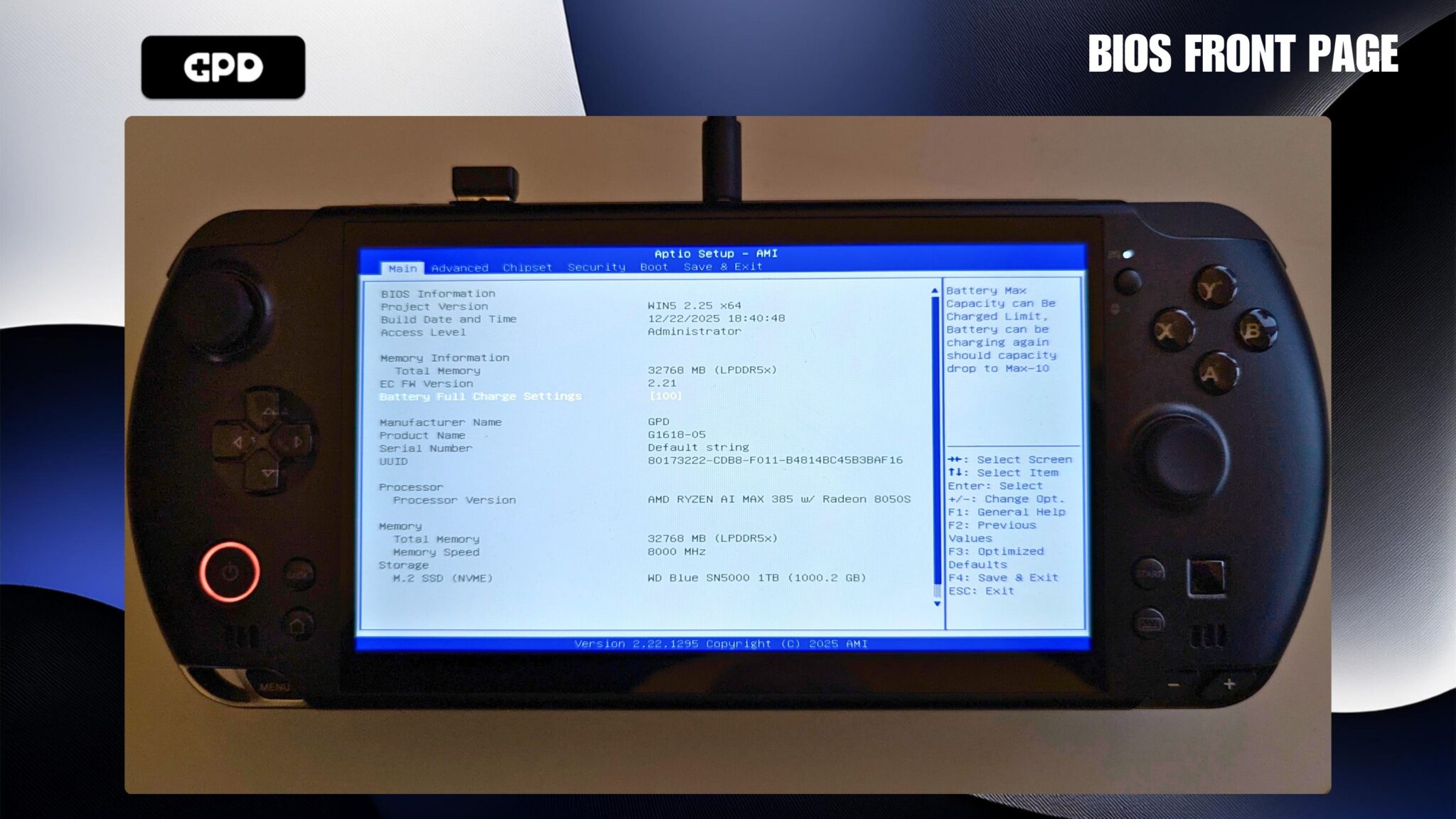
You can confirm the BIOS version from the BIOS. You will need an external keyboard connected and tap the ESC key immediately powering on the GPD WIN 5. The BIOS version can be found on the Project Version (WIN5 2.25 x64 in image) and EC FW Version (2.21 in image).
Questions on this guide
4 answeredHow do I update inside Bazzite?

It’s an .exe file, these are Windows executables. We recommend sticking to Windows if this is your first handheld, and as you get more used to the terminology, etc – Consider moving to Linux-based distros, such as Bazzite
-CS
Firmware update doesn’t take. Starting with 2.21 FW, stays on 2.21 FW when updating to 2.23 and Linux still doesn’t work (so it’s not just mislabeled).

To confirm, the EC firmware will show as 2.21, the Project version will show as 2.23 after both updates have completed. Check the BIOS screenshot at the end of the guide, it should look similar.
mine just shuts down after I said yes 🙁
It should reboot afterwards and go to the update screen after a few moments. If you are still having issues then please contact our customer service with your order number and some details at [email protected]. Thanks.
Test comment

test repluy