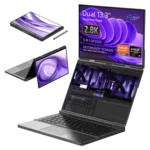
Kom i gang med GPD Duo
Welcome to our guide on getting started with the GPD Duo. The GPD Duo is a state-of-the-art mini laptop that merges the power of a desktop with the convenience of a pocket-sized device. Equipped with the AMD Ryzen AI 9 HX 370 processor and AMD Radeon 890M, this compact powerhouse delivers remarkable performance in a small form factor.
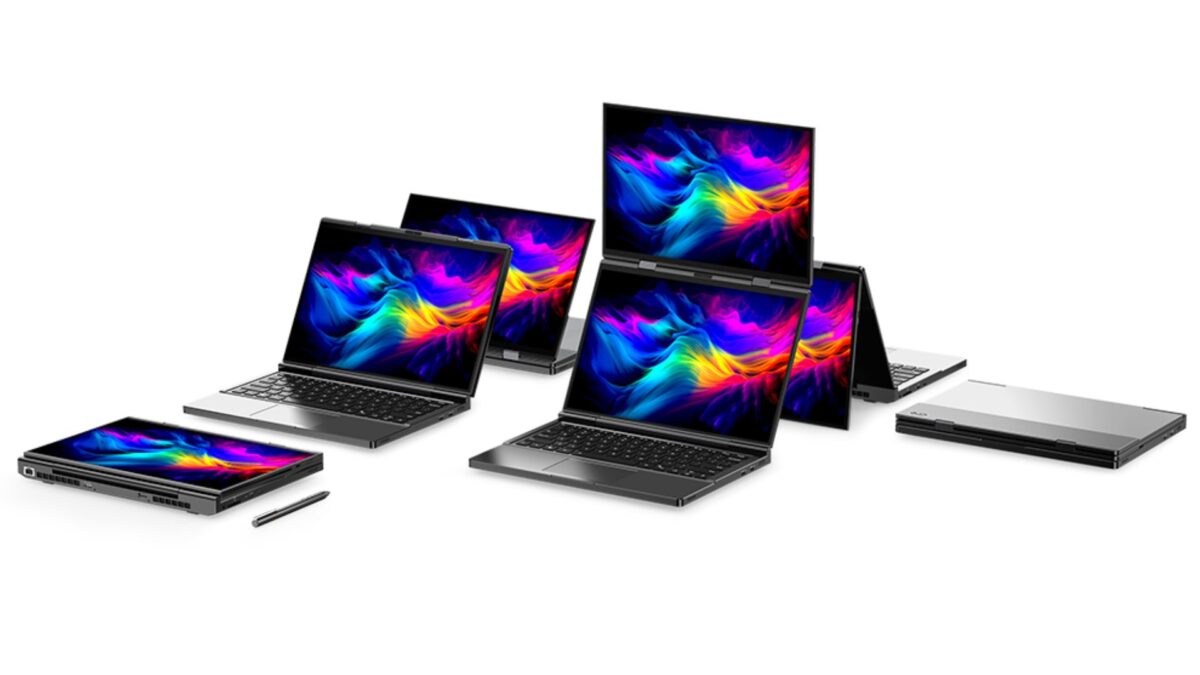
GPD Duo er designet for profesjonelle og teknologientusiaster som trenger en fullt funksjonell Windows-PC i en ultrabærbar innpakning, og har to 13,3-tommers berøringsskjermer og et komplett tastatur. Med sin robuste maskinvare og tilpasningsdyktige form henvender GPD Duo seg til brukere som krever høy ytelse og allsidighet i en datamaskin i lommeformat.
Our getting started with the GPD Duo guide is here to ensure you hit the ground running with your new GPD Duo, from initial hardware checks and software updates to optimizing your productivity and troubleshooting common issues. This guide will help you make the most of your ultra-mobile PC, whether you’re using it for work, entertainment, or on-the-go computing tasks.
Inspeksjon av GPD Duo
Når du mottar GPD Duo, anbefaler vi at du foretar en grundig inspeksjon for å kontrollere at alt fungerer som forventet:
- Undersøk kabinettet på enheten: Se etter sprekker, bulker eller skader som kan ha oppstått under transporten. Vær nøye med muslingeskallkonstruksjonen og hengselmekanismen.
- Test alle tastene på tastaturet: Bruk https://keyboard-test.space/ for å bekrefte at alle tastene på tastaturet fungerer som de skal.
- Berøringsskjermens reaksjonsevne: Test hele berøringsskjermen for å sikre at den reagerer nøyaktig. Sørg for at du kan samhandle med alle deler av skjermen uten at det er noen områder som ikke reagerer.
- Kontroller skjermens foldemekanisme: Åpne og lukk skjermene for å kontrollere at de fungerer som de skal, og at skjermen holder seg på plass i ulike vinkler.
- Test USB-portene: Koble til standard USB-enheter for å kontrollere at alle portene fungerer som de skal.
- Kontroller lydutgangen: Test både høyttalerne og 3,5 mm-lydporten for å sikre klar lydkvalitet.
- Test Wi-Fi og Bluetooth: Bekreft at Wi-Fi 6E- og Bluetooth-tilkoblingene fungerer som forventet.
By thoroughly inspecting your GPD Duo, you can ensure all components are working correctly and quickly address any potential issues. If you encounter any problems, the GPD Store offers full support. Simply visit our Contact Us page and reach out for assistance.
Oppdatering av GPD Duo Windows og drivere
Oppdatering av Windows 11
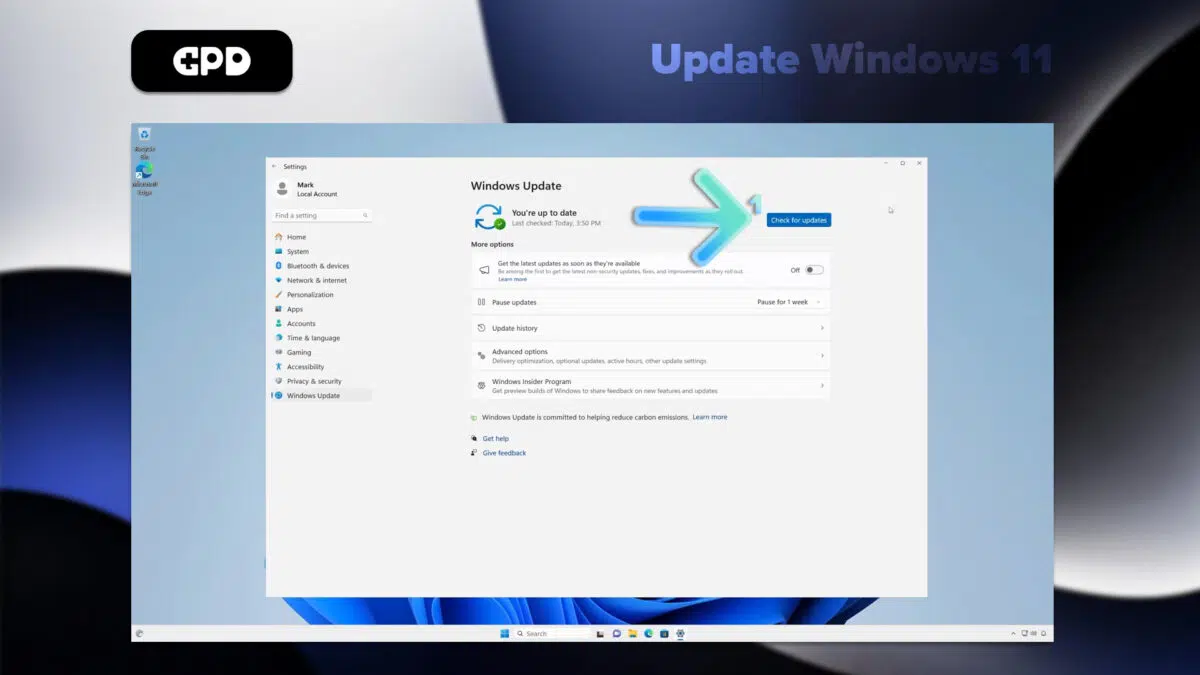
Keeping your GPD Duo updated is essential for ensuring peak performance and security. Here’s how to check for and install Windows 11 updates:
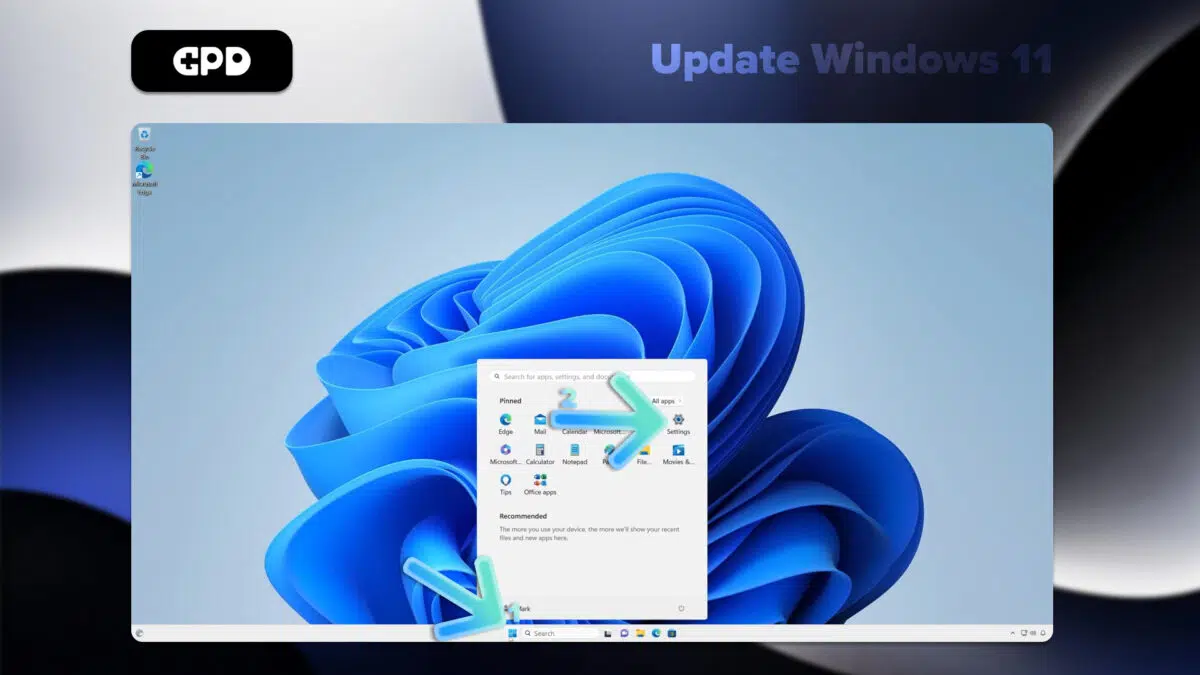
Åpne Start-menyen ved å klikke på Windows-ikonet eller trykke på Windows-tasten.
Velg Innstillinger-ikonet (tannhjulsymbolet) eller skriv “Settings” i søkefeltet og trykk på Enter.
I vinduet Innstillinger klikker du på “Windows Update” i venstre sidefelt.
Klikk på knappen “Se etter oppdateringer” for å se om det finnes tilgjengelige oppdateringer.
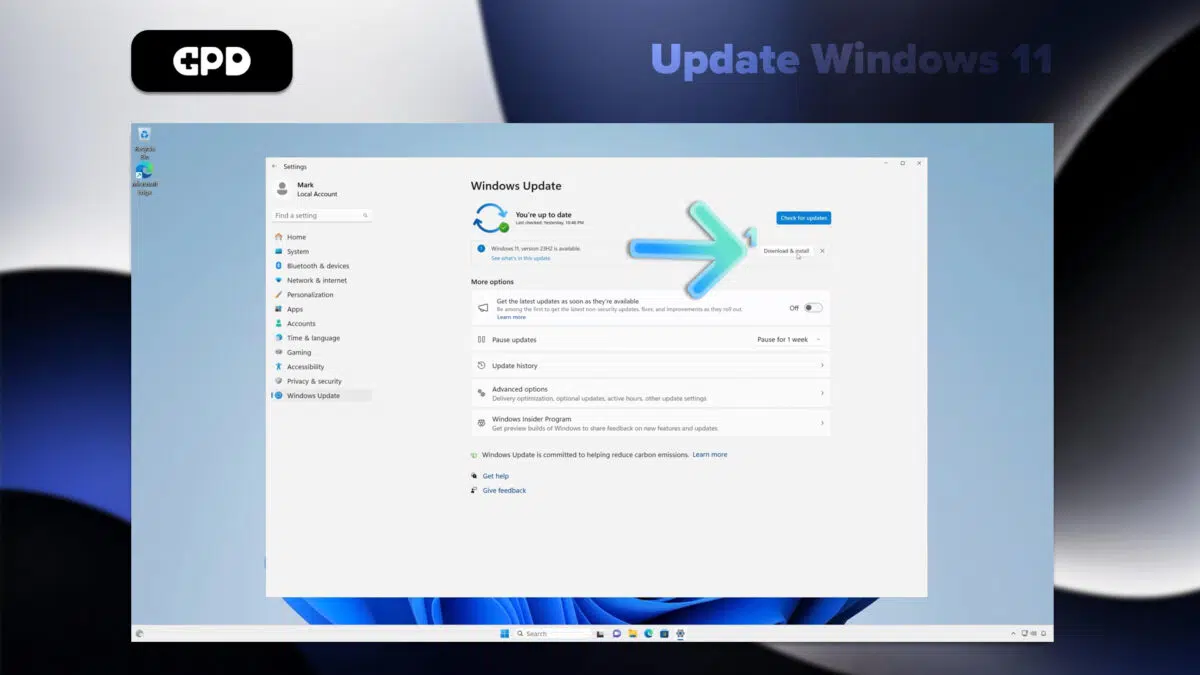
If updates are found, Windows will automatically begin downloading them.
Once downloaded, you may need to restart your GPD Duo to complete the installation.
Note: Your GPD Duo is set to automatically check for updates, but it’s a good habit to manually check periodically. You can also customize update settings by clicking “Advanced options” in the Windows Update menu.
Oppdatering av drivere på GPD Duo
Via Windows Update
Den enkleste måten å sikre at de fleste driverne er oppdaterte, er å bruke Windows Update:
Åpne Start-menyen, og velg Innstillinger (tannhjulikonet).
Velg “Windows Update” i venstre sidefelt.
Klikk på “Se etter oppdateringer”.
Windows vil automatisk laste ned og installere alle tilgjengelige driveroppdateringer sammen med systemoppdateringer.
Via Enhetsbehandling
For mer spesifikke driveroppdateringer:
Høyreklikk på Start-knappen og velg “Enhetsbehandling”.
Utvid kategorien for enheten du vil oppdatere.
Høyreklikk på enheten og velg “Oppdater driver”.
Velg “Søk automatisk etter drivere”.
Oppdatering av AMD-drivere
Siden GPD Duo bruker AMD-prosessorer, kan du oppdatere GPU- og brikkesettdrivere ved hjelp av AMDs Auto-Detect-verktøy: Vi har en mer detaljert veiledning om AMD-grafikkdrivere her.
Last ned og installer AMD Auto-Detect and Install Driver Updates fra AMDs offisielle nettsted.
Kjør programvaren, og følg instruksjonene for å velge hvilke drivere du vil oppdatere.
Merk: Last alltid ned drivere fra offisielle kilder for å sikre systemets stabilitet og sikkerhet. Windows Update dekker de fleste viktige drivere, men ved å bruke AMDs verktøy sikrer du at AMD-spesifikke komponenter er optimalisert for din GPD Duo.
GPD Duo Video-inngang
GPD Duos toppskjerm kan fungere som en bærbar skjerm og ta imot video via USB-C. Finn ut mer i vår GPD Duo-videoinngangsveiledning her.
Programvare du må ha for GPD Duo
To get the most out of your GPD Duo, consider installing the following applications:
Ytelsesoptimalisering
GPD MotionAssist: Konfigurer TDP-innstillinger, gyrokontroller og andre enhetsspesifikke funksjoner.
Spill
Steam: En viktig plattform for PC-spill med et stort bibliotek av titler som er kompatible med Duo.
RetroArch: En emulator for klassiske spill fra ulike konsoller.
Produktivitet
Microsoft Office eller LibreOffice: For redigering og oppretting av dokumenter.
OneNote: Ideell for å ta notater, spesielt med berøringsskjermen.
Underholdning
VLC Media Player: En allsidig mediespiller som støtter ulike video- og lydformater.
Verktøy
7-Zip: For komprimering og utpakking av filer.
ShareX: Et kraftig verktøy for skjermbilder og skjermopptak.
Utvikling
Visual Studio Code: En lett og allsidig kodeditor som egner seg for utvikling på farten.
Sikkerhet
Malwarebytes: Tilbyr ekstra beskyttelse mot skadelig programvare og virus.
Tilpasning
AutoHotkey: Nyttig for å lage egendefinerte tastatursnarveier og makroer, spesielt på det kompakte tastaturet på Duoen.
Påminnelse: Juster innstillingene i spillet for optimal ytelse, og balansér grafikk og bildefrekvens for å få den beste opplevelsen på GPD Duo.
Tilbehør du må ha til din GPD Duo
GPD G1 eGPU-dokkingsstasjon
GPD G1 er et kraftig tilbehør som er utviklet for å heve ytelsen til GPD Duo. Med en ekstern GPU og utvidede tilkoblingsmuligheter forvandler den GPD Duo til et system i skrivebordsklassen, perfekt for spill og produktivitet.
GPD G1 er utstyrt med AMD Radeon RX 7600M XT GPU og leverer grafikkraft på skrivebordsnivå, noe som gjør at enheten enkelt kan håndtere krevende spill og applikasjoner.
Dokkingstasjonen har flere alternativer for skjermutgang, inkludert HDMI 2.1 og DisplayPort 1.4a, noe som muliggjør oppsett med flere skjermer og gir jevne spillopplevelser med høy oppdateringsfrekvens.
I tillegg til forbedret grafikk har GPD G1 ekstra USB-porter og en høyhastighets SD-kortleser, noe som utvider tilkoblings- og lagringsmulighetene dine.
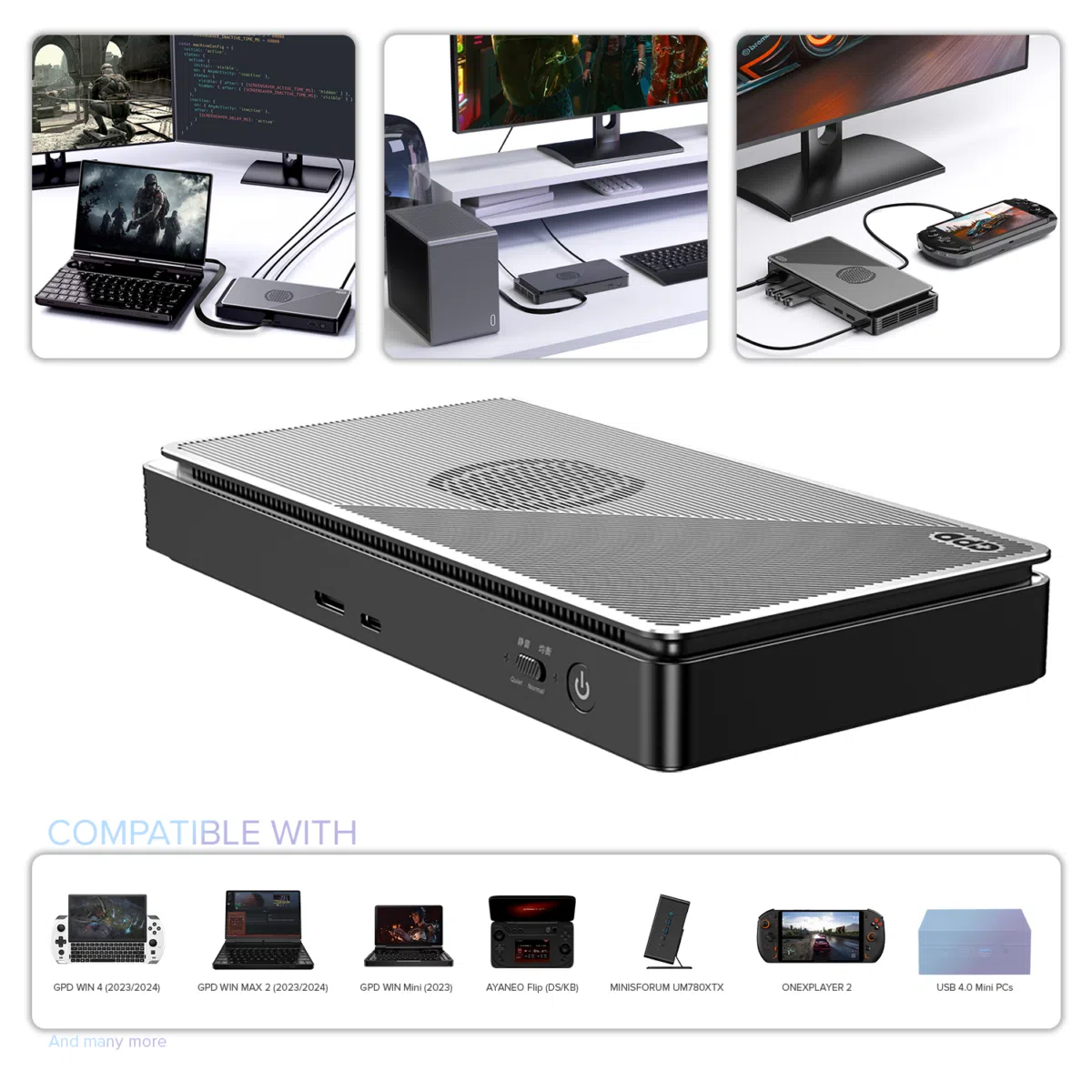
GPD G1 (2024) eGPU Docking Station
- GPU: AMD Radeon™ RX 7600M XT eGPU
- COMPATIBILITY: OCuLink, USB 4, Thunderbolt 3 & 4
- OCULINK: PCI Express Connectivity
- USB 4: up to 40 Gbps
- Designed for: GPD WIN MAX 2, WIN 4, WIN Mini, ROG Ally X
Fleksible og sikre betalingsalternativer
We use the latest technology in Payment Processing, which allows you to checkout via your Debit/Credit Card, or PayPal for a fast and secure experience.
2 års garanti på alle GPD-produkter
2 Years Warranty from DROIX Global for your peace of mind
QUALITY ASSURANCE & PRE-DISPATCH TESTING
Ensuring Customer Satisfaction at the Highest Standard: Every device undergoes rigorous testing and a multi-point quality assurance check before it is shipped. Our dedicated team verifies performance, functionality, and component integrity to guarantee your GPD device is in perfect working order upon arrival, providing you with confidence and peace of mind.
Priser, avgifter og frakt
Note:
- United States Customers: The displayed price does NOT include TAX nor duties. Liability to clear customs and pay any associated tax/duties lies on the customer.
- EU Customers: The displayed price includes applicable TAX, which may be up to 25% depending on your country.
- Canada Customers: The displayed price includes applicable taxes, which may include 5% GST and additional Provincial Sales Taxes (PST), Harmonized Sales Tax (HST), or Quebec Sales Tax (QST), depending on your province.
For EU Customers ONLY: Express DDP (Delivered Duty Paid). This means:
- All customs duties and taxes are included in the price displayed on the product page.
- You will not need to pay any additional charges upon delivery.
- In the rare event of customs-related issues, our team will handle the customs clearance process on your behalf to ensure a smooth delivery experience.
- If you decide to return your order or request a refund, please be aware that taxes and duties paid on your behalf under DDP terms cannot be refunded.
Important Information About Returns:
Please refer to our Terms & Conditions for detailed information.
Kundestøtte
Got a question? We’re a short text away from having your issue sorted!
Please refer to our Terms & Conditions for detailed information.
Hva er inkludert
- 1x GPD G1 2024
- 1x Power Adapter
- 1x USB Type-C Cable
- 1x User Manual
GPD Stylus
GPD Stylus er et allsidig og godt utformet tilbehør, designet for å utfylle GPD-modeller som GPD Duro, Pocket 3 og Win Max 2, og er kompatibel med andre bærbare datamaskiner og nettbrett. Den er laget av en slitesterk aluminiumslegering og har en ergonomisk, lett design som gir et komfortabelt grep, noe som gjør den ideell for langvarig bruk.
Med en høysensitiv, trykkfølsom spiss på 4096 nivåer laget av myk gummi gir pennen presis kontroll, enten du skriver notater, lager illustrasjoner eller redigerer bilder. Den avanserte trykkfølsomheten gir en jevn, naturlig interaksjon som føles like intuitiv som å skrive på papir, med detaljert kontroll for både fine og tykke linjer. I tillegg beskytter gummispissen skjermen mot riper, slik at den holdes ren og i utmerket stand.
GPD Stylus er bærbar og praktisk, og har en spenne på toppen som gjør det enkelt å feste den i lommer eller vesker, noe som gjør den praktisk å ha med seg. Enten du navigerer i apper eller lar kreativiteten flyte, gir denne pennen en sømløs blanding av funksjonalitet og bekvemmelighet, noe som forbedrer opplevelsen din med alle GPD-enheter.

GPD Stylus for GPD Pocket 3 & WIN MAX 2
- Works with GPD Pocket 3 & GPD WIN MAX 2
- 4096-level Pressure Sensitivity
- Sleek & Ergonomic
- Metal Buckle
- Memo writing and character input
Fleksible og sikre betalingsalternativer
We use the latest technology in Payment Processing, which allows you to checkout via your Debit/Credit Card, or PayPal for a fast and secure experience.
2 års garanti på alle GPD-produkter
2 Years Warranty from DROIX Global for your peace of mind
QUALITY ASSURANCE & PRE-DISPATCH TESTING
Ensuring Customer Satisfaction at the Highest Standard: Every device undergoes rigorous testing and a multi-point quality assurance check before it is shipped. Our dedicated team verifies performance, functionality, and component integrity to guarantee your GPD device is in perfect working order upon arrival, providing you with confidence and peace of mind.
Priser, avgifter og frakt
Note:
- United States Customers: The displayed price does NOT include TAX nor duties. Liability to clear customs and pay any associated tax/duties lies on the customer.
- EU Customers: The displayed price includes applicable TAX, which may be up to 25% depending on your country.
- Canada Customers: The displayed price includes applicable taxes, which may include 5% GST and additional Provincial Sales Taxes (PST), Harmonized Sales Tax (HST), or Quebec Sales Tax (QST), depending on your province.
For EU Customers ONLY: Express DDP (Delivered Duty Paid). This means:
- All customs duties and taxes are included in the price displayed on the product page.
- You will not need to pay any additional charges upon delivery.
- In the rare event of customs-related issues, our team will handle the customs clearance process on your behalf to ensure a smooth delivery experience.
- If you decide to return your order or request a refund, please be aware that taxes and duties paid on your behalf under DDP terms cannot be refunded.
Important Information About Returns:
Please refer to our Terms & Conditions for detailed information.
Kundestøtte
Got a question? We’re a short text away from having your issue sorted!
Please refer to our Terms & Conditions for detailed information.
Hva er inkludert
- 1x GPD Stylus
Questions on this guide
5 answeredIs there an Owner’s manual I can download?

The Duo comes with a quick start guide in the box. We do also have a Getting Started guide on our Knowledge Base at https://gpdstore.net/kb/gpd-duo-support-hub/kb-article/getting-started-with-the-gpd-duo/.
how do i turn off the back screen while using the laptop like normal
Press the F3 key to enable/disable the top display.
What are the default settings on the motion assist software
We took a screenshot of Motion Assist on first use and have uploaded it to https://droidbox.sharepoint.com/:i:/s/Purchasing/EcF-_BIvHldOla_X3dIW2oMBbpGY-ue1eJkWjy-zdcpO7A?e=GugBJN . I hope that helps.
My Duo keep restarting just got it this past Friday. Not sure what to do exactly. Do I need to reset it again? It’s extremely slow, glitch, stutters (flickers and flashes with a ton of lag just on desktop alone) a lot if it doesn’t restart then it will restartbefore getting to really change anything.
Have you installed any software recently that may be the cause of the slowdowns. Open Task Manager and view the Processes tab. Select the CPU column for programs that may be using a lot of CPU time in the background. It may also be worth checking the Disk column as well but this is less likely.
If you are still having an issue and you purchased it from GPD Store, please get in contact with our customer service at [email protected] with some details and they can look into the issue further and advise. Thanks.
When an external display is connected, all three screens, including the added screen, are cloned and no other settings can be selected. Is there a solution?
If you go to Display Settings by right clicking on the desktop. You should see the three monitors, just below are “Identify” and to the right “Duplicate this desktop on 2 or 3” or similar. Change this option to “Extend Desktop to this display”. You may need to click on the different monitors above and change them.

No. I just see two monitors when I connect external display. The OS seems to recognize the internal monitor as one monitor and displays a clone of it.
If you purchased it from us GPDSTORE, please email [email protected] with your order number and explain the issue that it is only cloning the desktops and not showing individual. Our customer service will be able to look into it further and advise. Thanks.
Unfortunately, no. I (exactly a staff of the department I belong to) purchased it from Amazon business. Do you believe that a hardware error is likely? Is there a possibility that initializing the OS will fix the problem?
I have not seen this issue before and if its displaying on the external monitor then you should be able to change it to show across all desktops. Are there any options if you go to Display settings, does it show all of the monitros, have you tried with another monitor in case that is the issue? and below the monitor graphics there will be identify and then to the right of that options such as Duplicate desktop, Extend desktop and Disconnect this display? You could try reinstalling Windows in case it fixes the issue, but you may need to conact the seller on Amazon for further support.